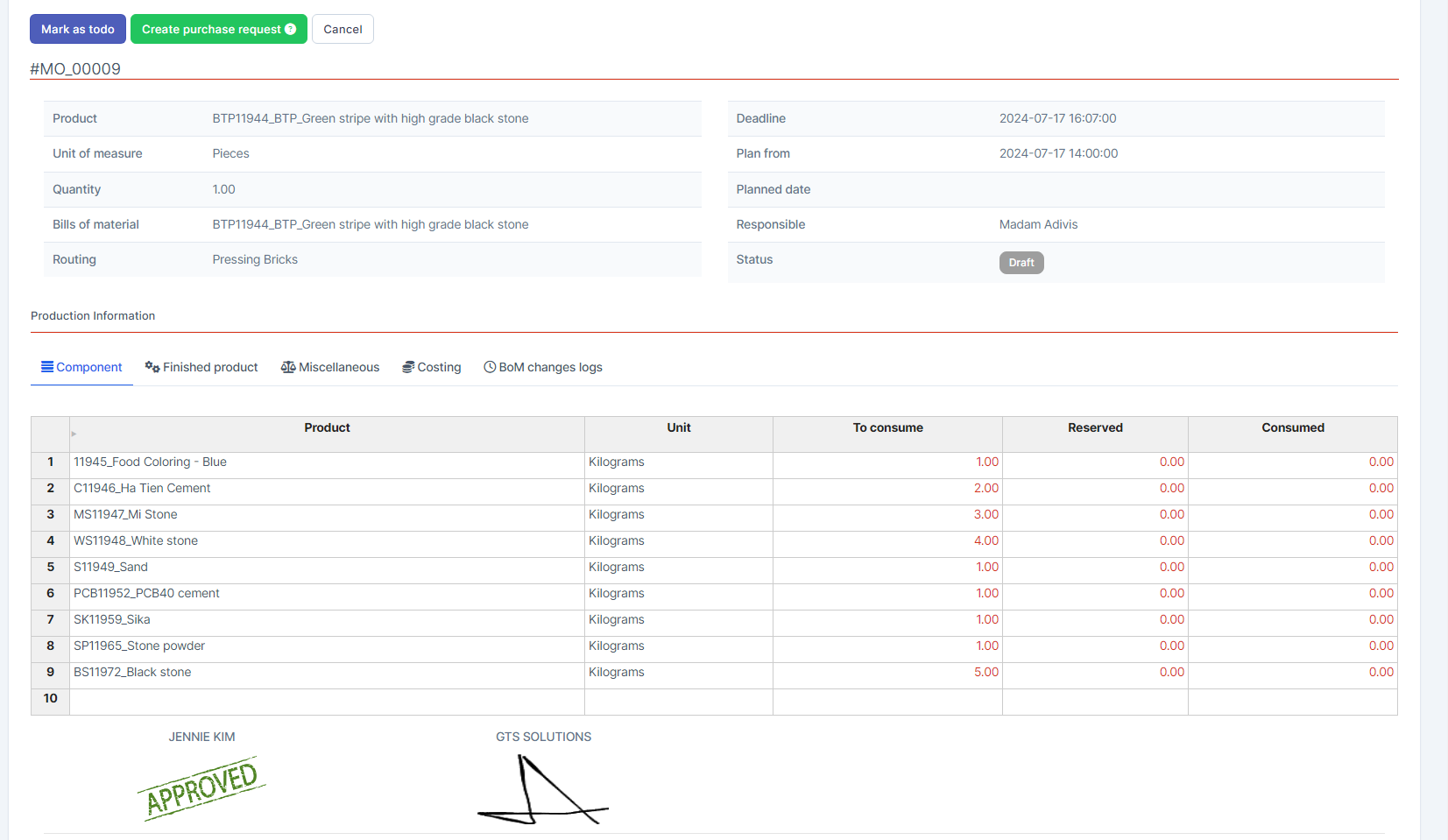
ნაბიჯი 1. Create approval setting
Go to პარამეტრები under the წარმოება module --> select Approval პარამეტრები menu --> select New approval setting. In the New approval setting page, fill the following details: 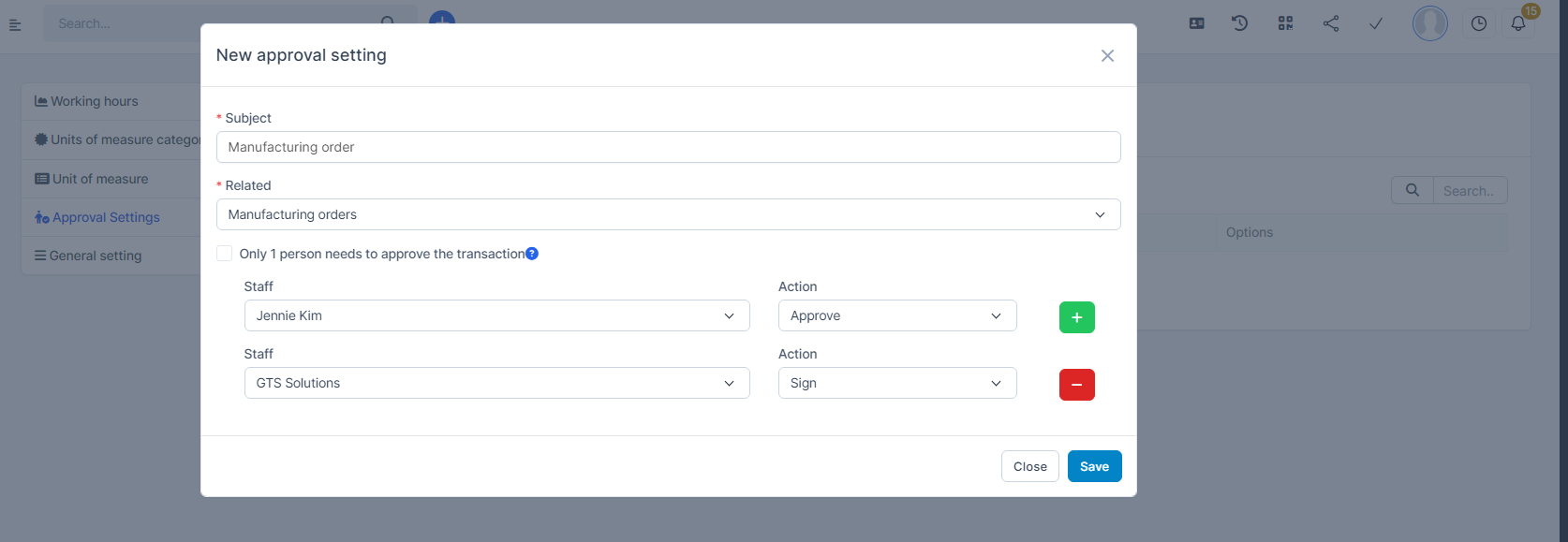
- თემა: Enter the subject of the approval process
- დაკავშირებული: select წარმოება orders
- თანამშრომლები: select the approvers
- ქმედება: select Approve or ხელმოწერა
- Click
 to add another approver to the processClick
  to remove a approver from the process
 - Check on "Only 1 person needs to approve the transaction" ( optional): - If checked, the approval will be completed when any one of the approvers approves.- If unchecked, the approval will be sequential: each approver must approve in the defined order. If any approver rejects the request, the approval process will stop, and the წარმოება რიგითობა (MO) will be marked as Rejected
- Click შენახვა button
ნაბიჯი 2. Create a manufacturing and proceed with approval
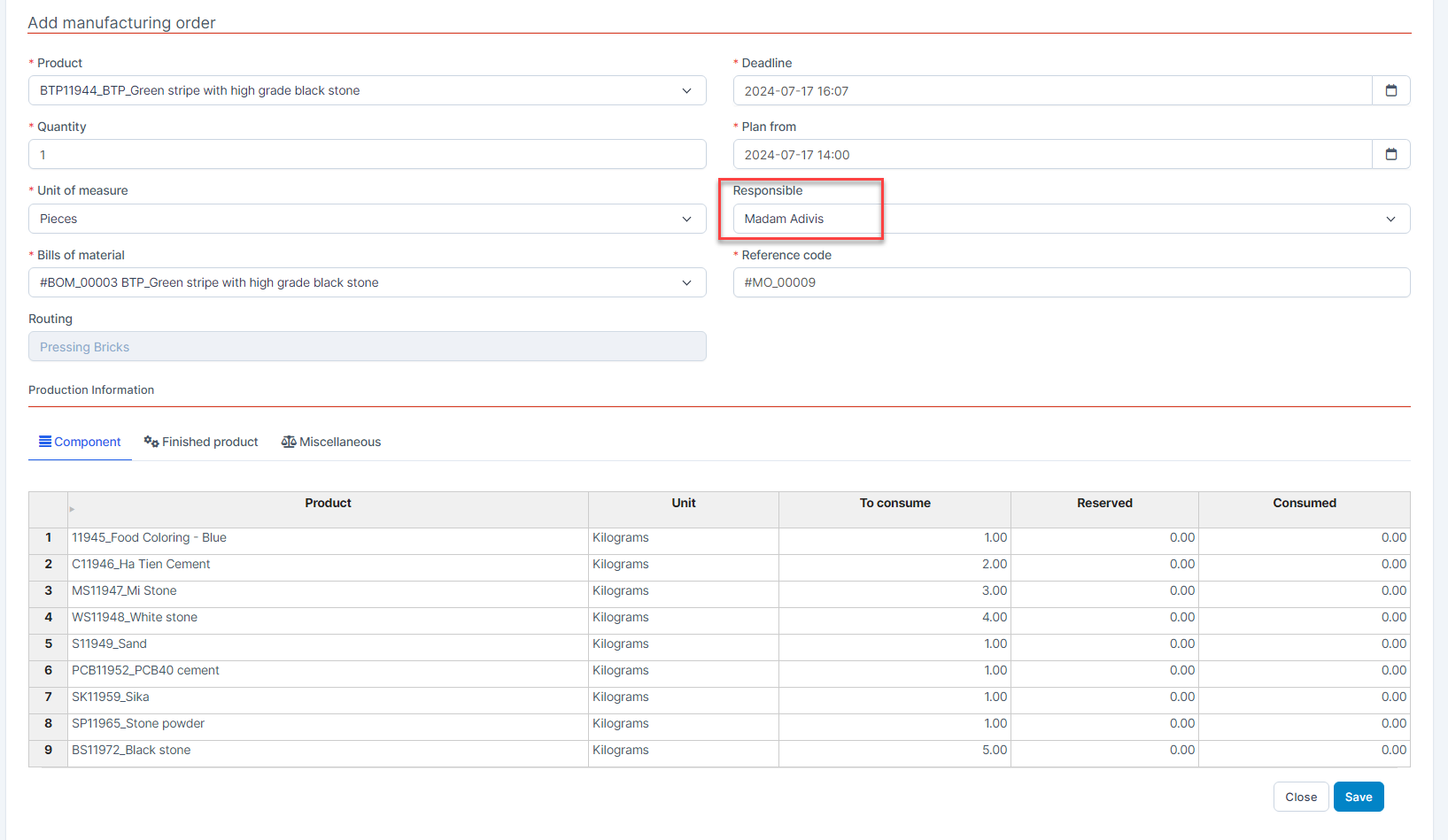
- Go to წარმოება orders under the წარმოება module --> select დამატება --> Fill in the required fields and select the responsible person --> save this manufacturing order.
- Click on Send a request for approval
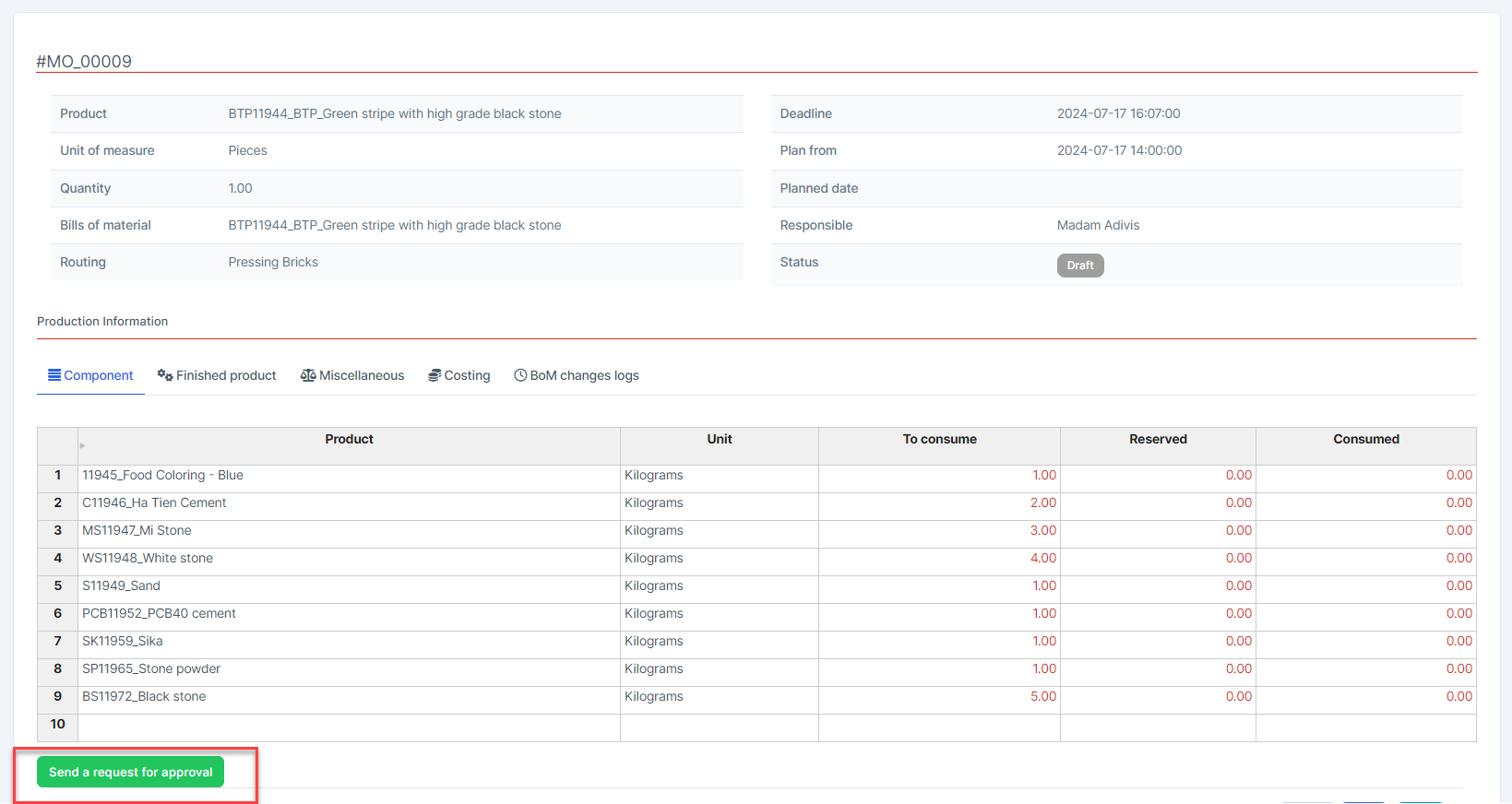 The person required to approve will receive a notification via email and web
 - Log in to Jennie Kim and click on დამტკიცება -> select დამტკიცება or Deny, here I will choose დამტკიცება
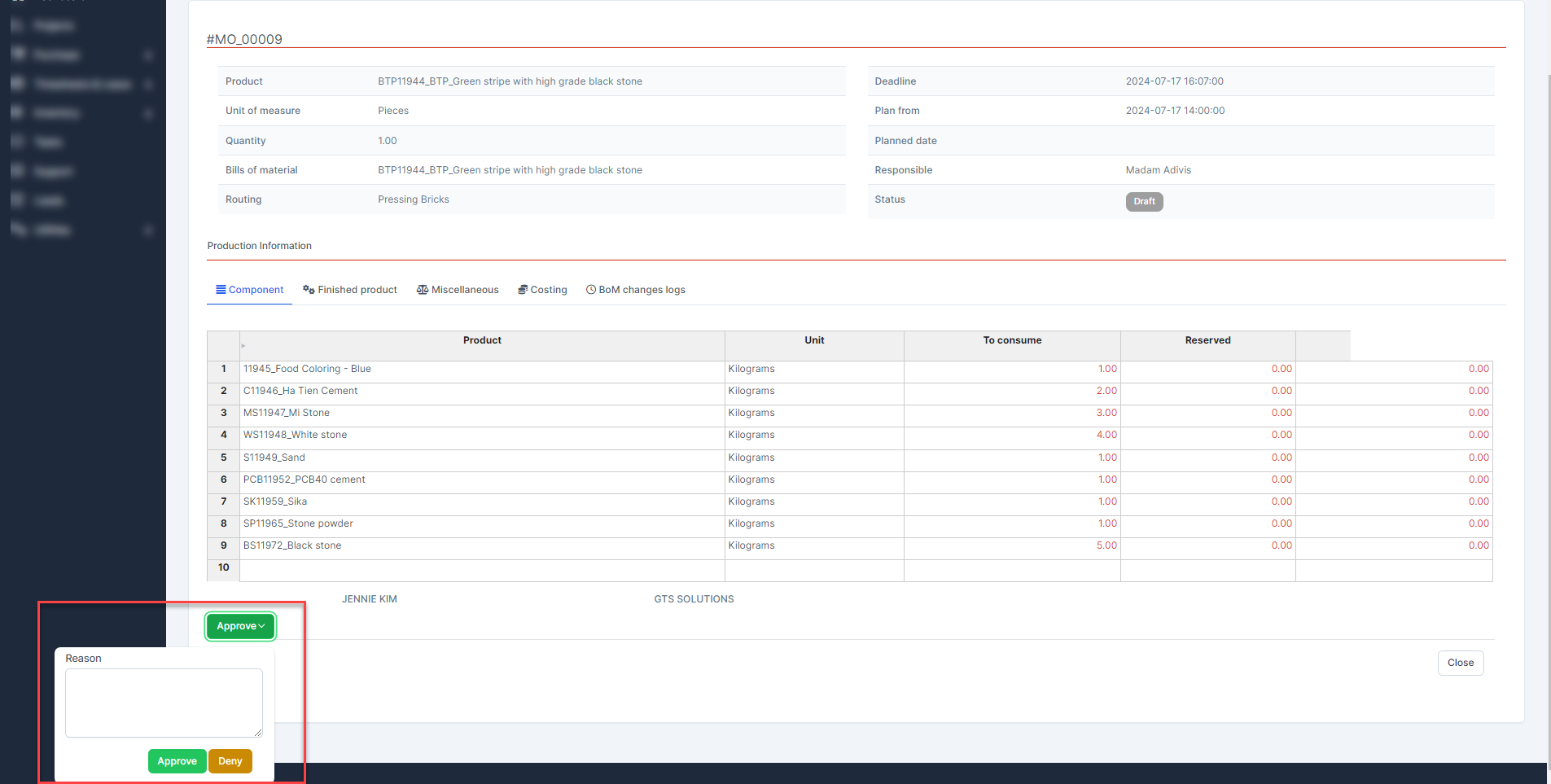 After the MO is approved by Jennie , the creator will receive a notification via email and web that the MO has been approved.
 - Next, log in to GTS Solution and draw a signature, then press ხელმოწერა
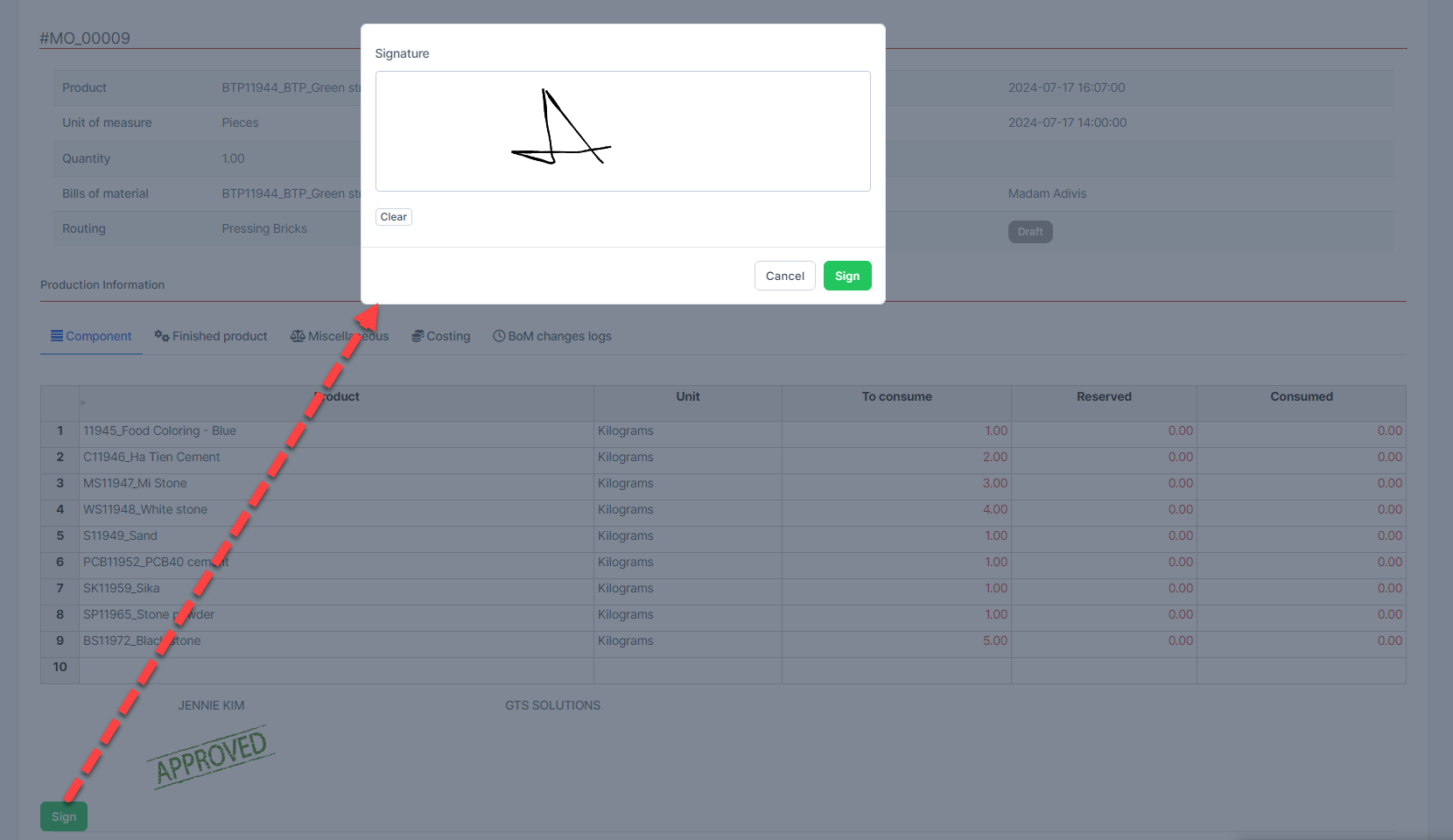 After the MO is signed by GTS, the creator will receive a notification via email and web that the MO has been approved.After the MO has the დამტკიცებაd status, the პასუხისმგებელი პირი will receive a notification via email and web that "You have a წარმოება order that needs to be processed"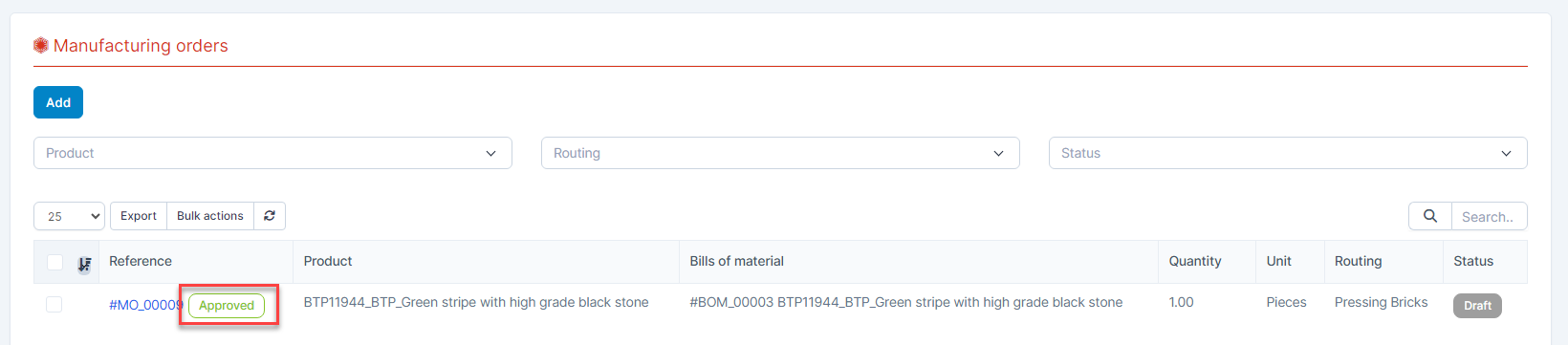
ნაბიჯი 3. After the MO has been approved, click "გასაკეთებლად მონიშვნა" to execute the MO. See related articles at https://helpcenter.gtssolution.vn/article/create-manufacturing-order-and-processing