In a huge firm, you buy many things and keep them in stock. Customers may request either a limited quantity of products or many products. In such cases, we must convert units.
Units of Measure Category: allows us to categorize units and make unit conversions easier.
For using Unit of Measure (UoM) first, we need to configure Unit of Measure category.
დამატება New Unit of Measute Category
To add a new unit of measure category to your organization:
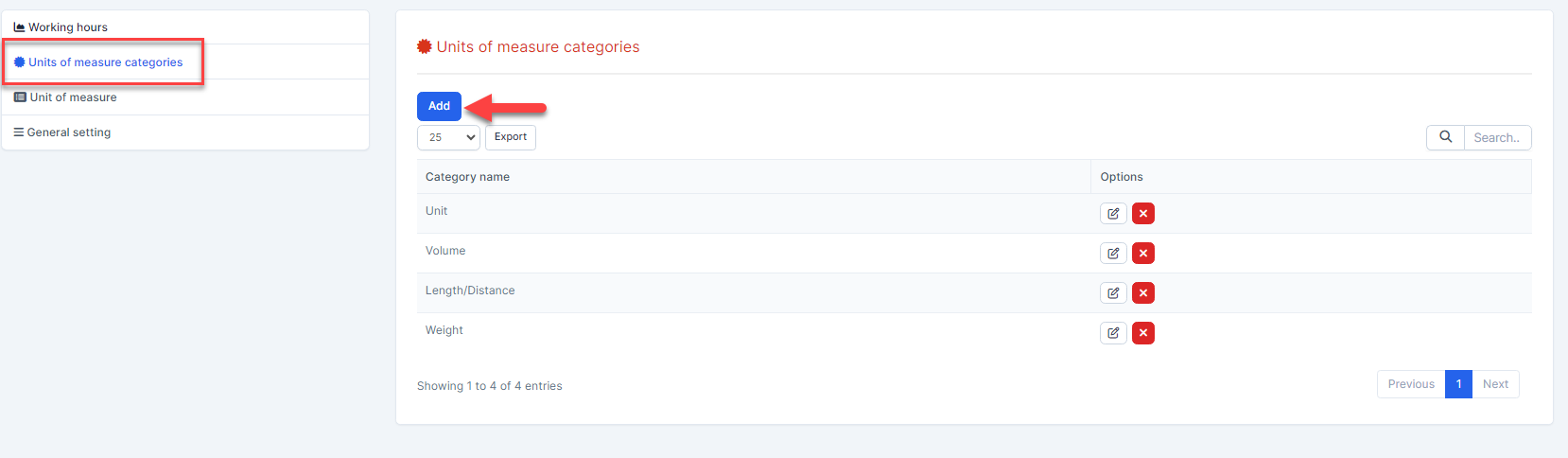
- ნაბიჯი 1. Go to პარამეტრები menu under წარმოება module from the left sidebar.
- ნაბიჯი 2. Select the გაზომვის ერთეულების კატეგორიები menu -> Click on the დამატება button on the top.
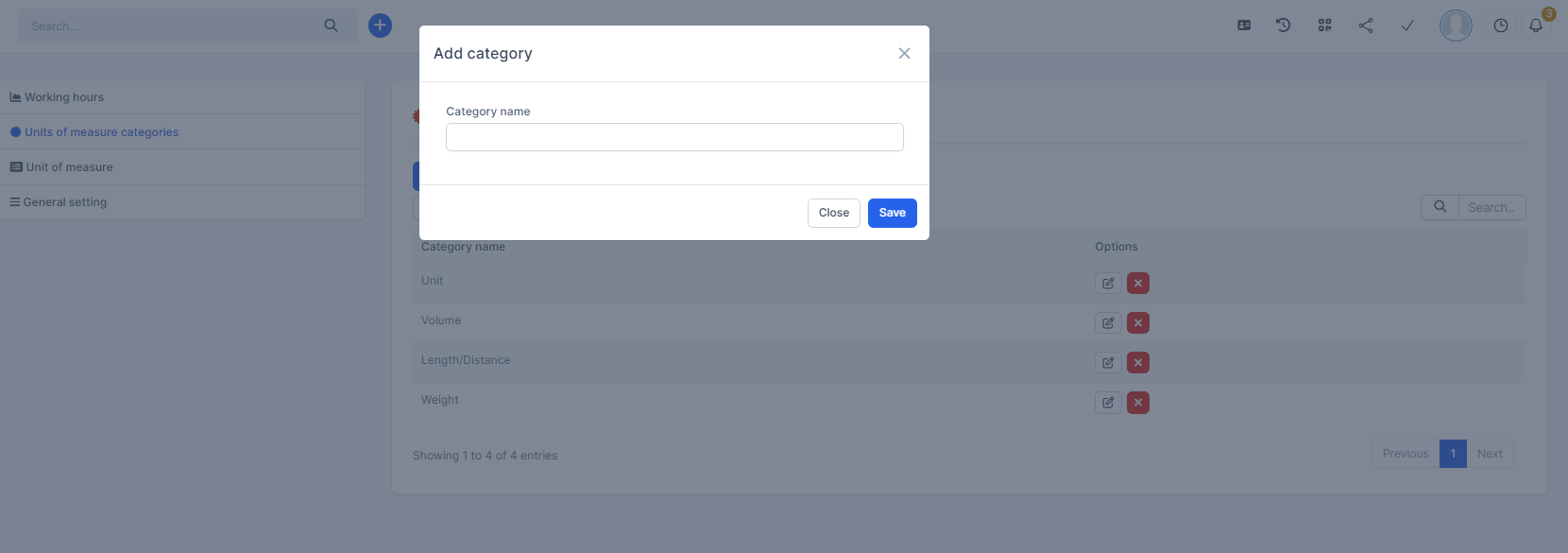
- ნაბიჯი 3. In the დამატება category popup, enter the Category name -> click შენახვა button
Create Unit of Measure
The data at this screen will be used for the მასალების უწყისი, წარმოება order and პროდუქტები menu.
To add a new unit of measure to your organization:
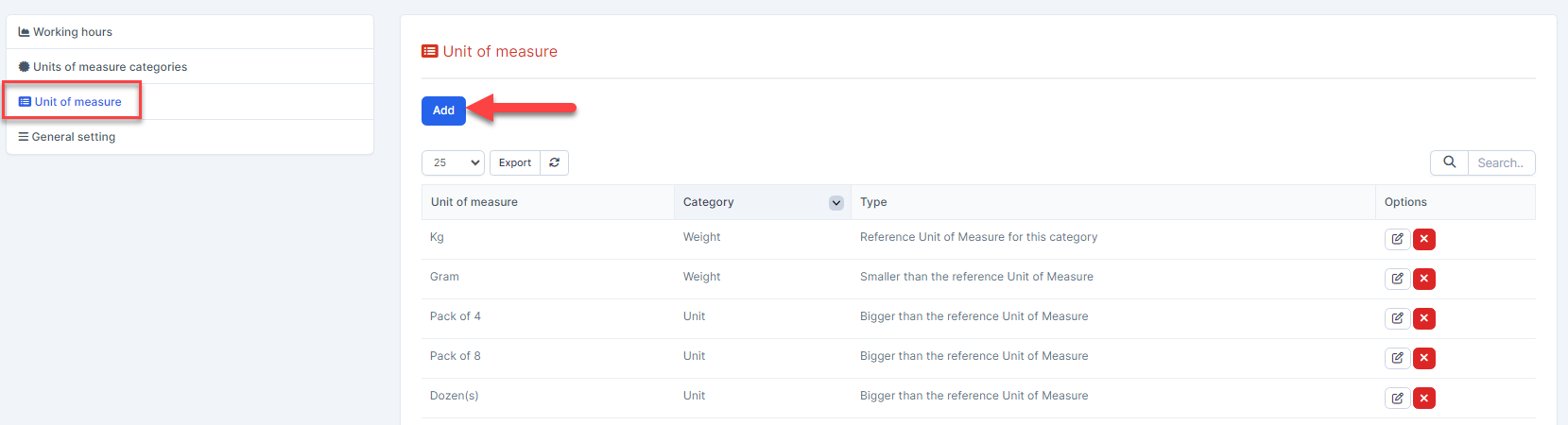
- ნაბიჯი 1. Go to პარამეტრები menu under წარმოება module from the left sidebar.
- ნაბიჯი 2. Select the გაზომვის ერთეულები menu -> Click on the დამატება button on the top.
- ნაბიჯი 3. In the დამატება unit of measure popup, fill the following detail
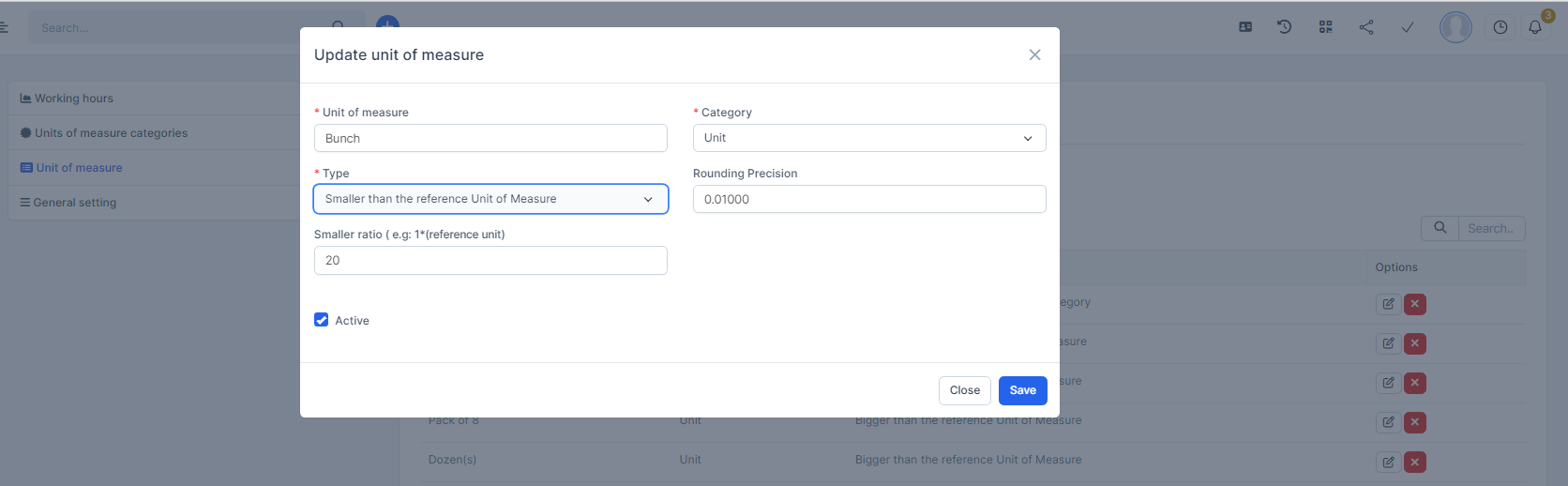 1. Enter the გაზომვის ერთეული2. Selec the Category: Data is taken from გაზომვის ერთეული categories3. Select the Type: there are three reference types. One is Reference Unit of Measure for this category, another is Bigger than the reference Unit of Measure and the third is Smaller than the reference Unit of Measure.4. Enter the Rounding Precision, 5. In the Smaller ratio and Bigger ratio, we must specify the ratio of the specified unit of measure to the given reference unit.Units have been set as the reference unit, and we have added a more enormous Bunch than the reference unit. It has a 20:1 ratio. This translates to one Bunch equal to 20 Units, and Stem is equal to units. That means one Bunch equal to 20 Stems6. აქტიური: Unchecking this checkboxe disables that specific unit of measure without deleting it.
 - ნაბიჯი 4. Click on the შენახვა button