Minimum requirements: need to activate the საწყობი Management module and შესყიდვები Management module.
პროდუქტი is synchronized from the საწყობი module and only takes products marked as Can be manufacturing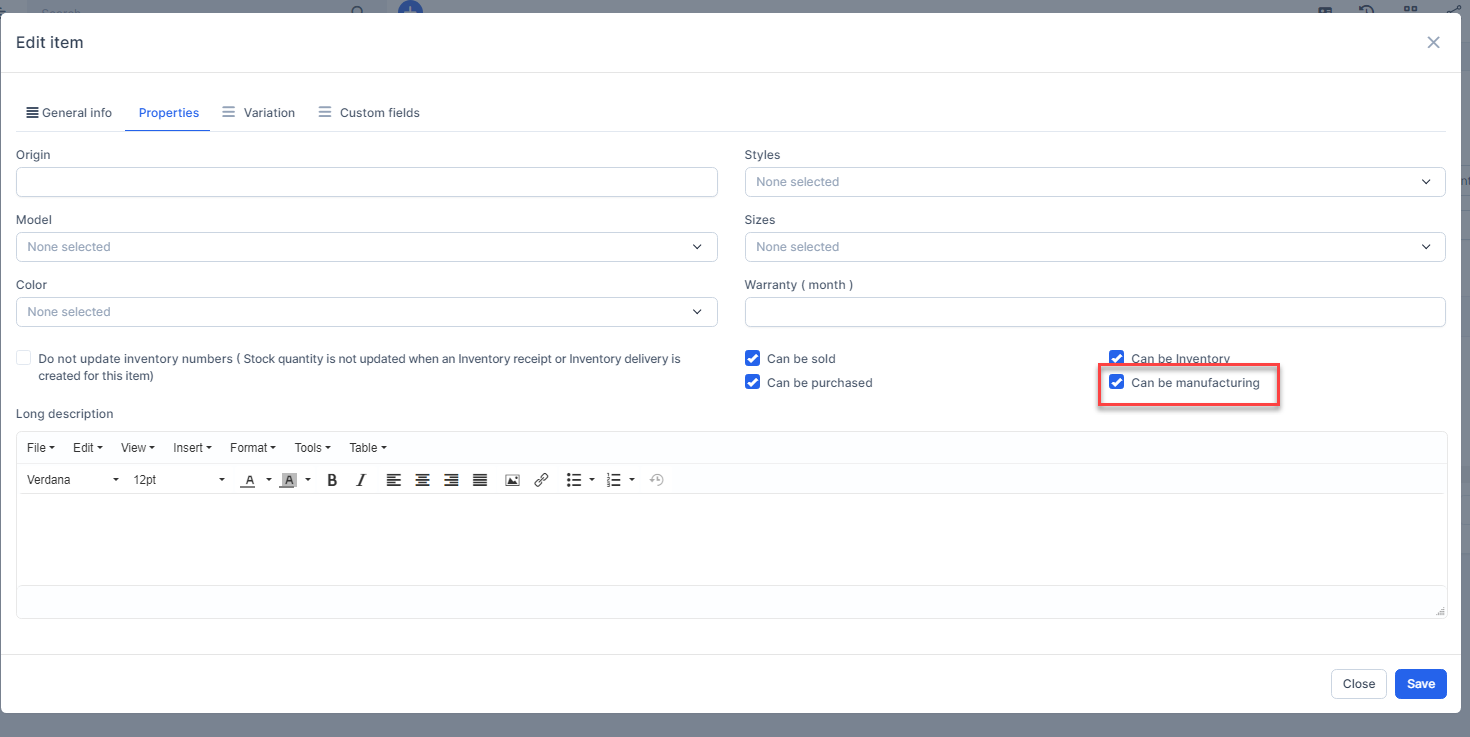
Create a new product
To add a new product to your organization:
- ნაბიჯი 1. Go to პარამეტრები menu under წარმოება module from the left sidebar -> create the გაზომვის ერთეულების კატეგორიები and გაზომვის ერთეული
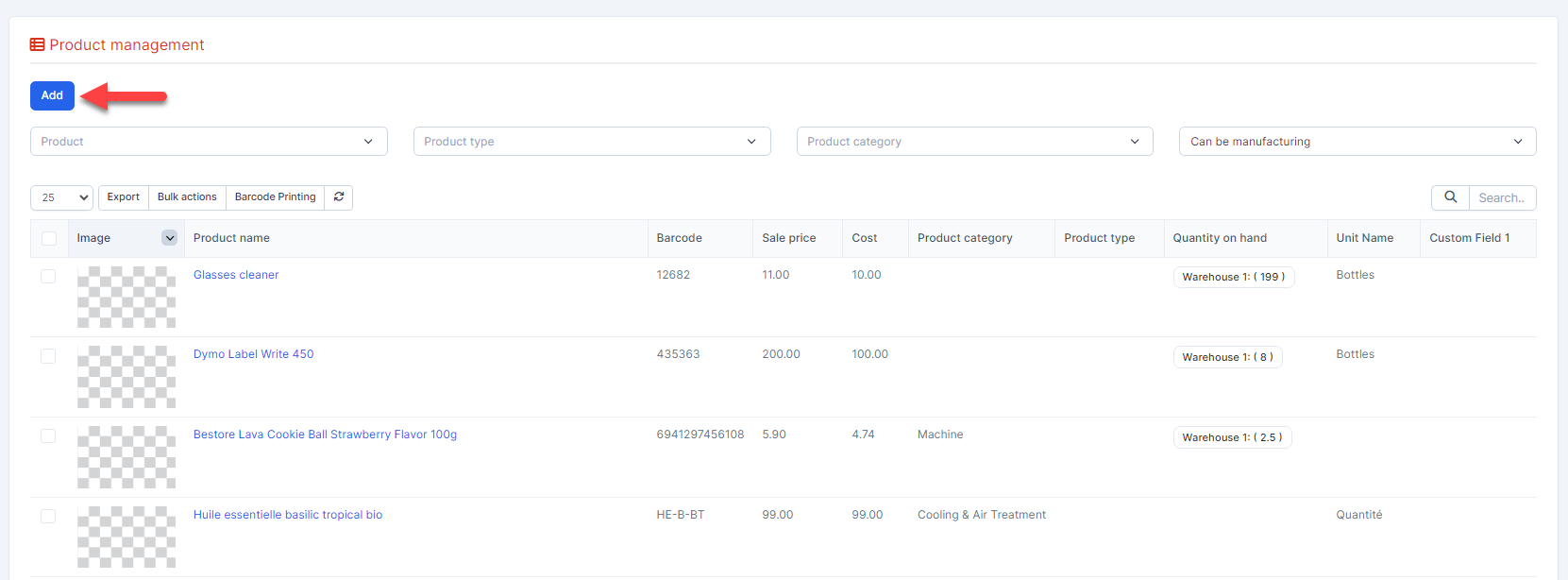
- ნაბიჯი 2. Select the პროდუქტები s menu -> Click on the დამატება button on the top.
- ნაბიჯი 3. In the დამატება product page, fill the following details.
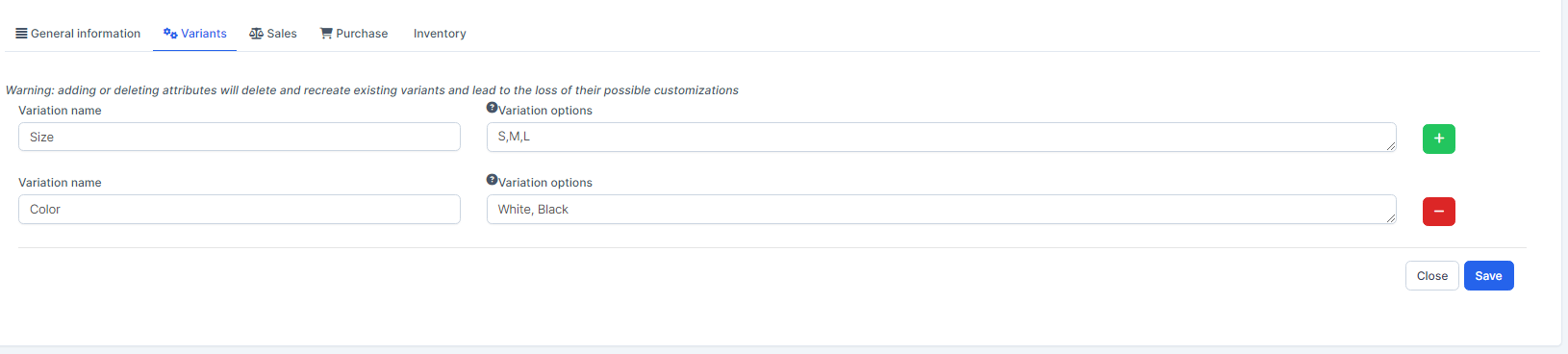
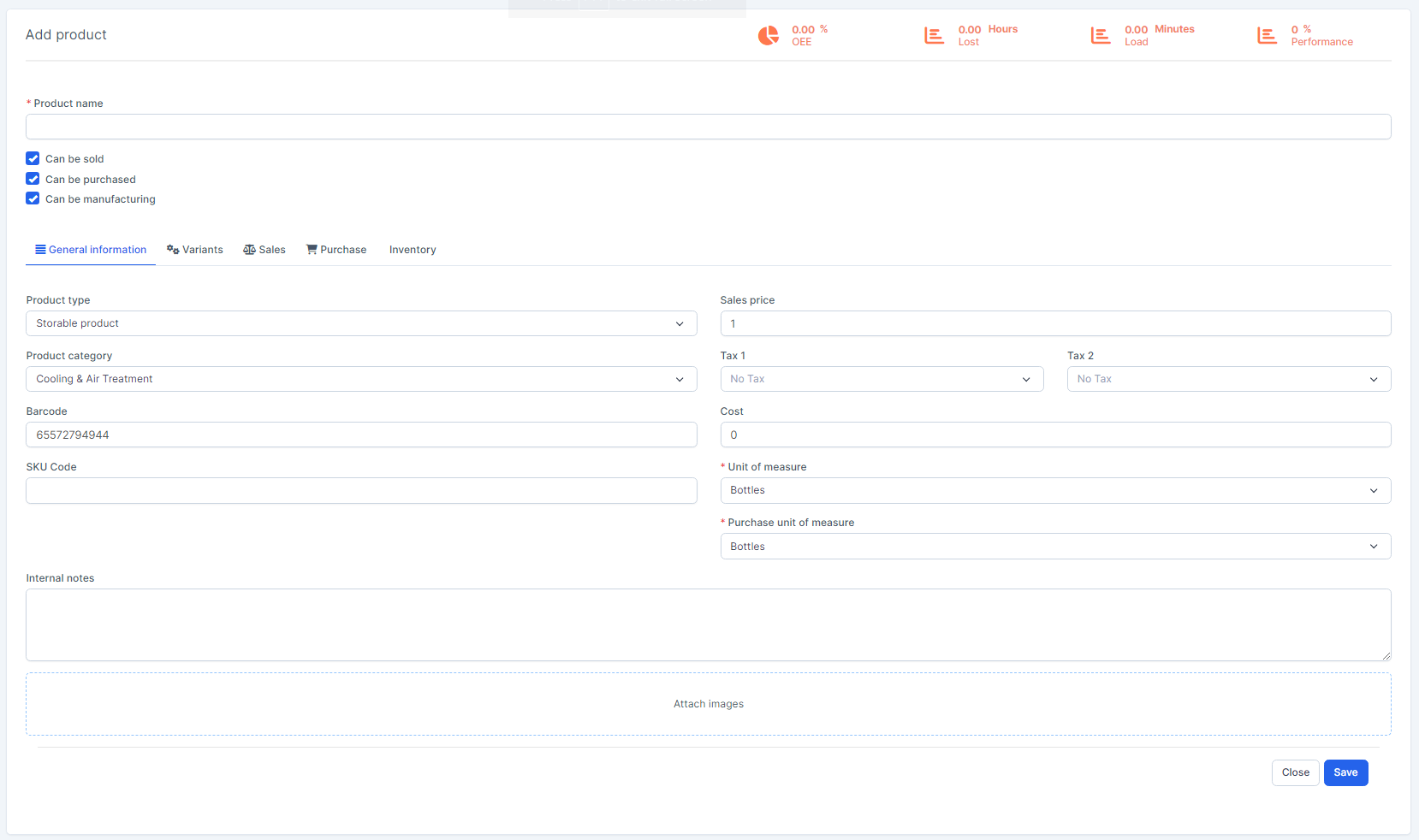 1. Enter the პროდუქტი name 2. Can be sold: This product is used for Omni sales, Affiliate, Commission, Loyalty and Sales modulesCan be purchased: This product is used for შესყიდვები moduleCan be manufacturing: This product is used for წარმოება module3. At the General information, fill in the following details: Select the პროდუქტი type: Consumable, Service or Storable product. This attribute is for storage only.Select the პროდუქტი category: The data is taken from the საწყობი -> პარამეტრები -> საქონლის ჯგუფი Enter the ბარკოდი: used for ბარკოდი Printing functionEnter the SKU კოდიEnter the გასაყიდი ფასი Select the გადასახადი Enter the ღირებულება: itt is the purchase price Select the გაზომვის ერთეული Select the შესყიდვები unit of measure Enter the Internal notes Upload image 4. At the Variants: used to create product variation. These variants will be managed at the პროდუქტი variants screen.
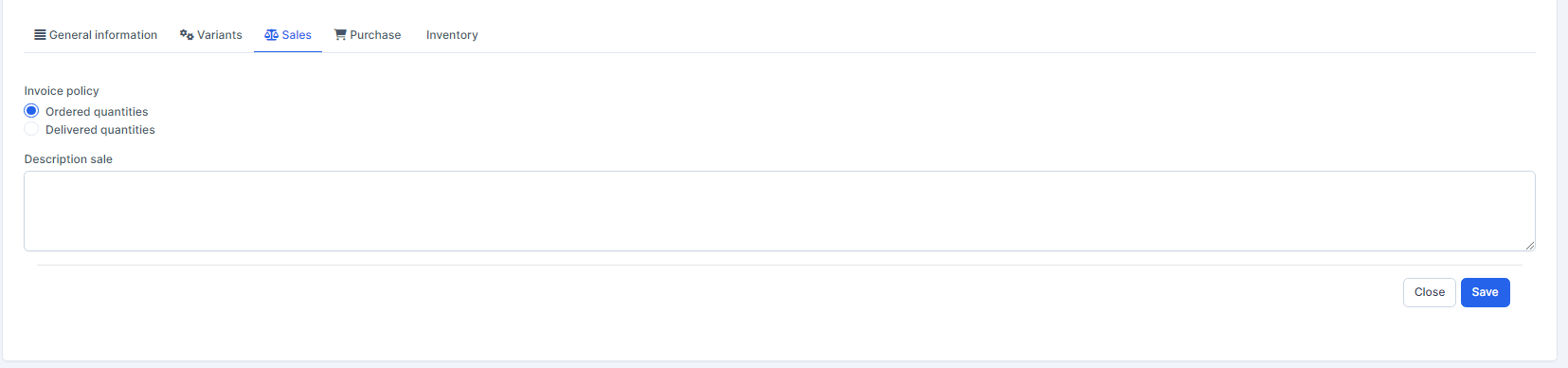
 5. At the Sales tab, select the Invoice policy which you want to applyრიგითობაed quantities: rule is used as default mode, which means that customers will be invoiced once the sales order is confirmed.Delivered quantities: will invoice customers once the delivery is done. This rule concerns businesses that sell materials, liquids or food in large quantities. In these cases, the quantity might diverge a little bit and it is, therefore, preferable to invoice the quantity actually delivered.Currently, the above 2 configurations have not affected the system.
 6. At the შესყიდვები tab, select the მომწოდებელი გადასახადიes: select the tax value of the product purchased from the supplier
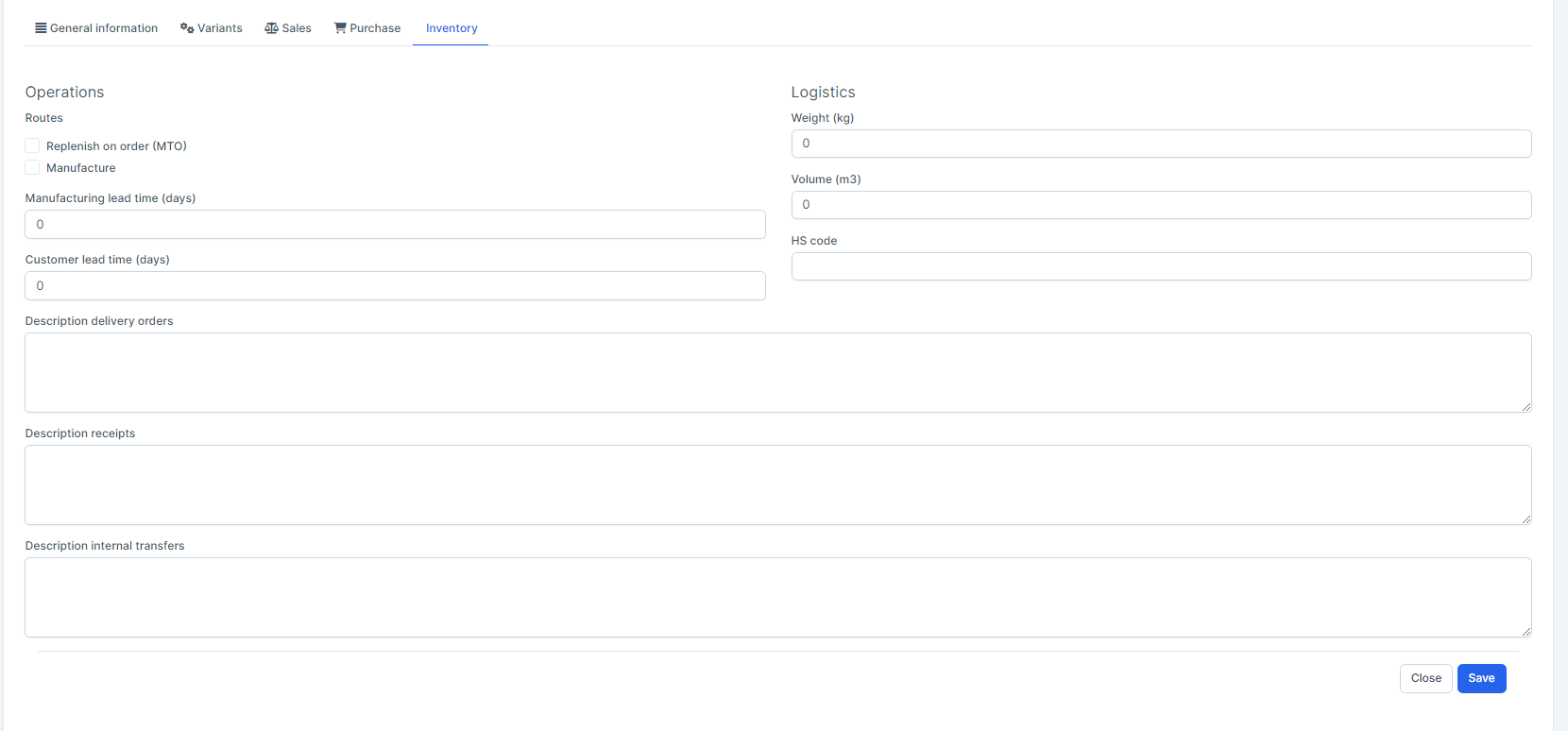
 7. At the საწყობი tab, fill in the required details. The data in this tab is for storage purposes only, it has no effect on the module