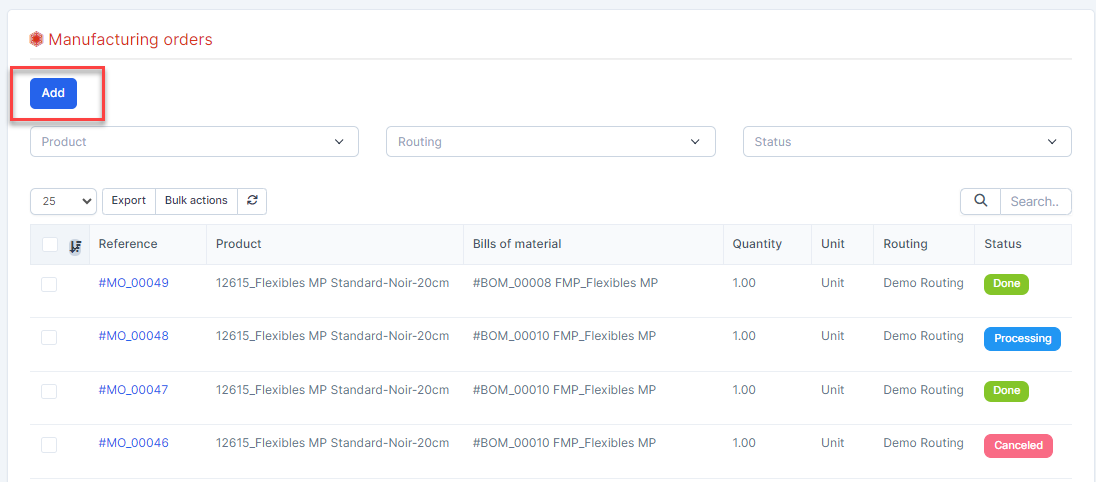
- ნაბიჯი 1. Go to წარმოება orders under the წარმოება module in the left sidebar
- ნაბიჯი 2. Click on the დამატება button on the top
- ნაბიჯი 3. In the დამატება manufacturing order page, fill the following details:
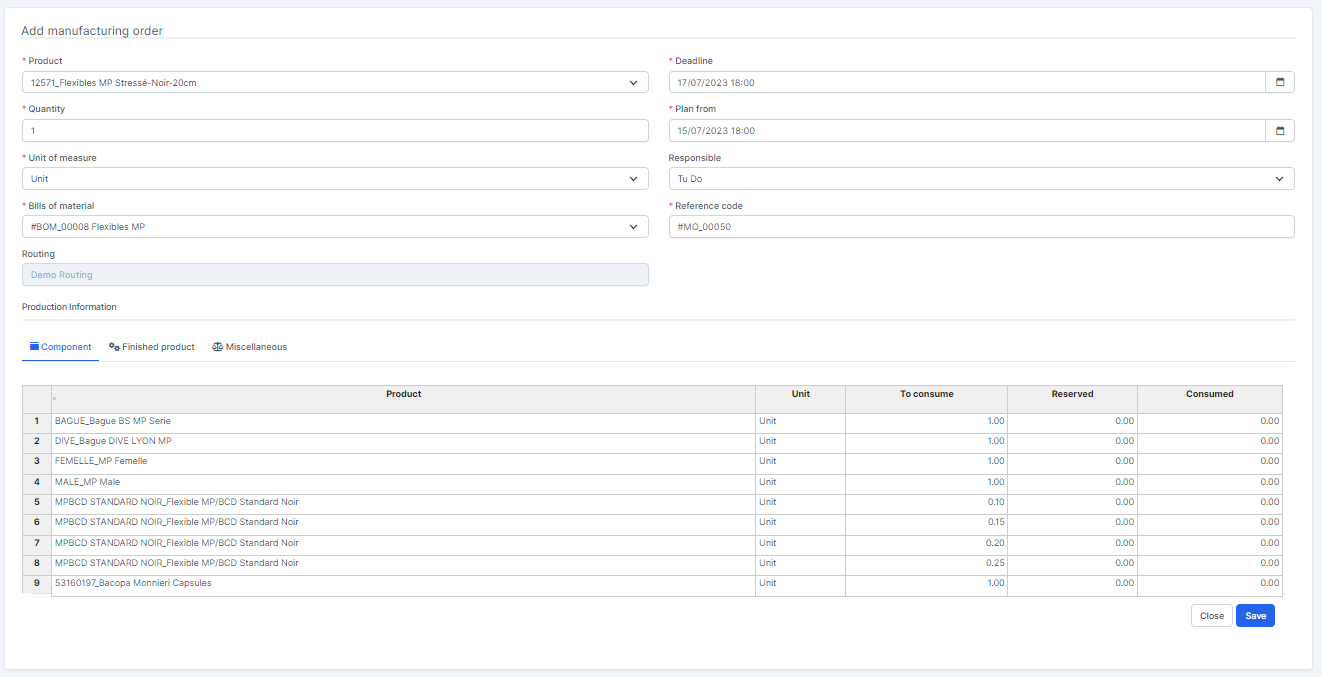 1. Select the product or product variation 2. Enter the რაოდენობა 3. Select the Bills of material4. Enter the Plan from and Deadline5. Select the Responsible 6. At the Component tab, you can edit To consume or add other component 7. At the Miscellaneous tab, select a warehouse to get components for production at Components warehouse field. Select a warehouse to import products from after the production is complete at Finished პროდუქტები warehouse field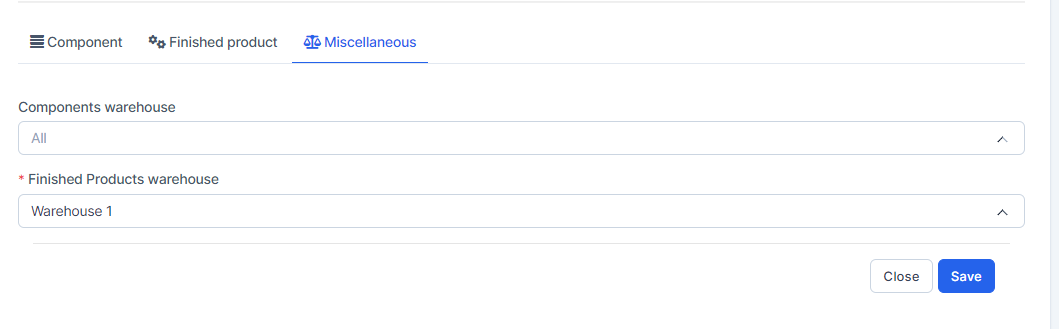
- ნაბიჯი 4. Click on the შენახვა button
- ნაბიჯი 5. Click on გასაკეთებლად მონიშვნა button, the system automatically checks whether the number of components is enough for production.
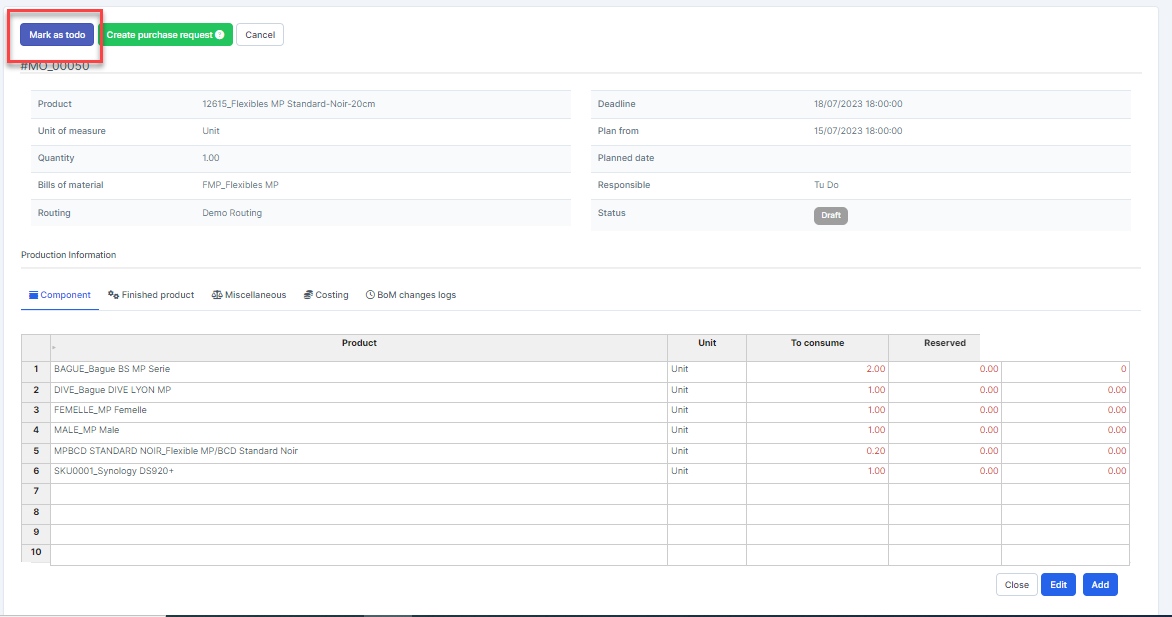
- If that's not enough, you need to create a purchase request and inventory receiving voucher for the missing components. Then click Check Availability button to check if the quantity is enough to proceed with production.
- If the components are in sufficient quantity for production, the text in the To consume, Reserved, and Consumed columns will turn green and the system will mark the warehouse for these components.
- ნაბიჯი 6. Click on Planed button
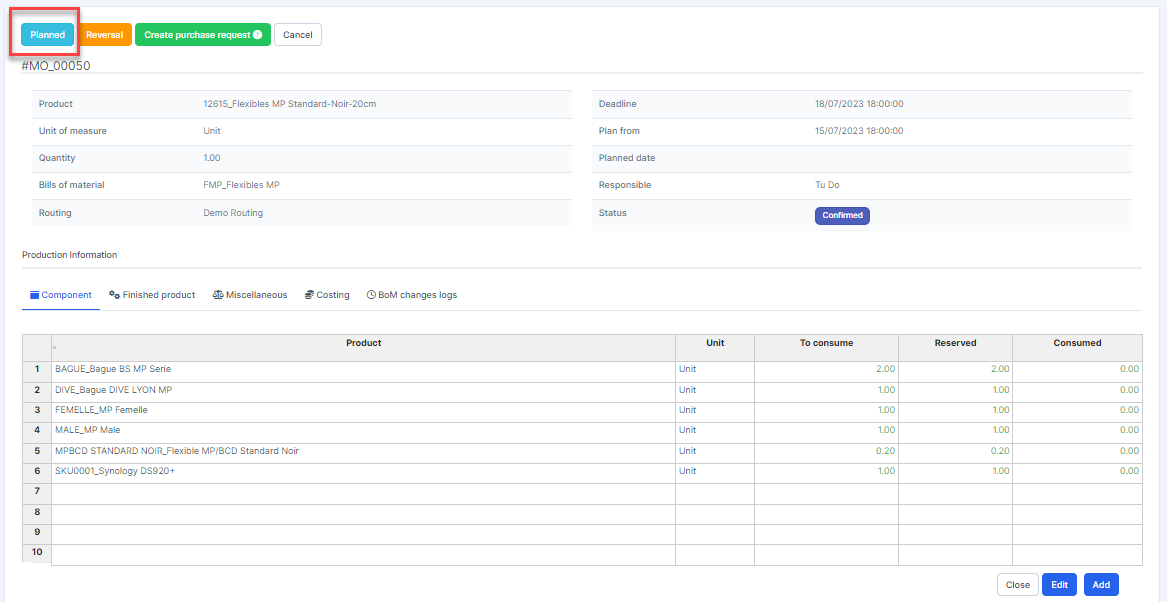
- Use the Reversal button in the case of საწყობი items which were issued out of a warehouse may be sent back there even if they are non-defective items, The possible cases are as follows:* The case in which more quantity of item was issued by mistake* The case in which anticipated failure rate was higher than the actual one* The case in which a change in order occurred, e.g. a decrease in order size or stopped order* The case in which an urgent change in plan occurred after issuing items
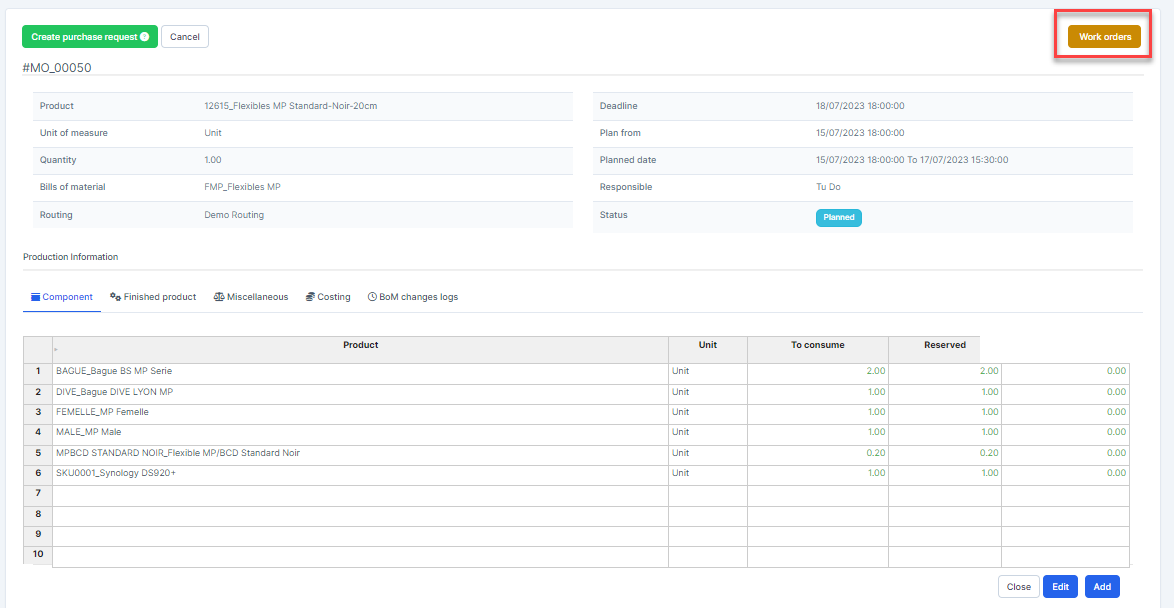
- ნაბიჯი 7. Go to work orders list by click on Work orders button
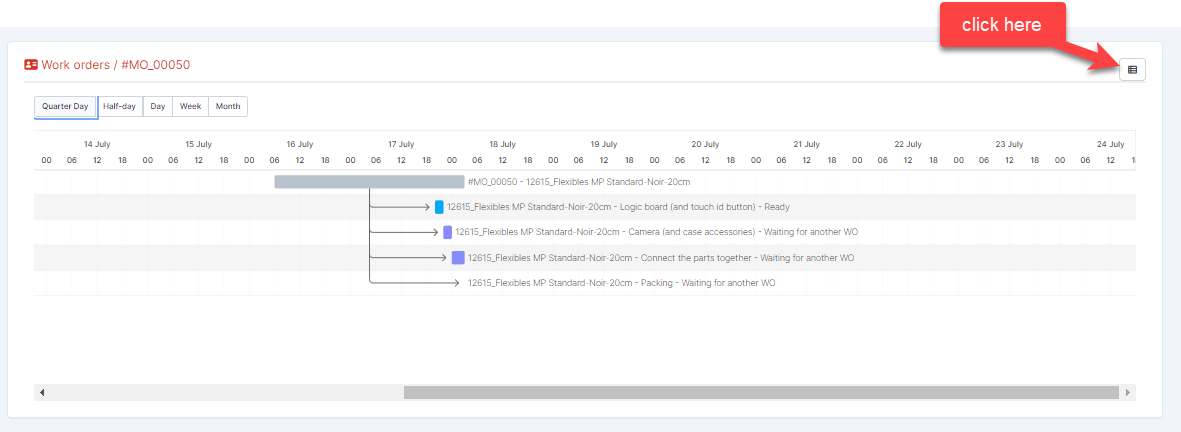
- ნაბიჯი 8. Click

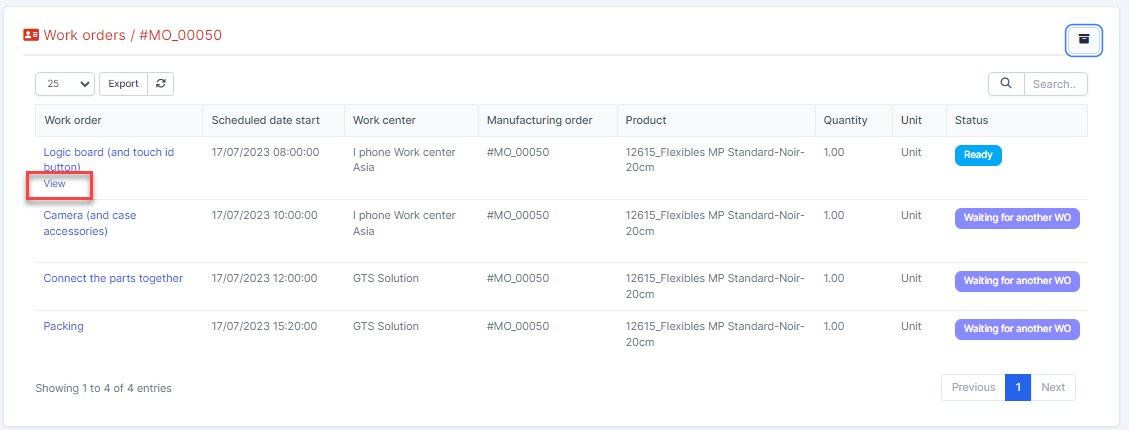
- ნაბიჯი 9. Select the work order and click View button
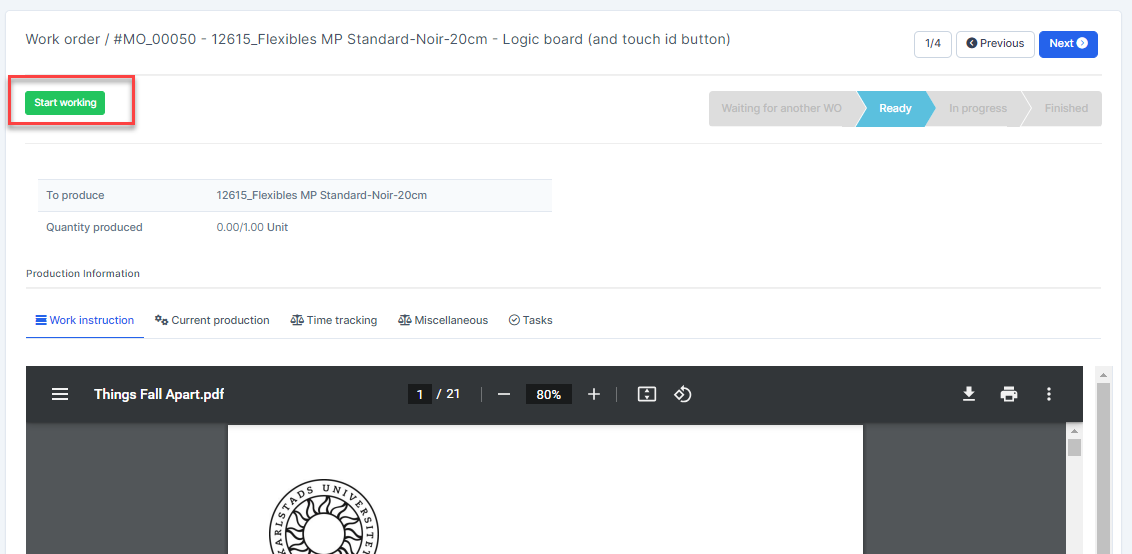
- ნაბიჯი 10. Click on Start working button
- Step 11. Click Done button to finish this work order. Or click Pause button to suspend work order
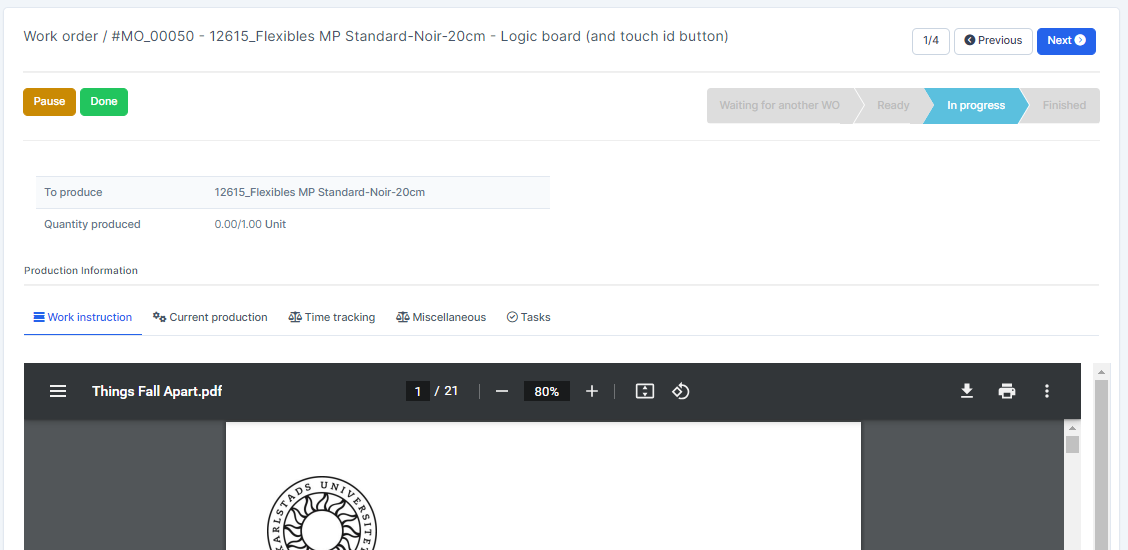 Click Next button to move to the next work order -> Do the same for the remaining work orders
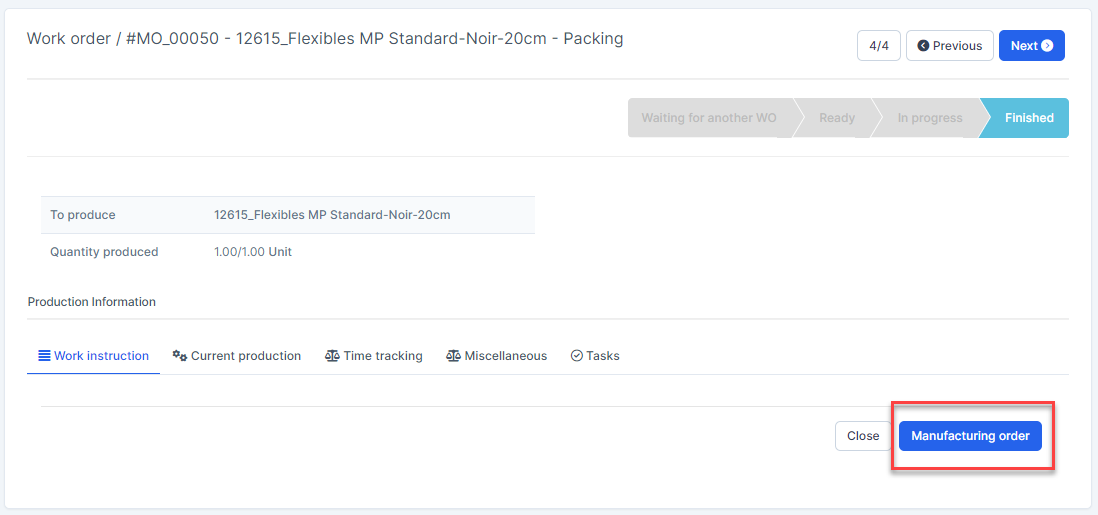
 - Step 12. After completing all work orders -> click წარმოება order button to return to manufacturing order detail page
- Step 13. Click on დასრულებულად მონიშვნა button -> enter actual quantity of product produced on the რაოდენობა produced popup -> then click დასრულებულად მონიშვნა button
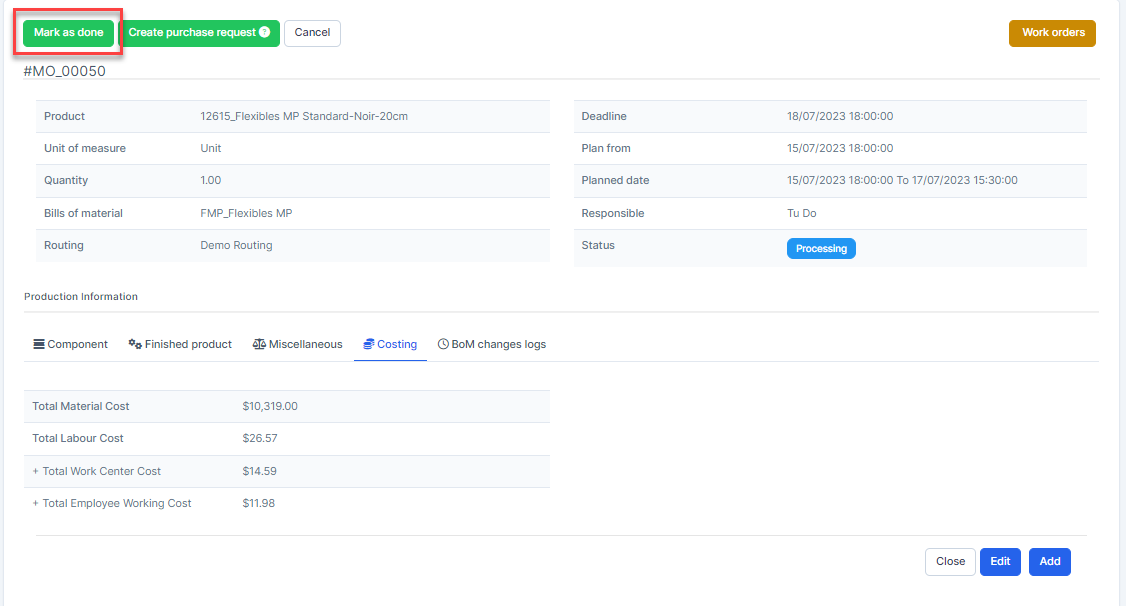 -> an inventory receiving voucher is created and automatically approved, updating the quantity of the finished product to the previously selected warehouse-> now you can update serial number for the product through the Import Serial numbers function.
- An inventory delivery voucher for components is also automatically generated.
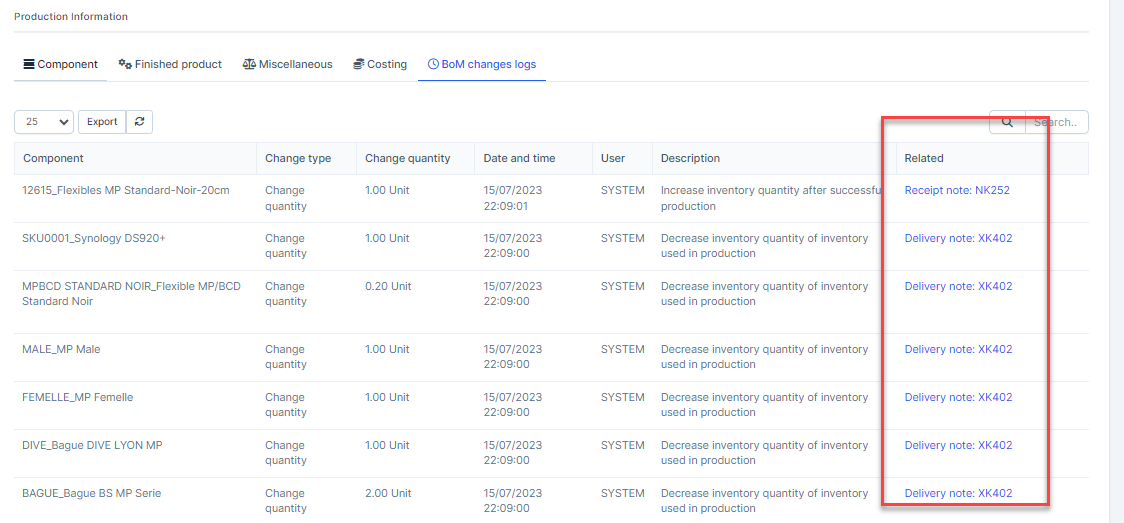
- If the product cost is 0, after successful production and import stock: the cost of product is calculated by the formula: Total Material ღირებულება + Total Labor ღირებულება.
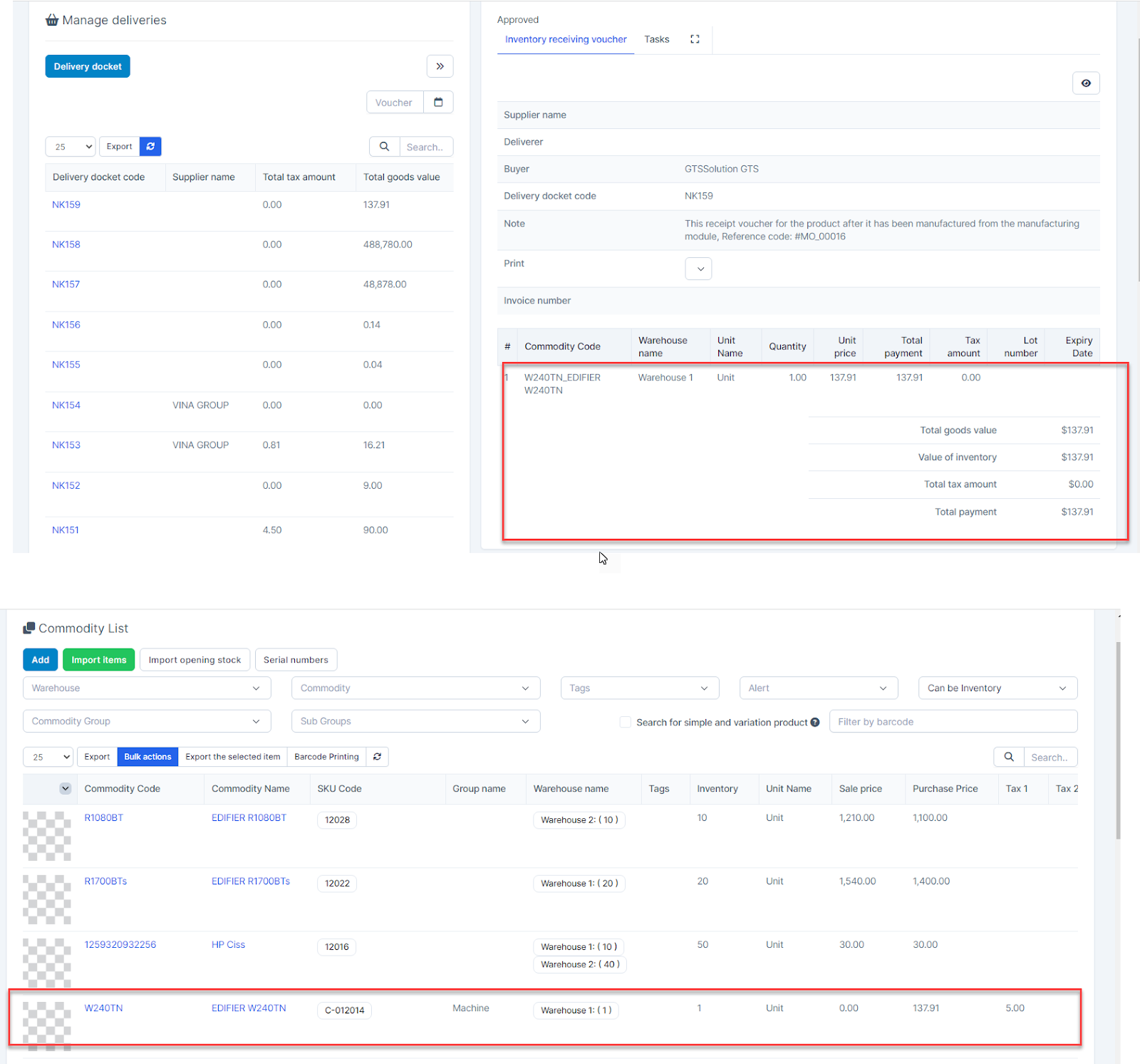
- Conversely, if the product has predefined buying and selling prices, the product value will not be changed.
- An inventory delivery voucher for components is also automatically generated.
მოძებნეთ ცოდნის ბაზის სტატიები
წარმოების შეკვეთის შექმნა და დამუშავება
თქვენთვის სასარგებლო აღმოჩნდა ეს სტატია?
დაკავშირებული სტატიები
-
სამუშაო საათების პარამეტრები
სამუშაო საათები screen is used to create working time used for Work center.დამატება New სამუშაო სა... -
გაზომვის ერთეულების კატეგორიები და გაზომვის ერთეულები
In a huge firm, you buy many things and keep them in stock. Customers may request either a limited... -
ზოგადი პარამეტრები წარმოებაში
The General settings screen is used to configure the prefix and next number for the Bills of mater... -
პროდუქტის შექმნა წარმოებაში
Minimum requirements: need to activate the საწყობი Management module and შესყიდვები Management mod... -
სამუშაო ცენტრის შექმნა
Create სამუშაო ცენტრი Data at this screen will be used to მარშრუტები menu To add a new product to ...