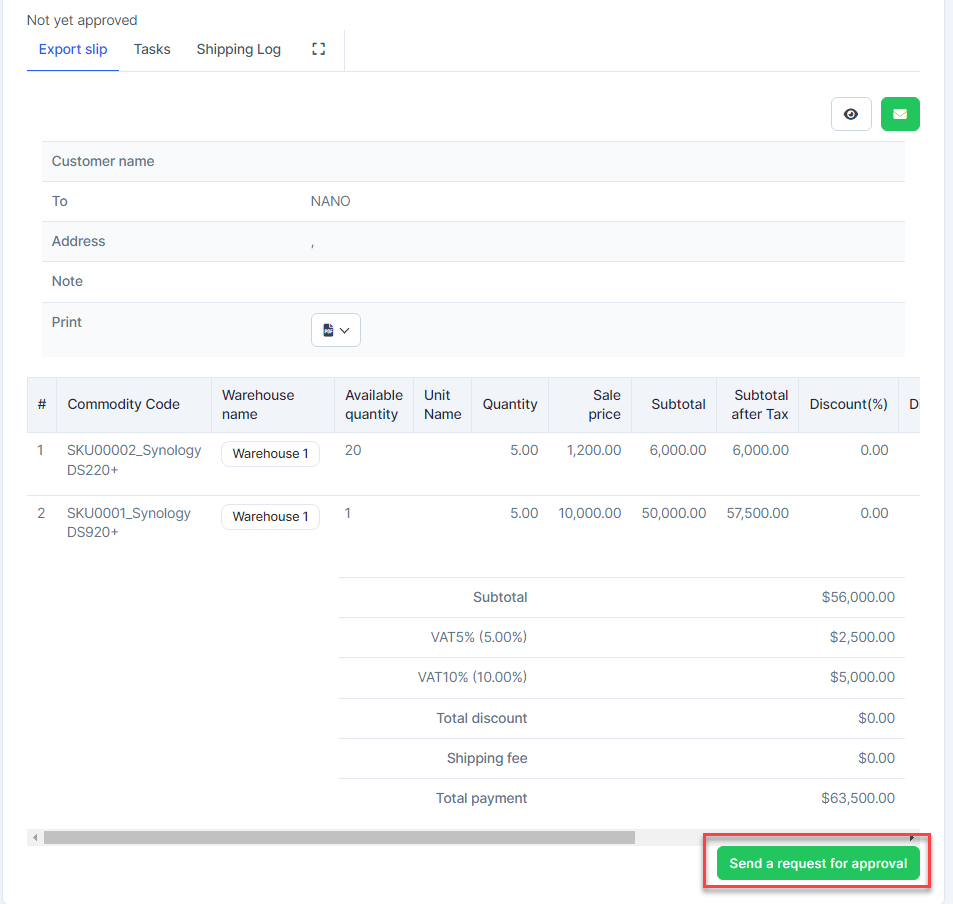
Create რიგითობა return
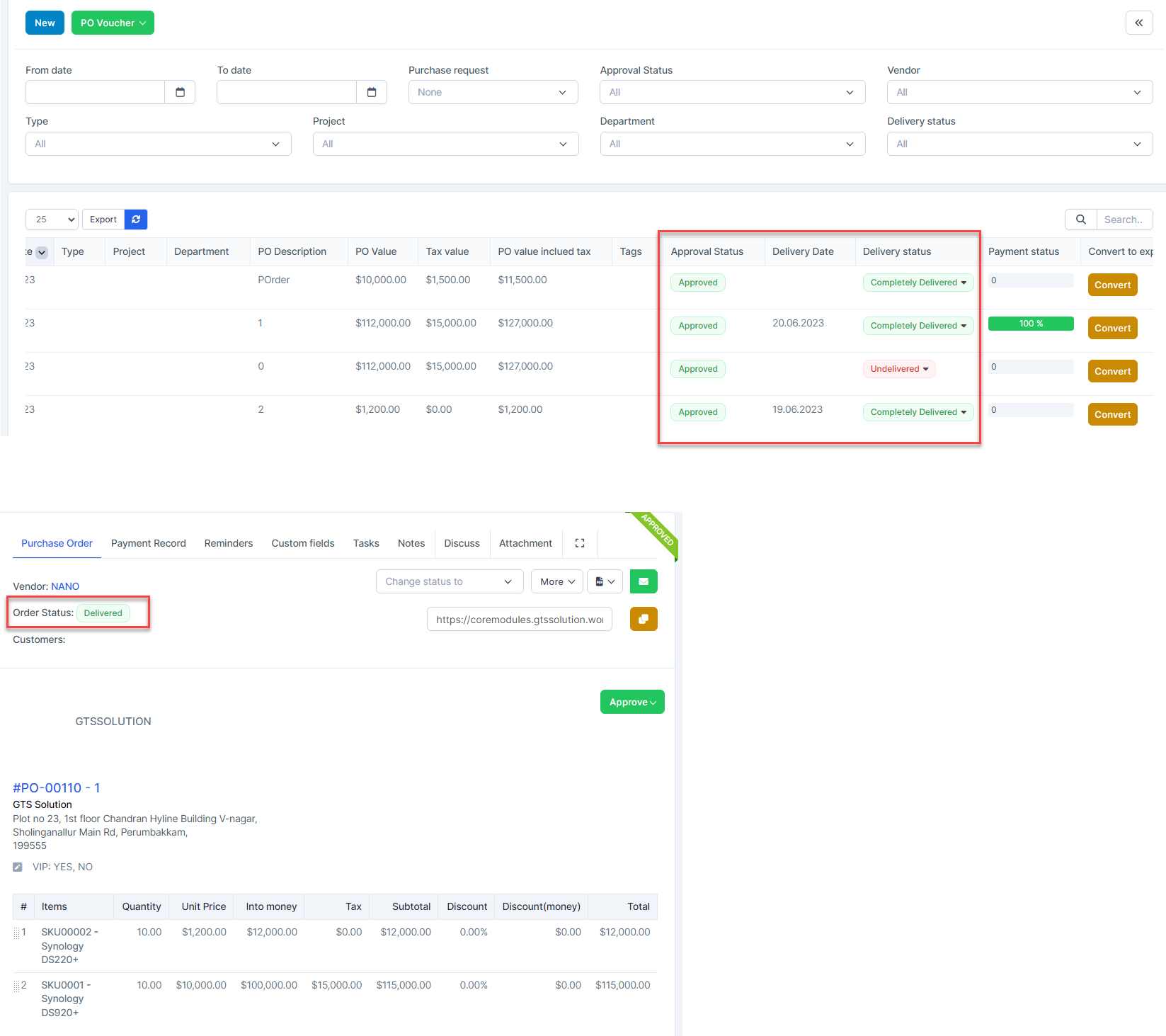
Prepare Data:- შესყიდვები რიგითობა with დამტკიცებაd status and return request time within X days after delivery date and delivery status is Completely Delivered and რიგითობა Status is Delivered.
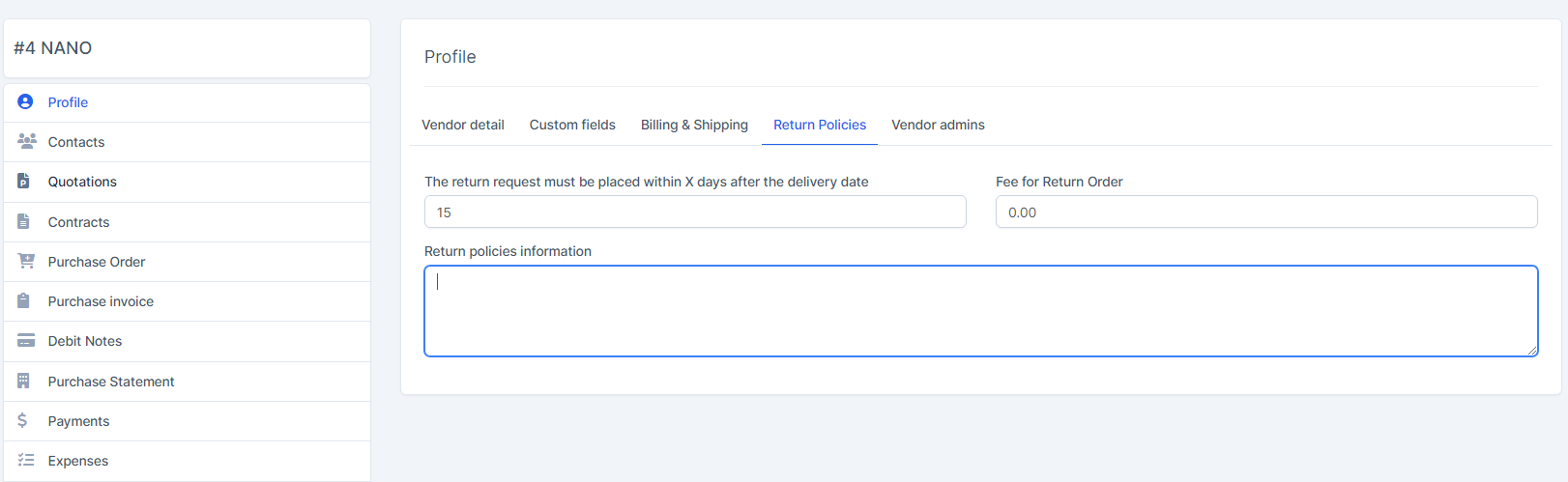
- Set Return Policies in vendor detail
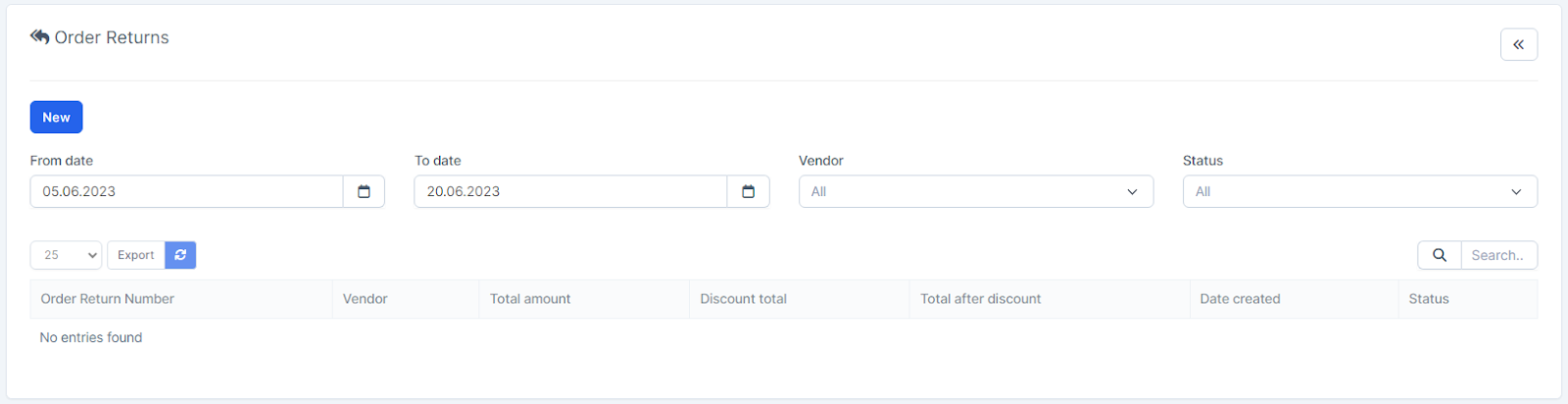
- ნაბიჯი 1. Go to რიგითობა Returns menu under შესყიდვები module from the left sidebar -> Click New button
- ნაბიჯი 2. In the დამატება New რიგითობა Return page, fill in the requested details:
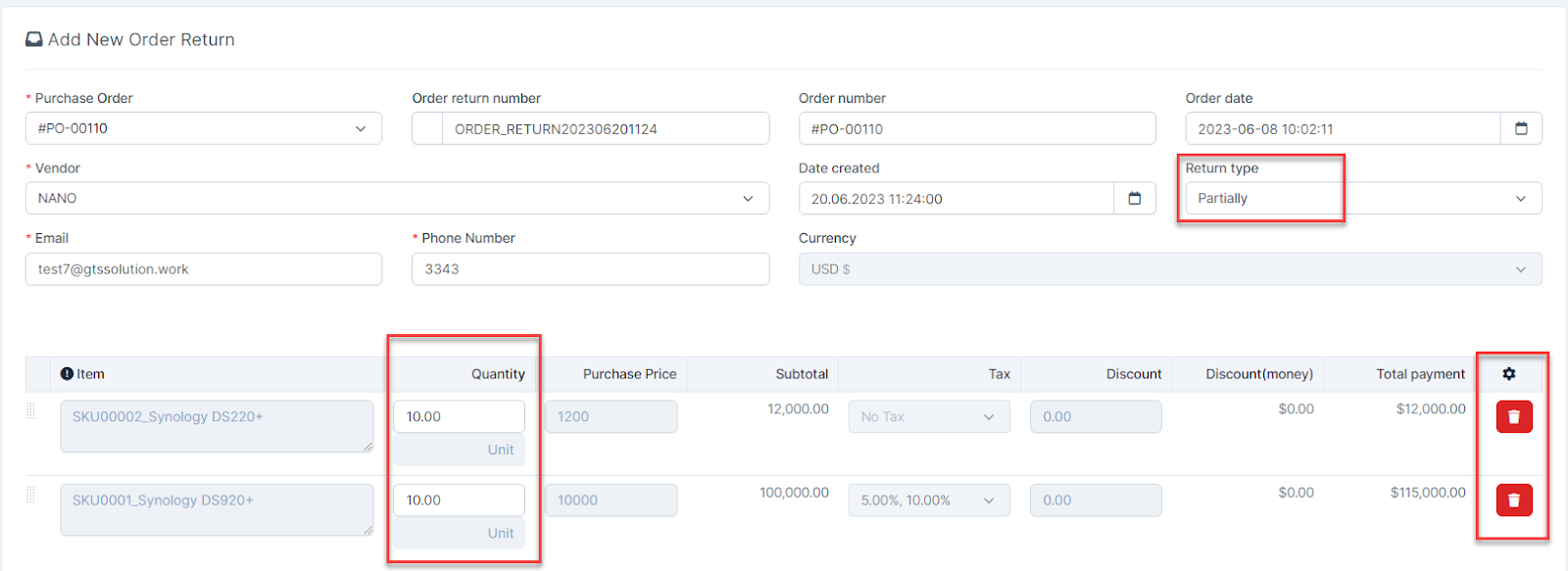
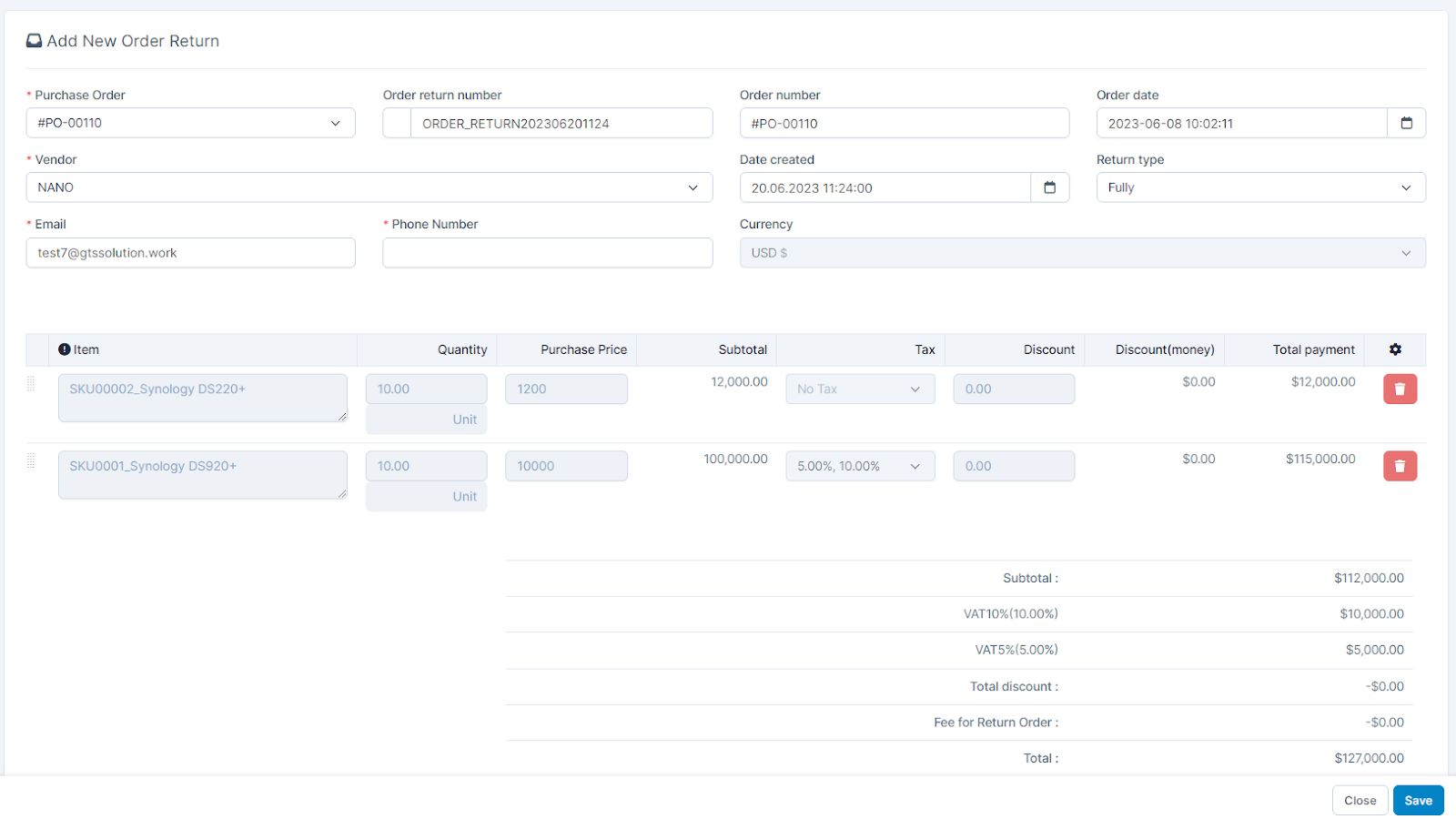 1. Select the შესყიდვები რიგითობა 2. Select Return type: Fully or PartiallyIf you choose Partially: you can edit the quantity item or delete items.
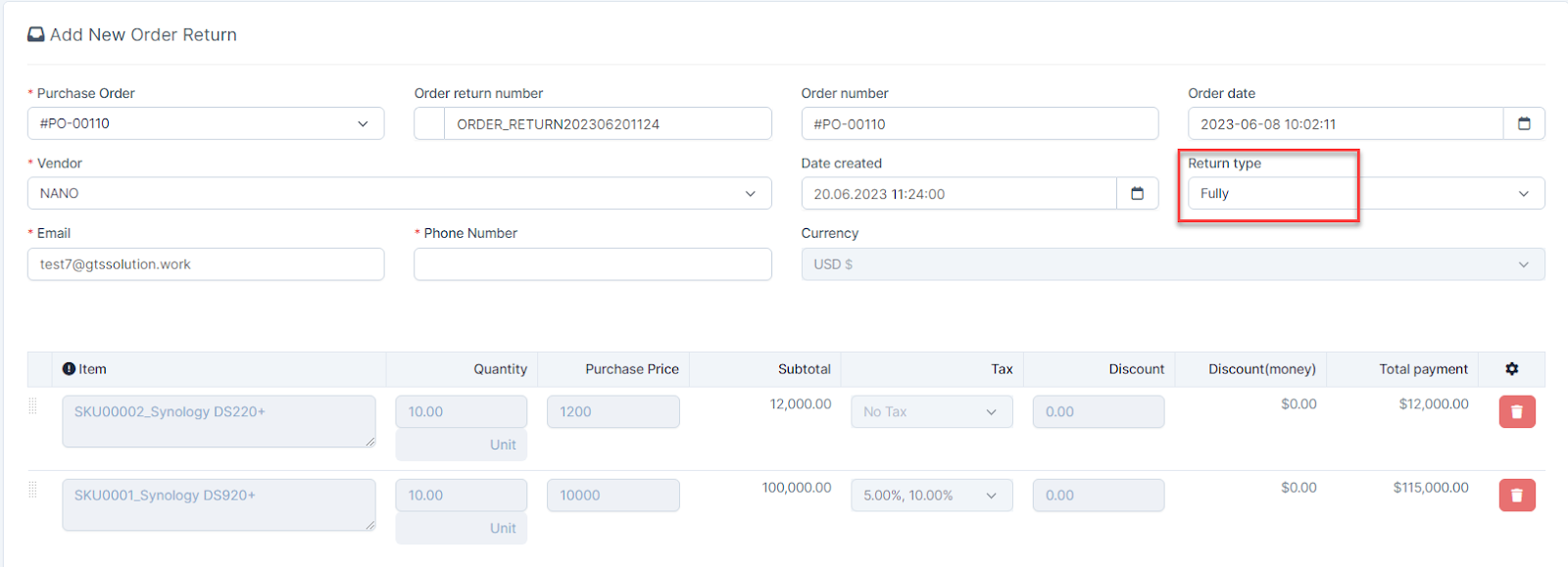
 If you choose Fully: Do not allow to edit the quantity item or delete items
 შენიშვნა: From version 1.7.7, you can manually enter or edit the return fee. By default, it will automatically load the return fee configured in მომწოდებელი Detail > Profile > Return Policies.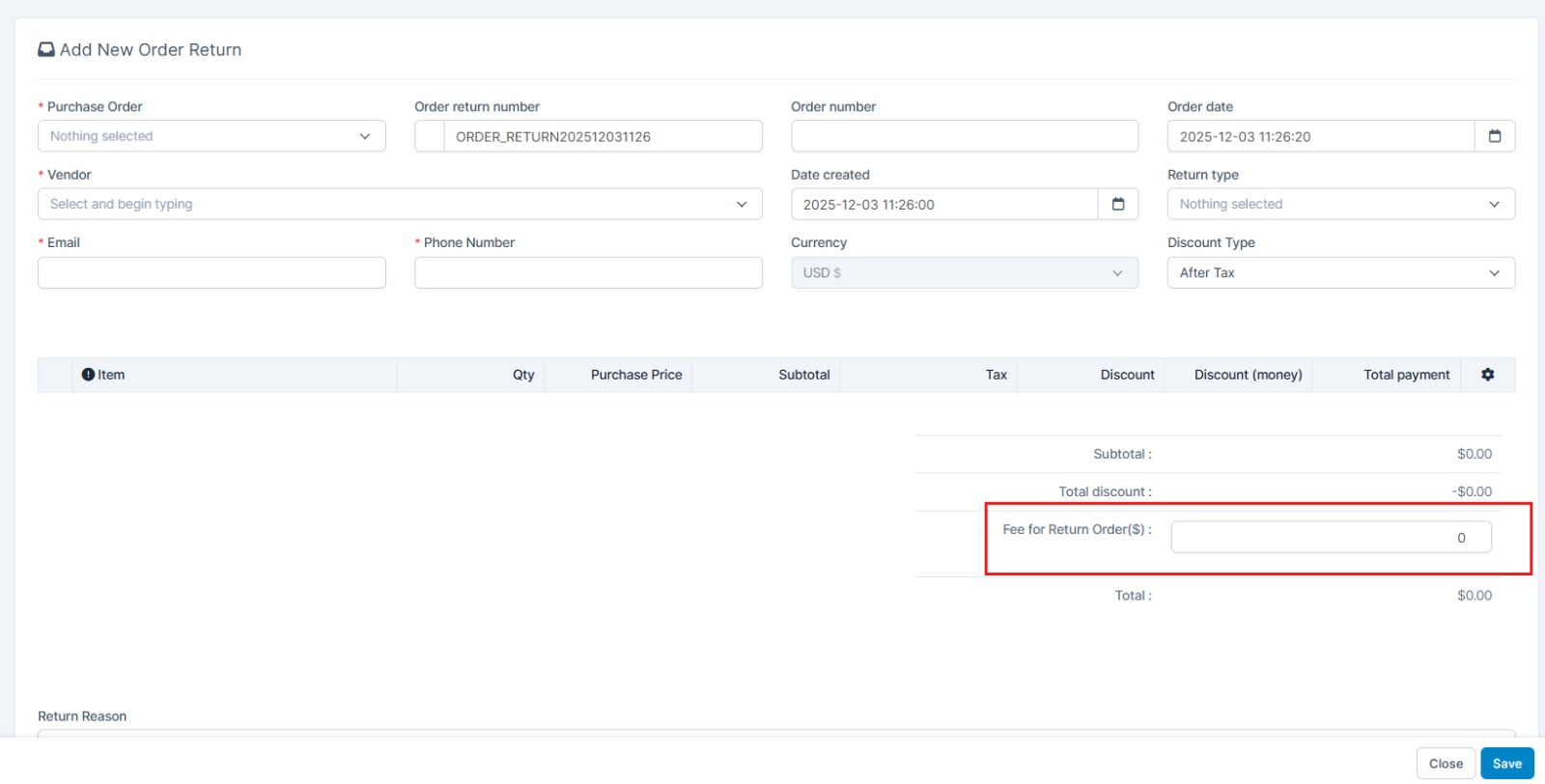
- ნაბიჯი 3. Click შენახვა button. Each შესყიდვები order can only create 1 return order and cannot edit the return order after being saved(including admin).
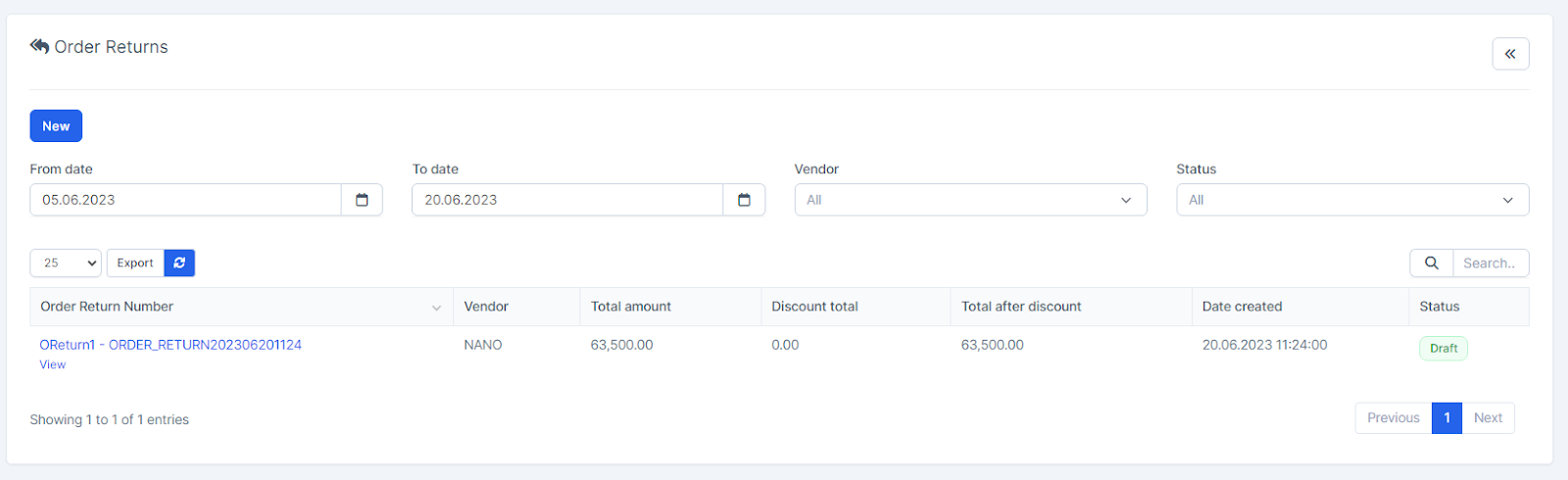 Return order after being saved will be in Draft state, and it will be displayed in the რიგითობა Return menu at the respective vendor portal.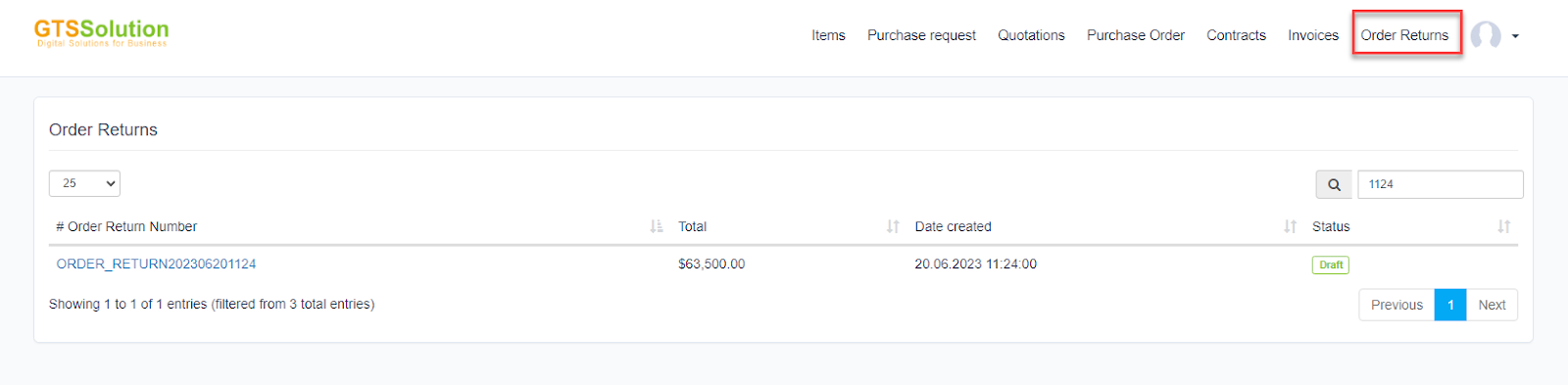
- ნაბიჯი 4. Go to vendor portal -> რიგითობა Return menu -> view order return detail -> click Confirm or Reject
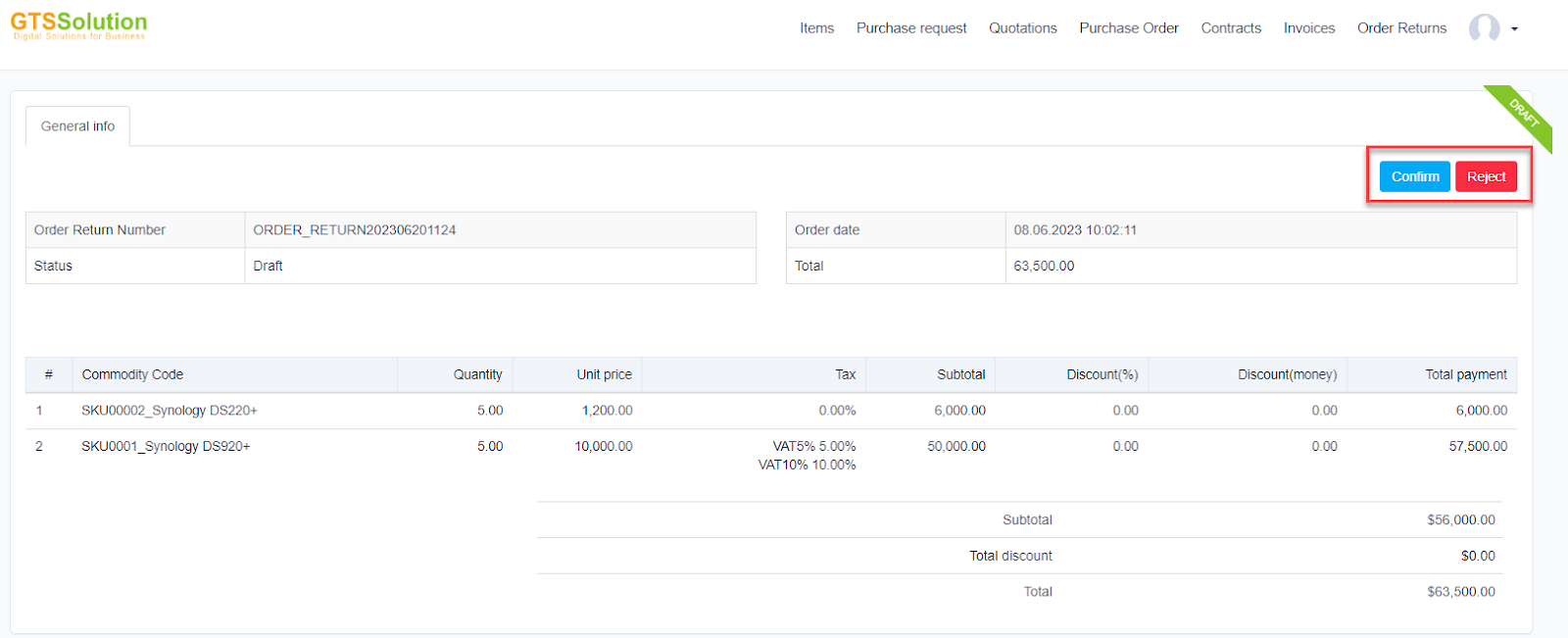 If მომწოდებელი chooses Reject → the order return status changes to Canceled → admin cannot create refundIf მომწოდებელი selects Confirm → the order return status changes to Confirmed -> allows admin to create a refund.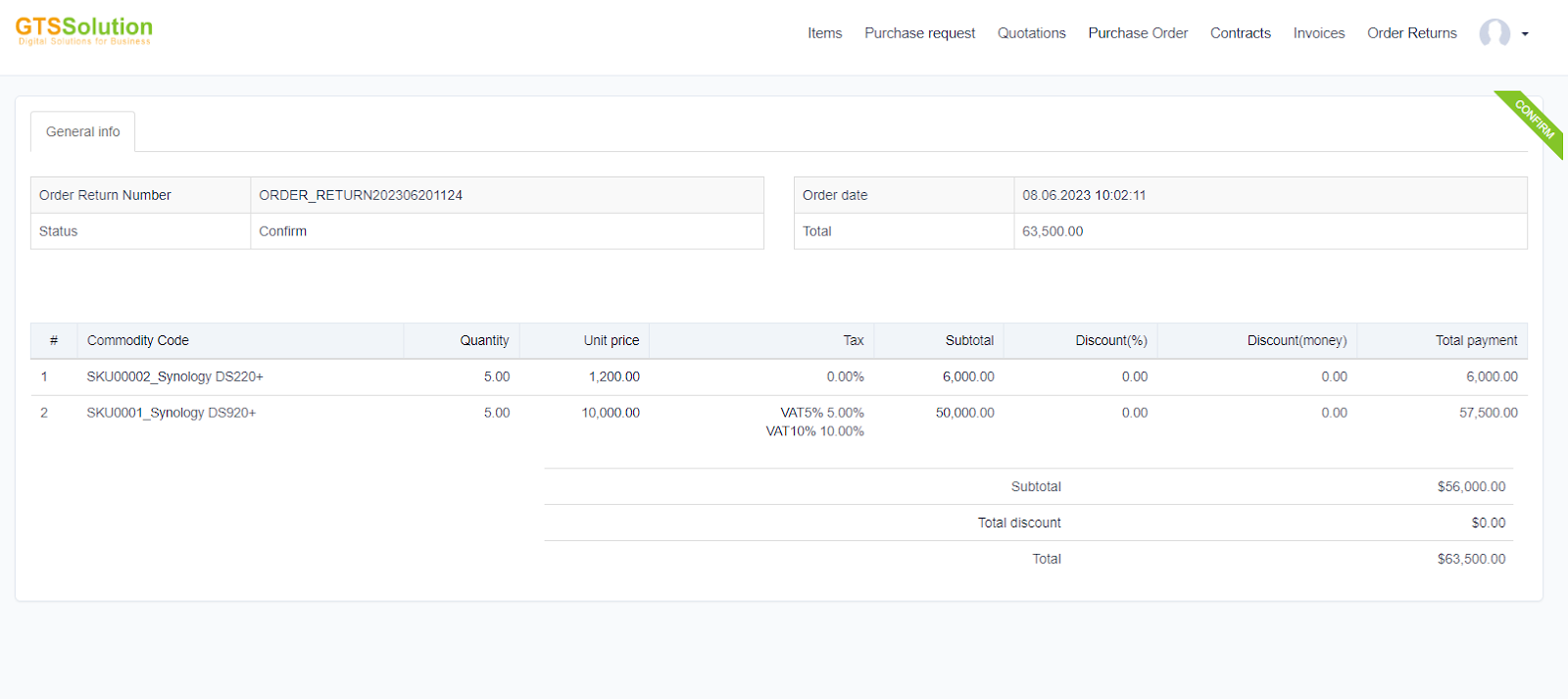
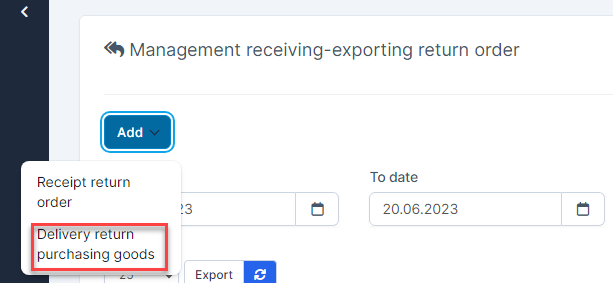
- ნაბიჯი 5. Go to საწყობი module → Receiving-Exporting return order menu -> Click დამატება button and select Delivery return purchasing goods
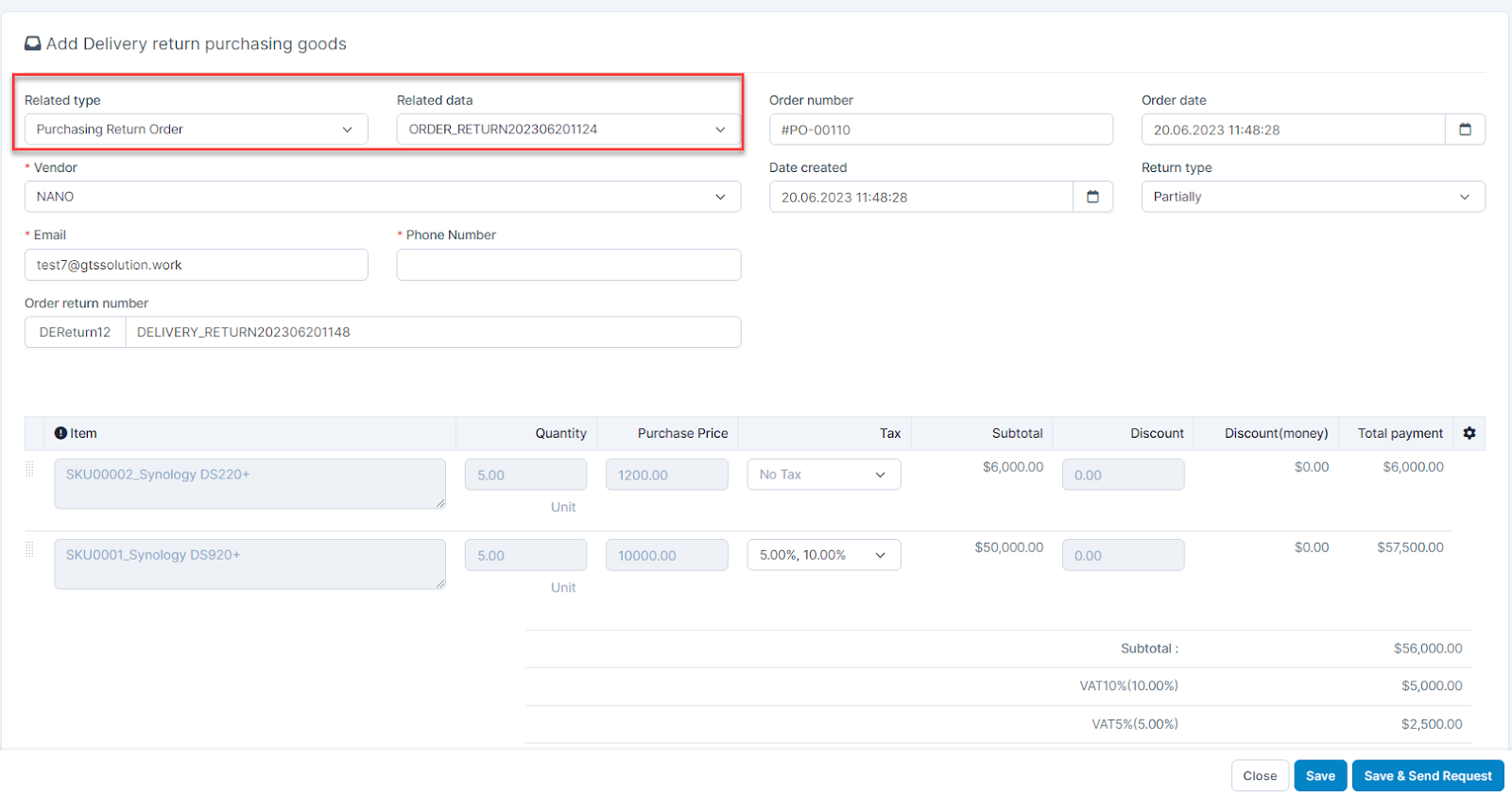
- ნაბიჯი 6. Select Purchasing Return რიგითობა and select დაკავშირებული data -> შენახვა.
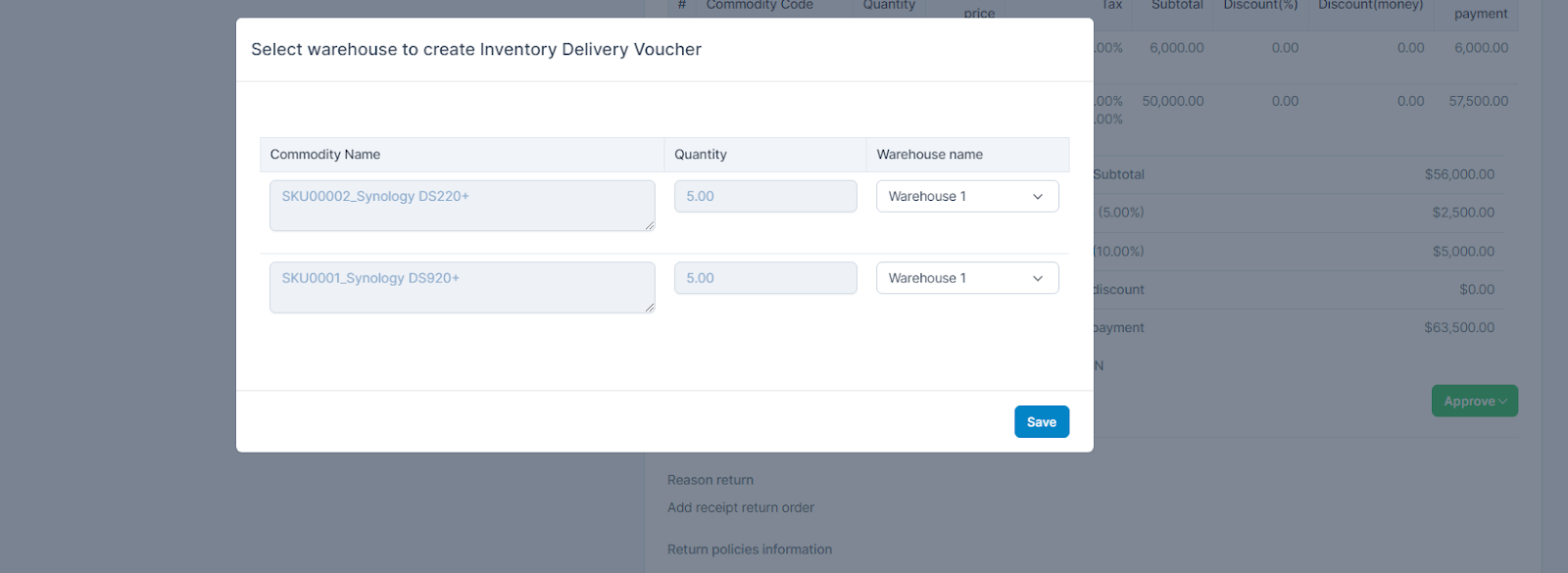
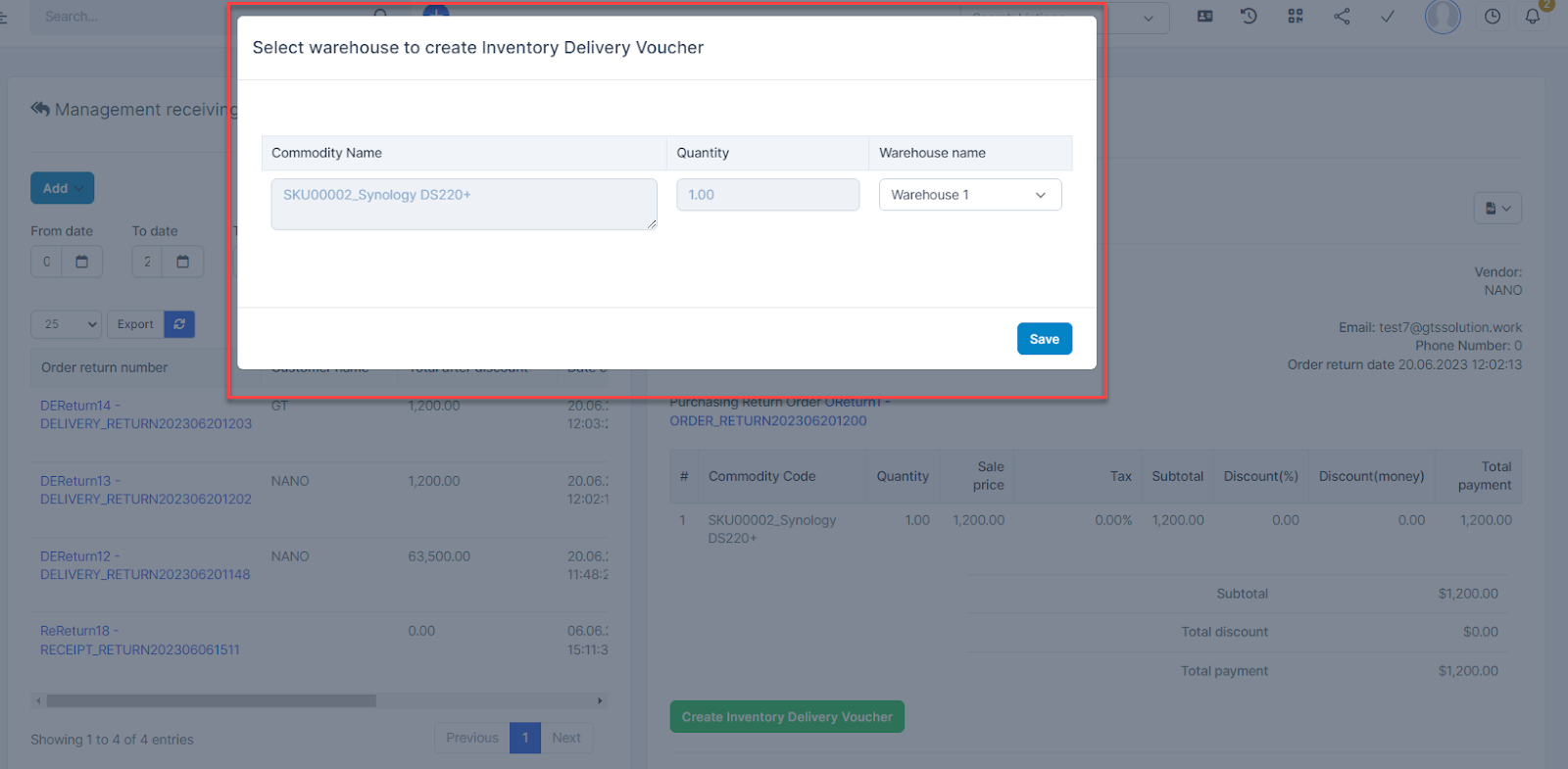
- ნაბიჯი 7. If Receiving-Exporting return order has an approval process ==> approve this Receiving-Exporting return order and choose warehouse to create Delivery voucher -> Click შენახვა.
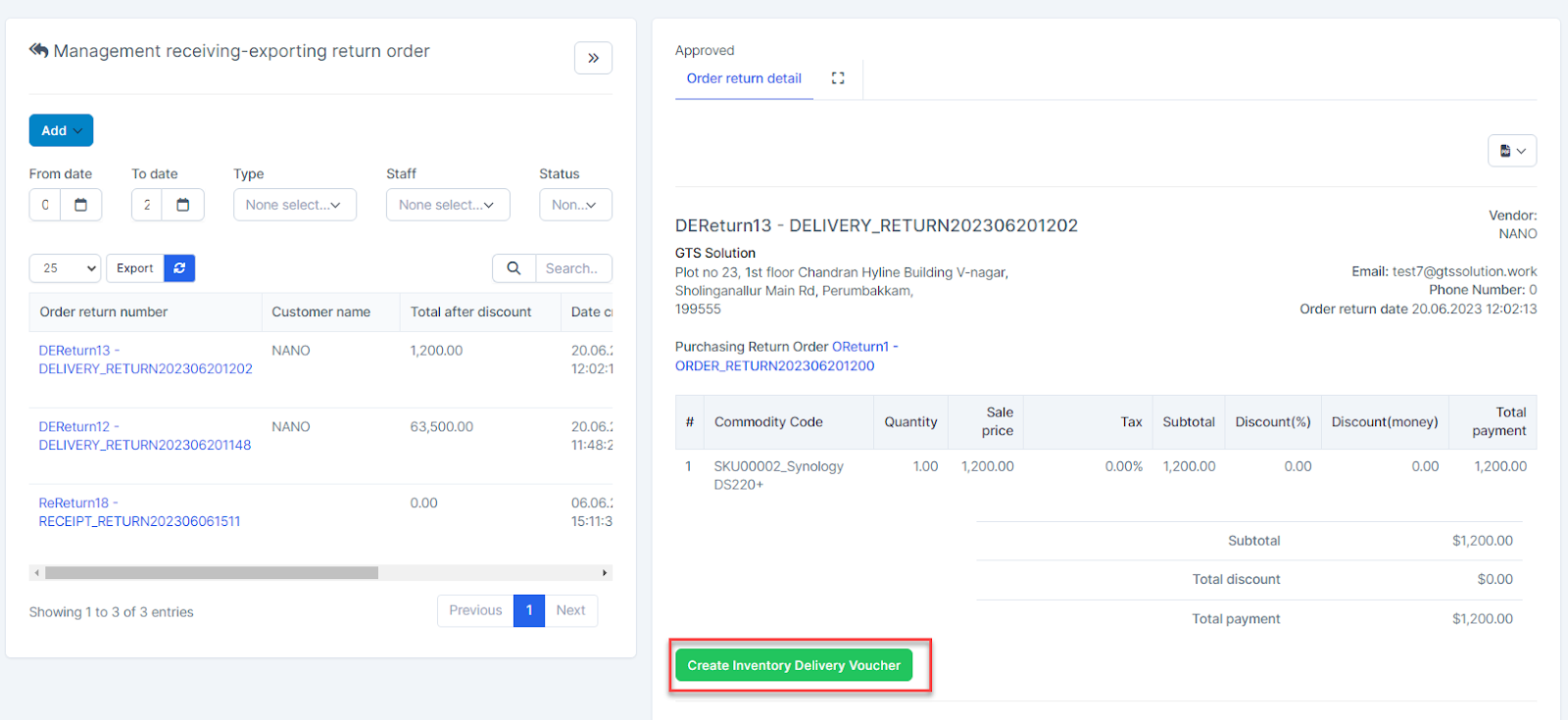
 If Receiving-Exporting return order has been automatically approved ==> click Create საწყობი Delivery Voucher button and select warehouse to create საწყობი Delivery Voucher.
- ნაბიჯი 8. System automatically redirects to საწყობი delivery management, approves საწყობი delivery (if there is an საწყობი Delivery approval in the setting).