შესყიდვები რიგითობა Detail
Select the purchase order to view details and click View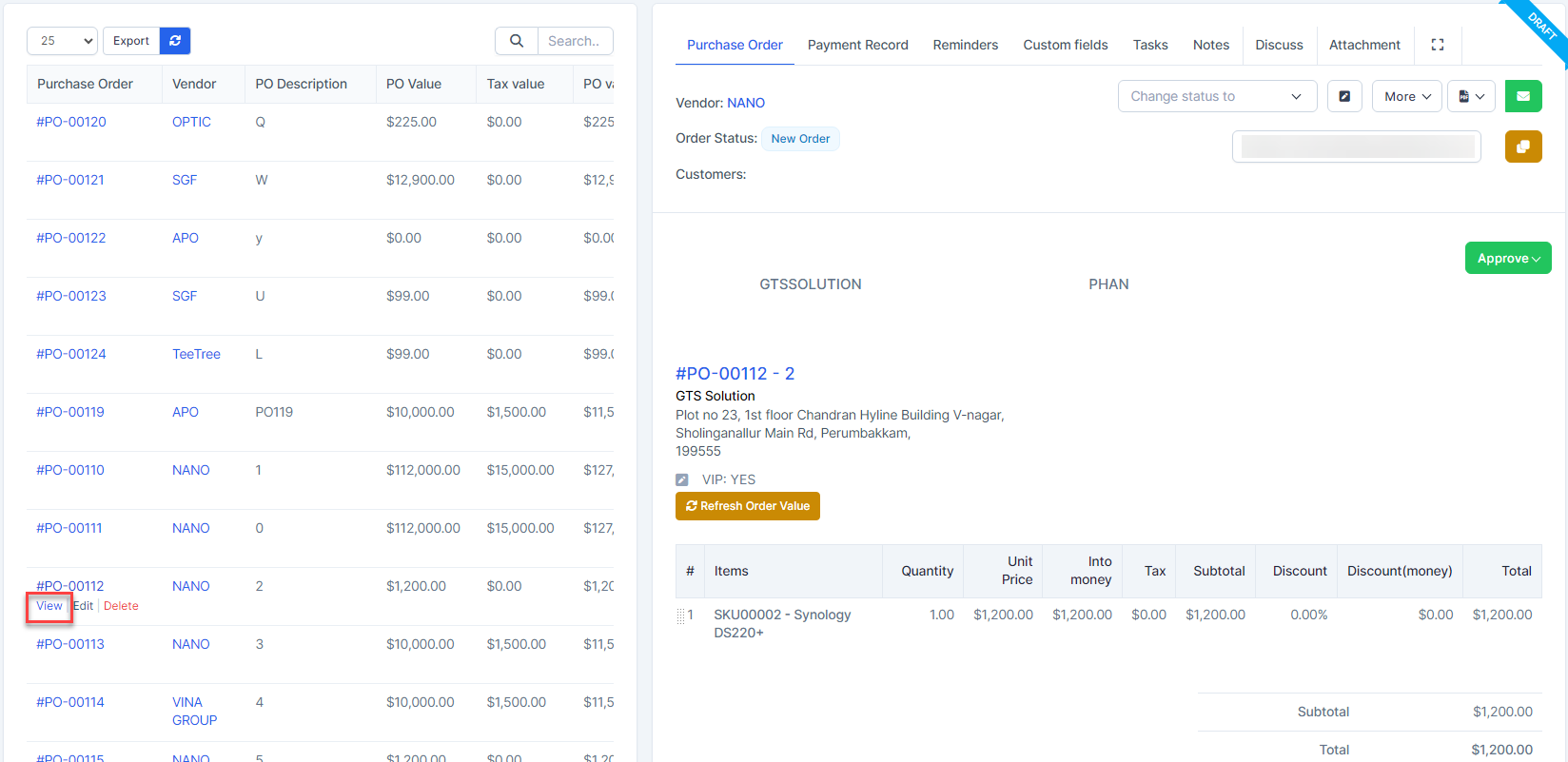
Click Refresh რიგითობა Value to update order value according to the item's current purchase price. This button is only visible when the purchase order has Draft, Rejected and Canceled status.
Payment Record
Allow direct payment on this purchase order and record bill payment transactions related to this purchase order provided that the purchase order has been approved. There are 2 cases:
- In case the შესყიდვები order has no purchase invoice, when creating a payment, the system automatically creates a შესყიდვები Invoice for that PO with the amount that the user entered in the payment.ნაბიჯი 1. Create approval process for Payment request ( if necessary) at approval setting.ნაბიჯი 2. Go to purchase order detail -> Select Payment Record tab -> click Payment button
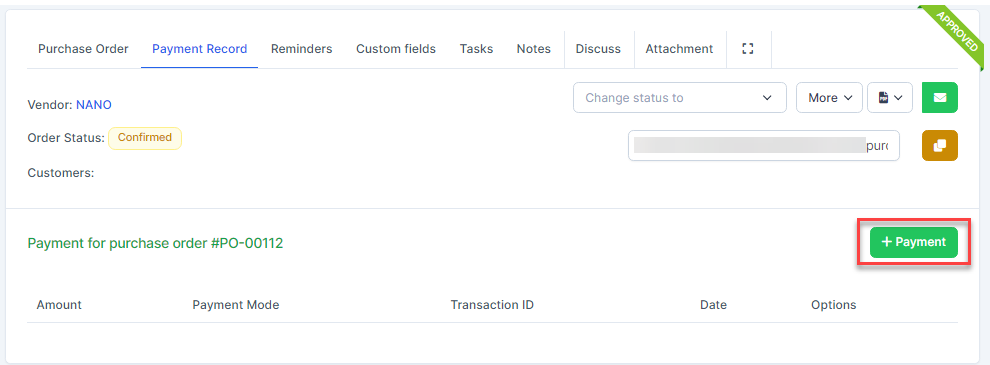 ნაბიჯი 3. Enter the amount to pay, Select Payment Date and Payment Mode -> then click შენახვა
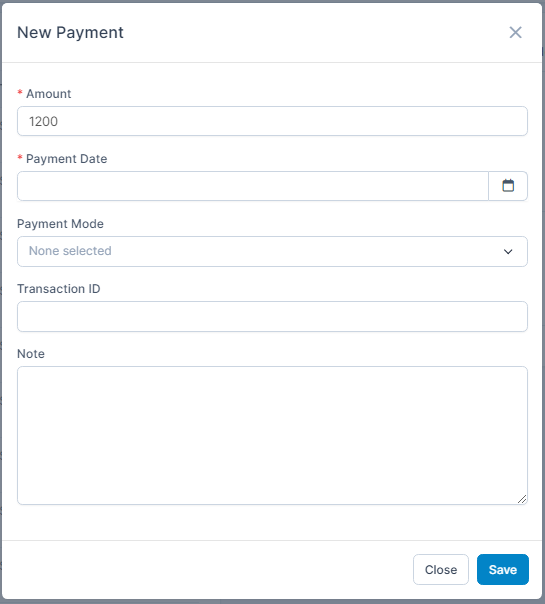 ნაბიჯი 4. Go to payment detail to check payment status
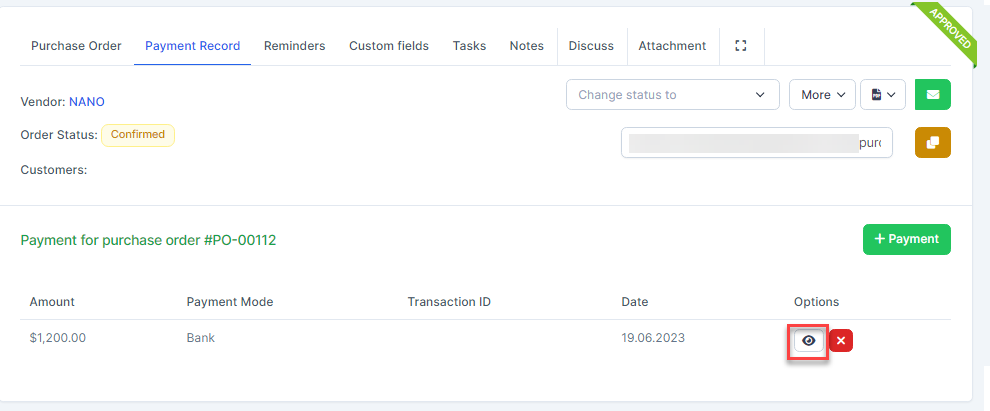 ნაბიჯი 5. Send approval request and proceed with the approval according to the established process.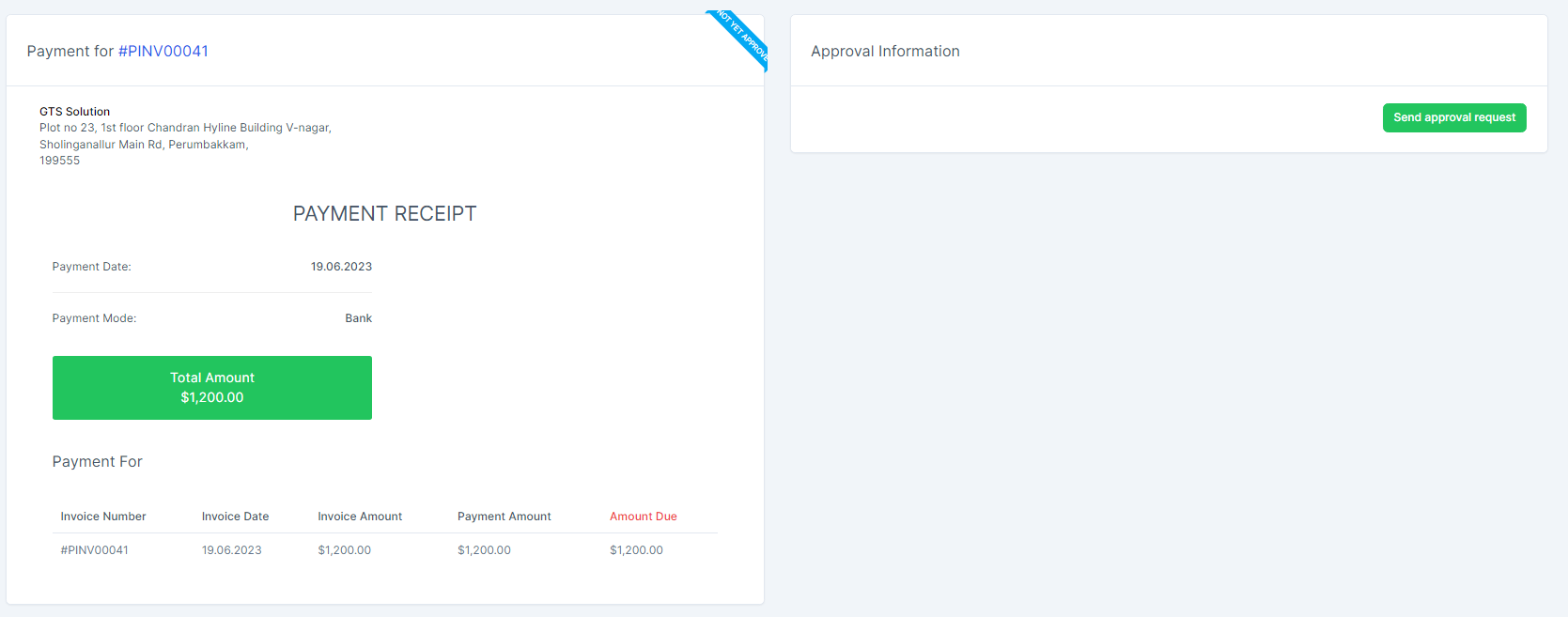
- In case the შესყიდვები order already has an invoice, when clicking Payment, the შესყიდვები invoice is automatically filled in for paymentნაბიჯი 1. Create approval process for Payment request ( if necessary) at approval setting.ნაბიჯი 2. Go to purchase order detail -> Select Payment Record tab -> click Payment button
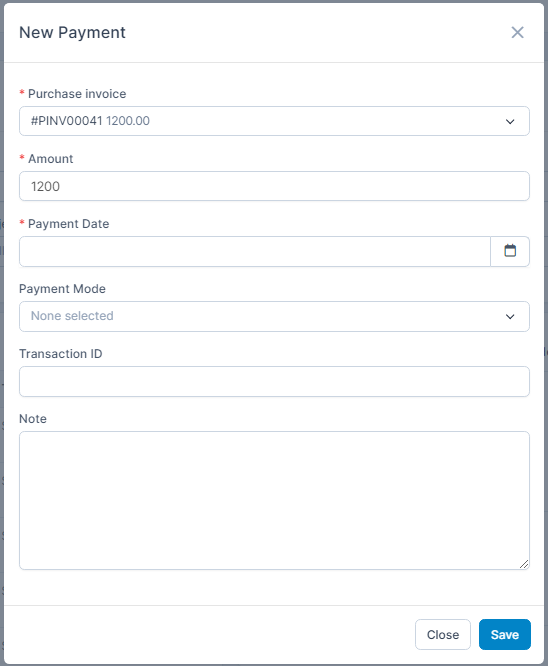
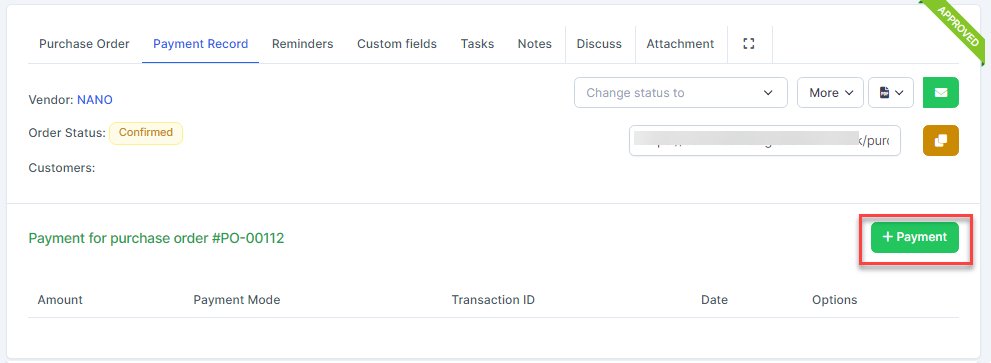 ნაბიჯი 3. Select purchase invoice, enter the amount, select Payment Date and Payment Mode -> then click შენახვა
 ნაბიჯი 4. Go to payment detail to check payment status
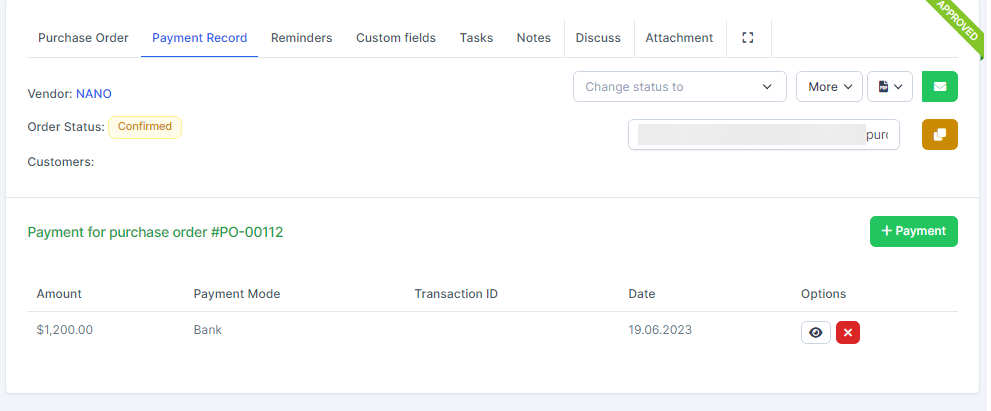 ნაბიჯი 5. Send approval request and proceed with the approval according to the established process.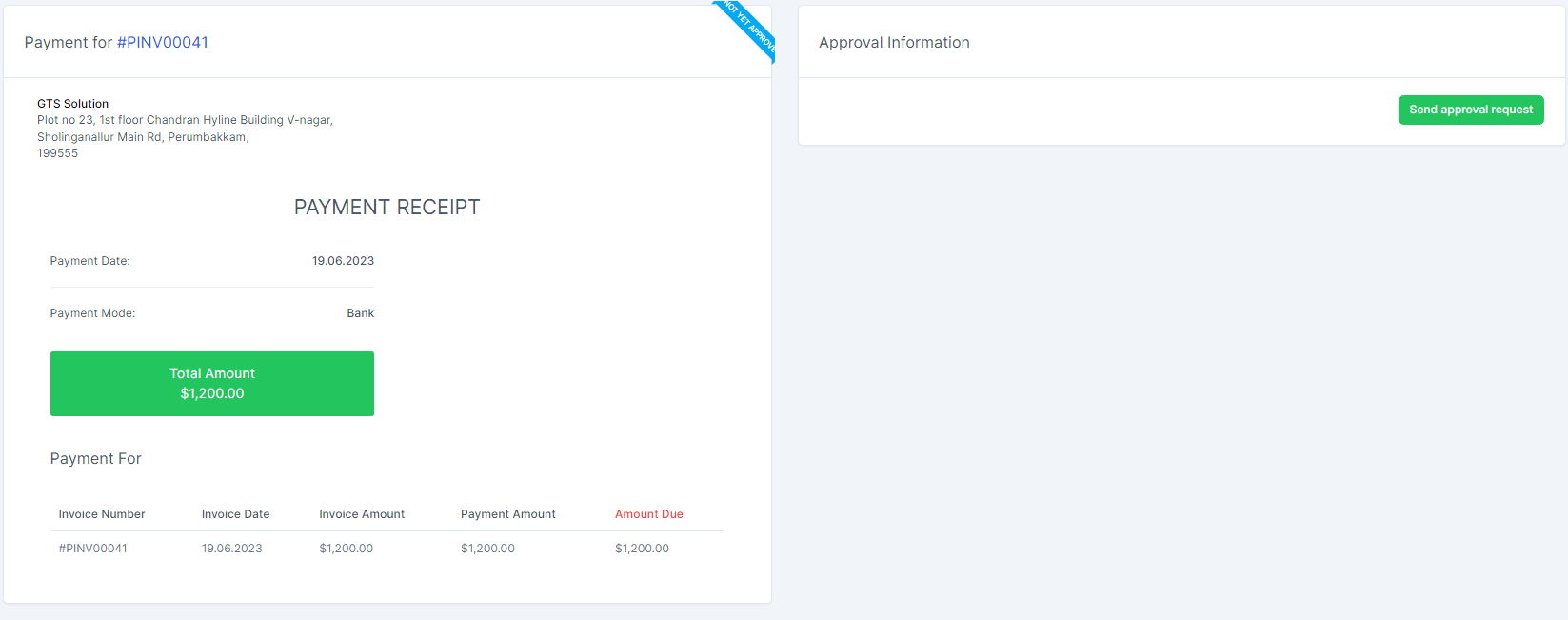
Reminders
Use to set reminders to not forget vendor -related issues.
Calendar reminders will be displayed in web notifications and sent to selected employees only
If there is a check option “Send also an email for this reminder”: the reminder is sent via email.ნაბიჯი 1. Go to Reminders tab -> click Set Estimate Reminder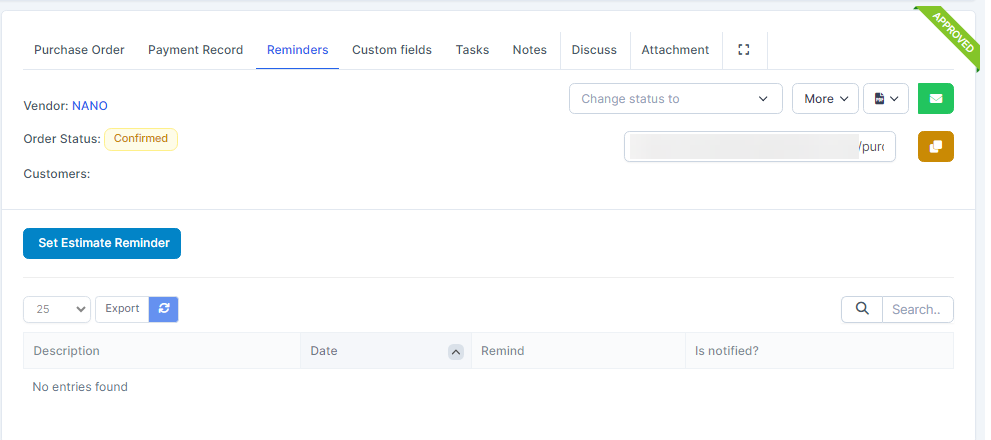 ნაბიჯი 2. Fill in required details and click შენახვა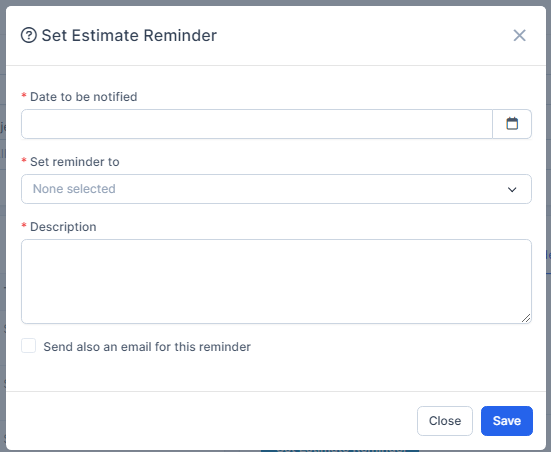
Task
Buyer creates tasks related to this შესყიდვები order. მომწოდებელი can't see these tasks.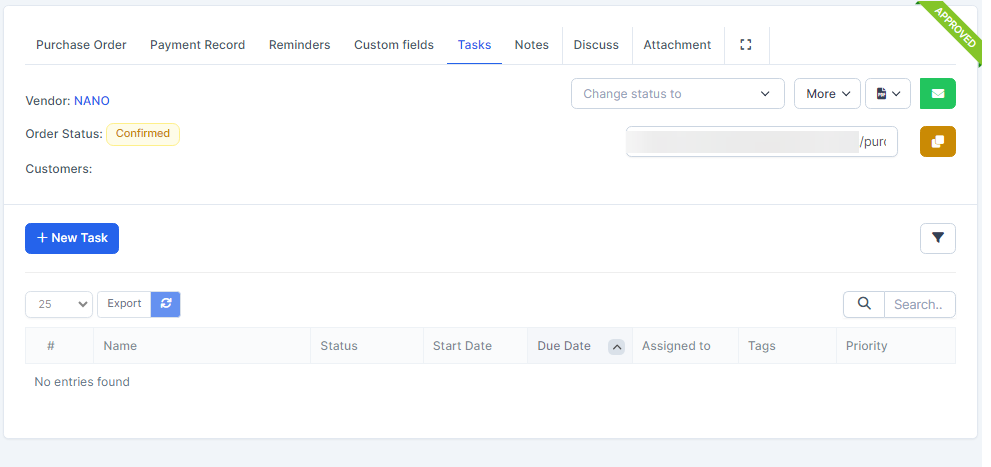
Discuss
To make the exchange between the buyer and the vendor more convenient, we use the Discuss tab for the buyer and the vendor to enter the content to be exchanged. Both buyers and vendors can see each other's comments. (შესყიდვები რიგითობა does not need to be approved, the vendor can still see it)
When admin or vendor sends a comment -> the message is sent to the other party.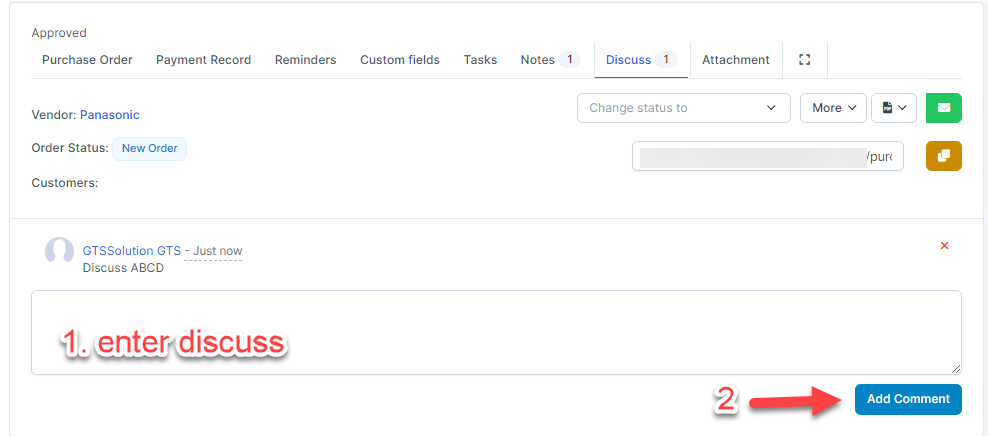
შენიშვნაs
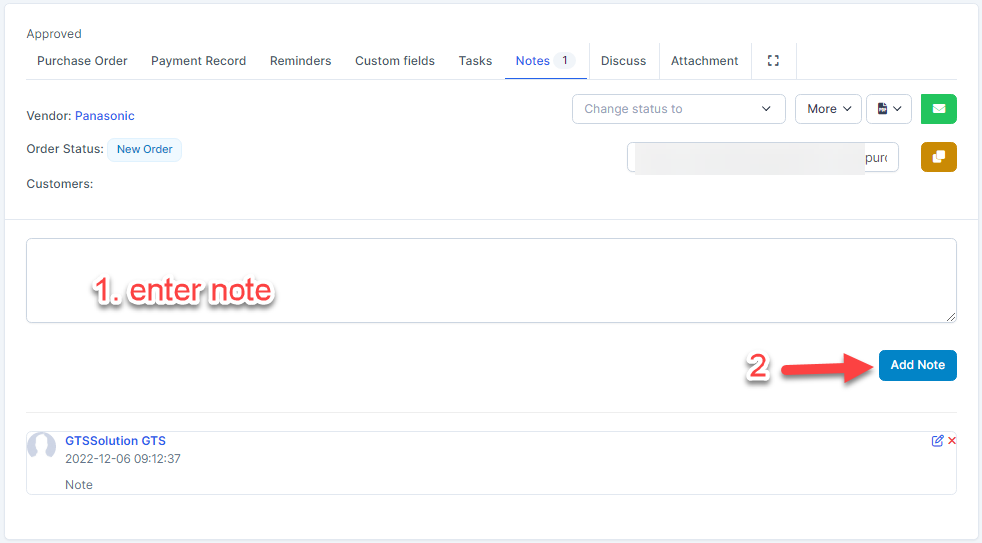
Buyer creates multiple notes related to this purchase order. მომწოდებელი can't see these notes
Allow editing, deleting note
Attachment
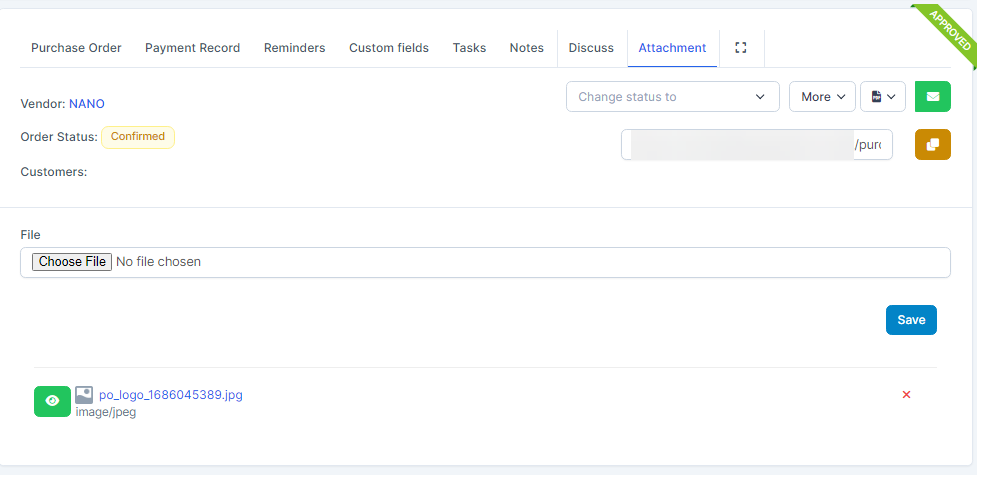
Used to attach files related to this purchase order. Both buyer and vendor can attach files and see all attached files for this purchase order