Quotations can be created in both admin portal and vendor portal.
You can create quotations from available items or approved purchase request.
Create Quotation
- ნაბიჯი 1. Create approval process for Quotation ( if necessary) at approval setting.
- ნაბიჯი 2. Go to Quotations menu under შესყიდვები module from the left sidebar -> Click New button
- ნაბიჯი 3. In the დამატება Quotations page, fill the following details:
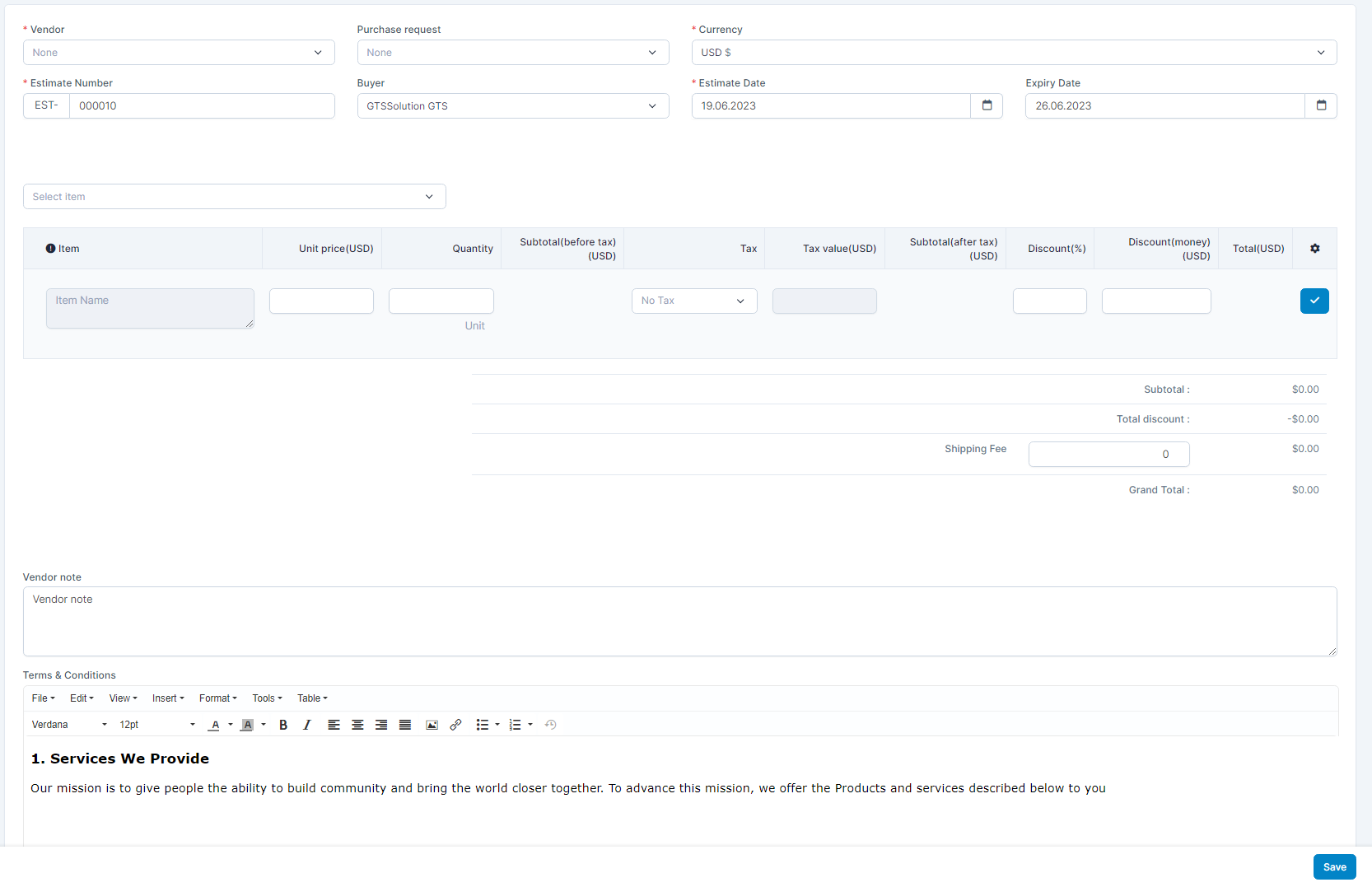 1. Select the მომწოდებელი2. Create quotation by selecting შესყიდვები request or available itemsSelect an item and click
  to add this item to quotation.
 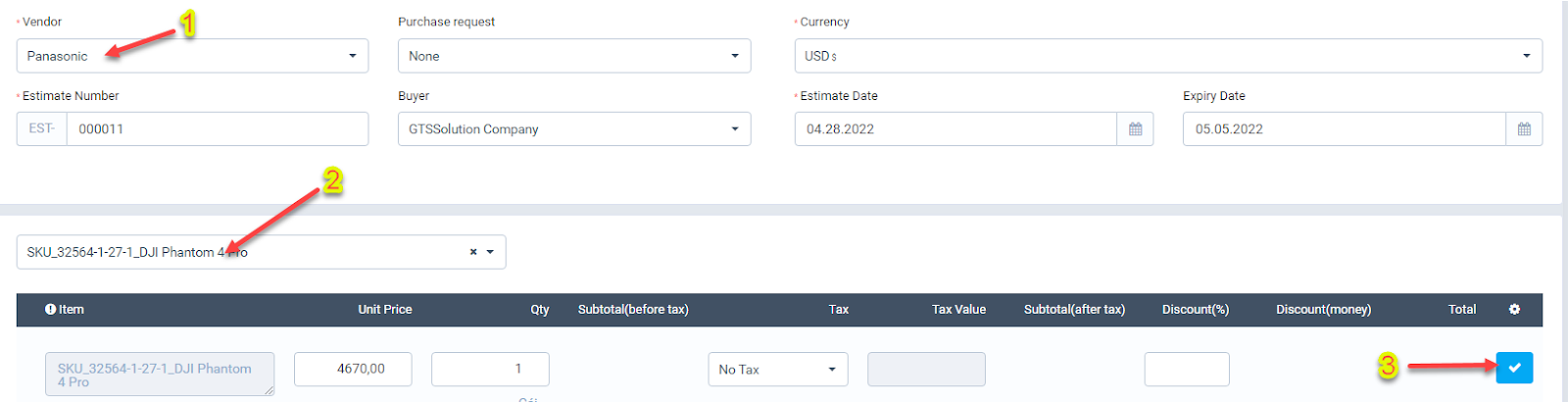 Click
Click  to remove this item from quotation.
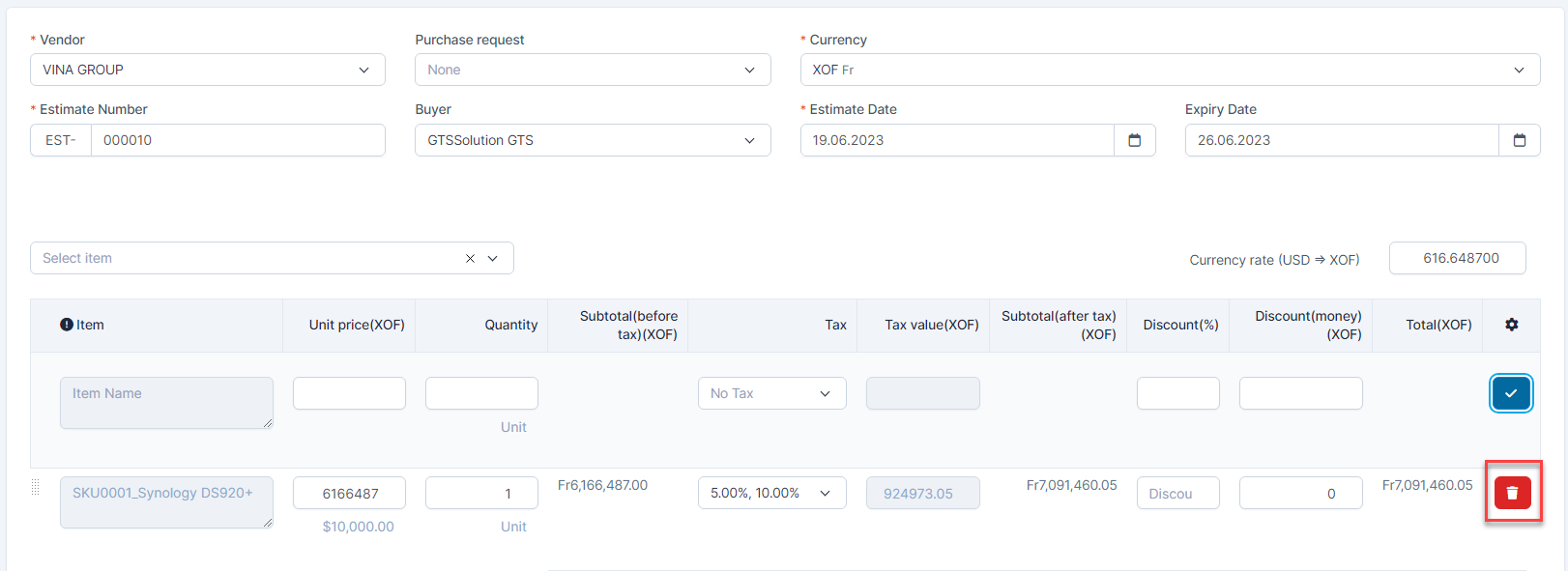 3. Select the Currency4. Select Buyer5. Select Estimate Date and Expiry Date
 - ნაბიჯი 4. Click შენახვა button ==> Quotation is successfully created and displayed in the corresponding vendor portal account
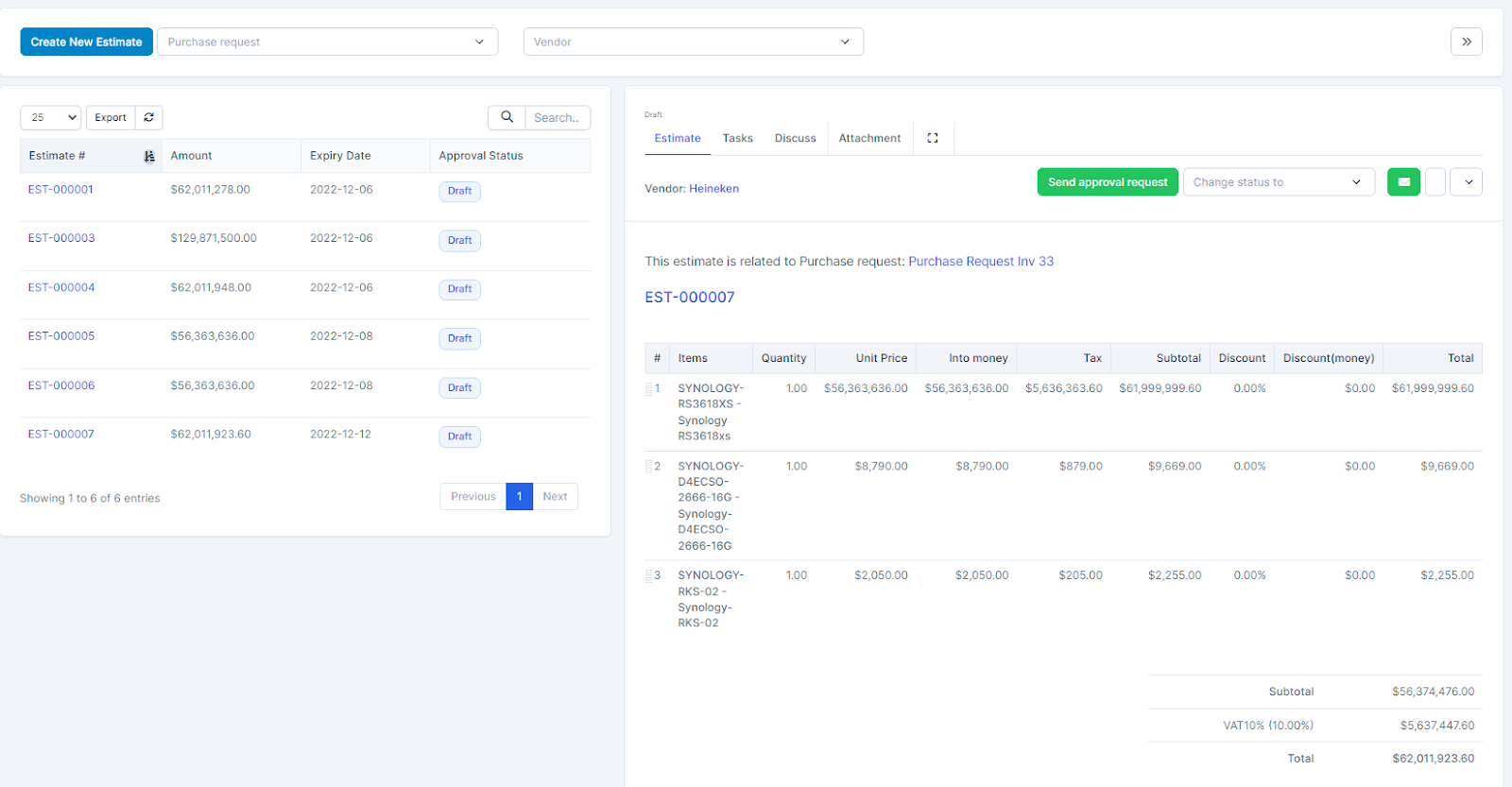
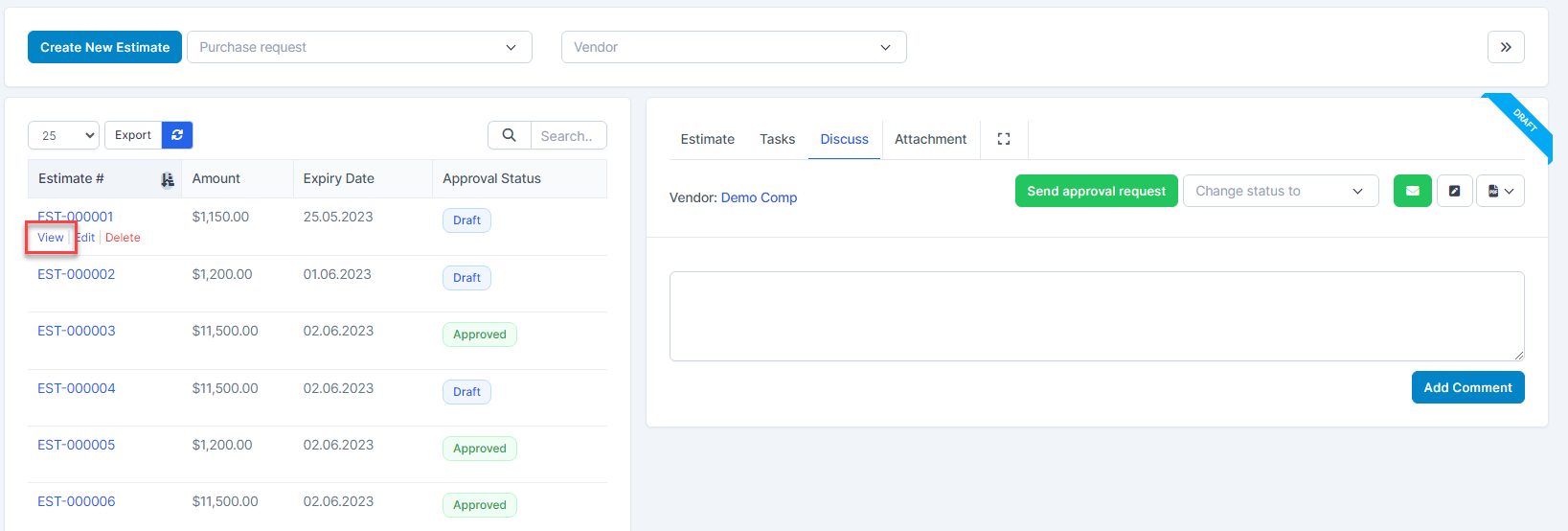
- ნაბიჯი 5. დამტკიცება quotation (if there is an approval process)1. Select Quotations as Draft -> Click View2. Click Send approval request ⇒ notify you to send approval request successfully. დამტკიცებაrs receive approval request notifications via email and web
 3. Log in to the approver account -> click on the notification requesting approval -> Click the დამტკიცება button -> enter the content in the Reason field (if any) -> select დამტკიცება or Deny.
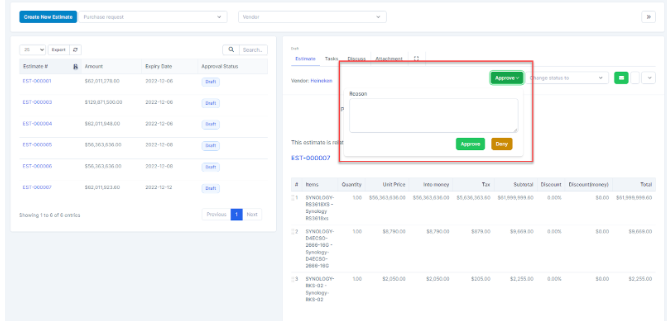 If you are an admin, you can update the status of quotation to approved or rejected.
დამატება comment in quotation
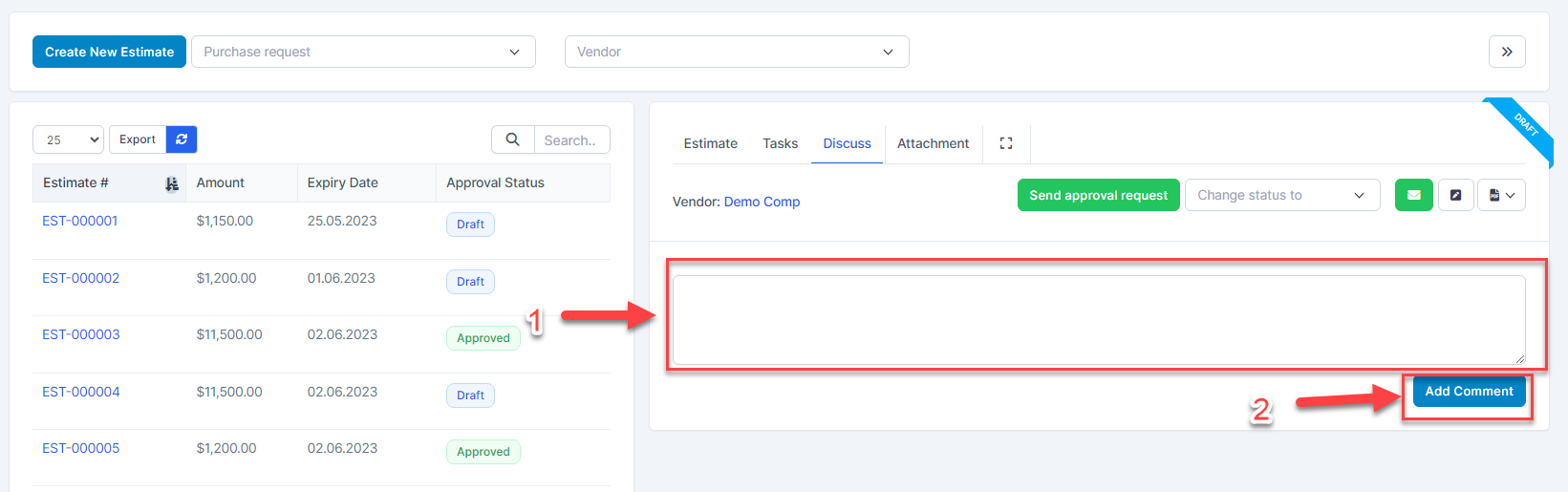
To make the exchange between the buyer and the vendor more convenient, you can use the Discuss tab for the buyer and the vendor to enter the content to be exchanged. Both buyers and vendors can see each other's comments.
When the admin or vendor sends a comment -> the message is sent to the other party.
- ნაბიჯი 1. Go to detail quotations -> select Discuss tab
- ნაბიჯი 2. Enter the content -> click დამატება Comment button.
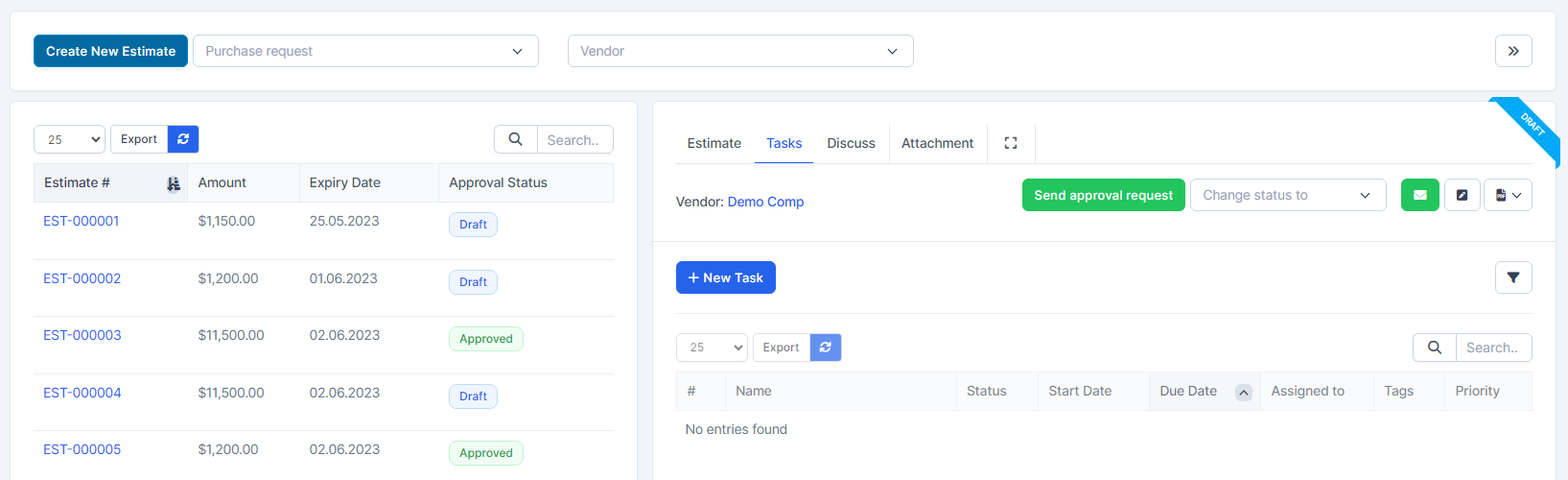
დამატება Task for quotation
This feature is only visible in the employee view. You can create some task for this quotation by clicking New Task button
დამატება Attachment
This feature is only visible in the employee view. You can attach the file related to this quote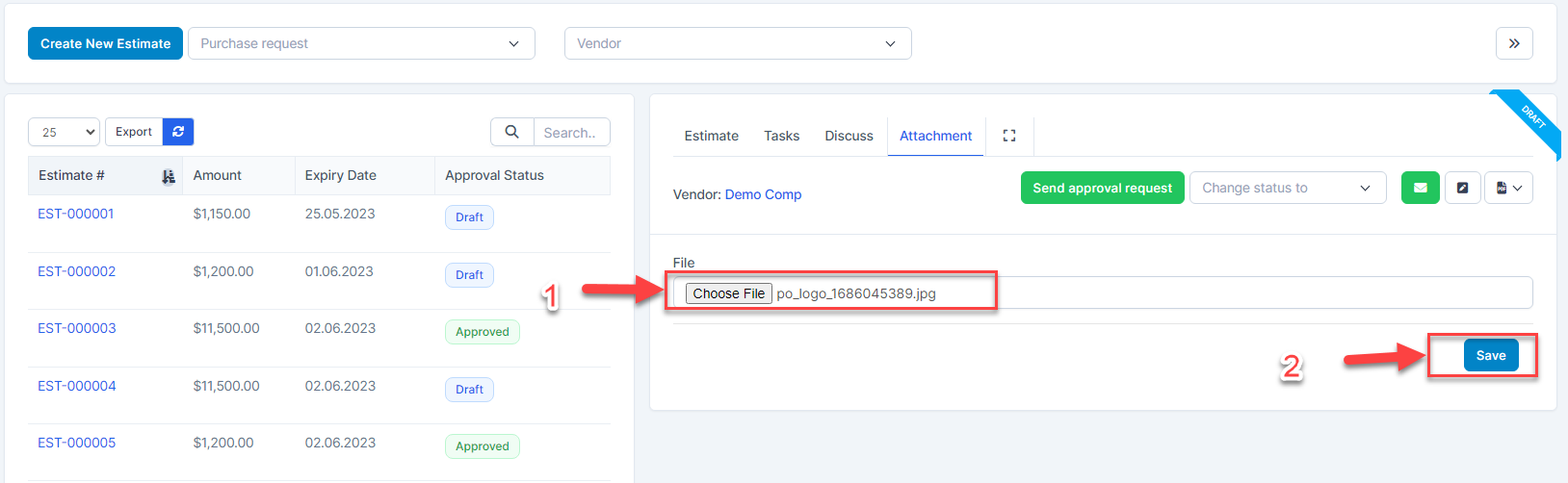
Send an email and attach quotation
ნაბიჯი 1. Go to Quotations detail -> click 
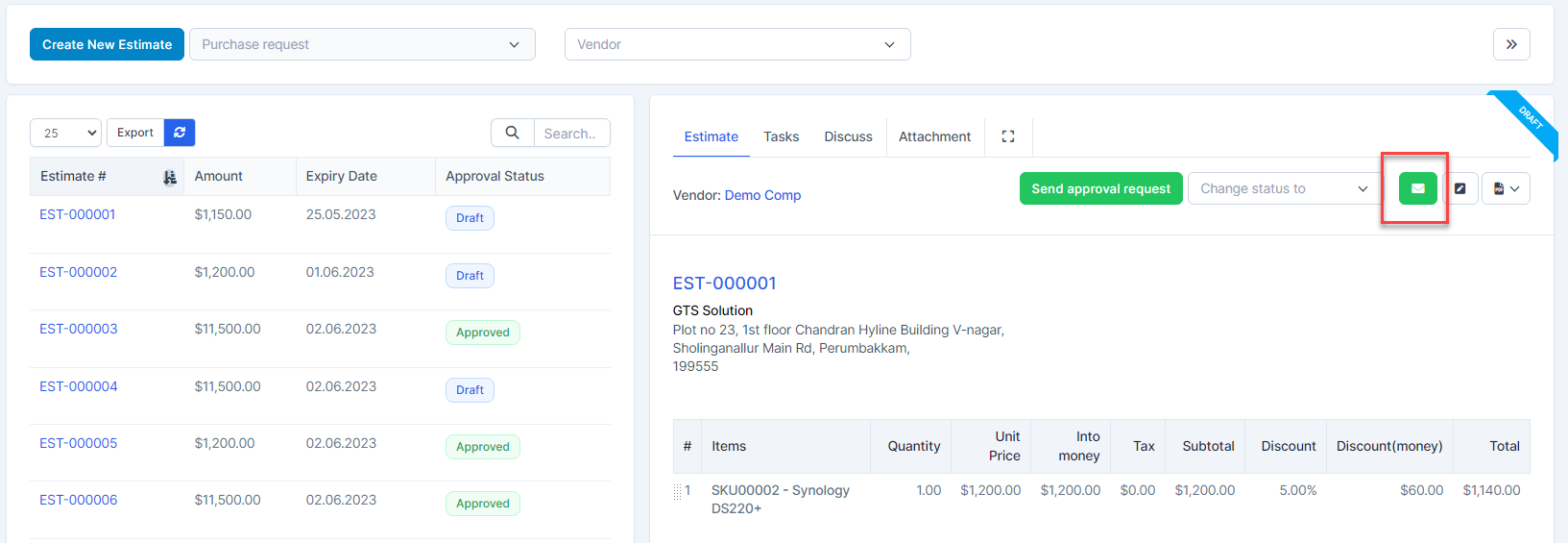
ნაბიჯი 2. In the Send a quote popup, fill the following details: 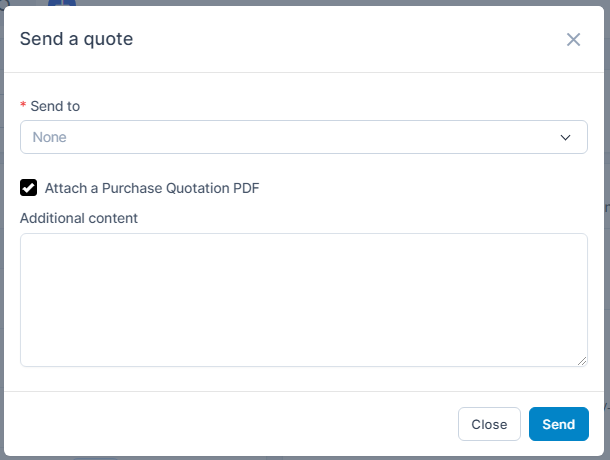
1. Select the contact 2. Check Attach a შესყიდვები Quotation PDF3. Enter the დამატებაitional content
ნაბიჯი 3. Click Send button