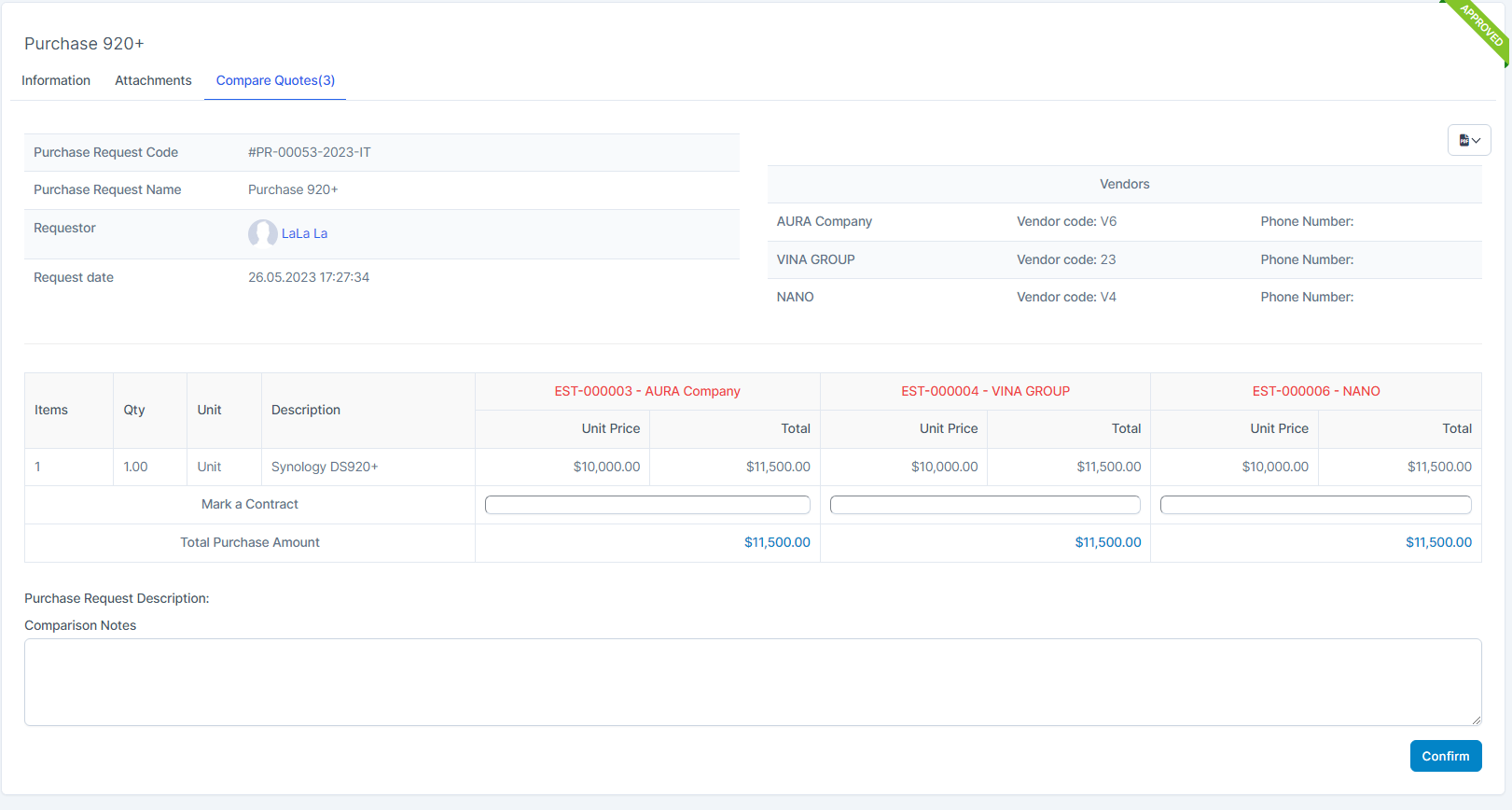
Used to create purchase request. After the purchase request has a status of დამტკიცებაd, it can be shared to the vendor.
In case the purchase request has a status of Draft or Rejected, the purchase request cannot be shared with the vendor
Create შესყიდვები Request
- ნაბიჯი 1. Create approval process for შესყიდვები request ( if nececessary) at approval setting.
- ნაბიჯი 2. Go to შესყიდვები request menu under შესყიდვები module from the left sidebar -> Click New button
- ნაბიჯი 3. In the დამატება new შესყიდვები request page, fill the following details:
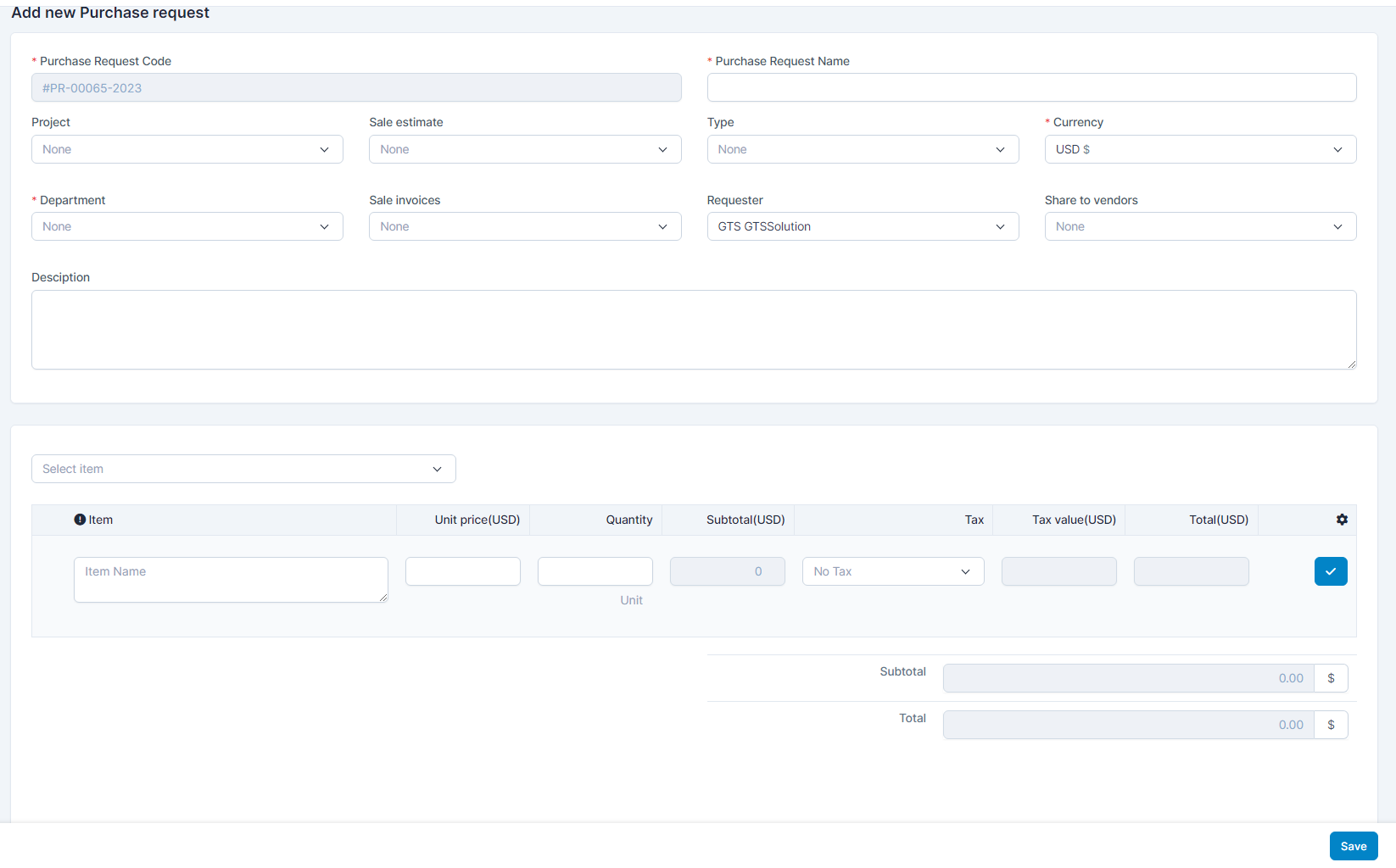 1. Enter the შესყიდვები Request სახელი.2. Select the Project.3. You can create a purchase request from Sales Estimate or Sale invoice and available items or enter arbitrary names for undefined items.Sale estimate: get estimates with states Draft , Send , Expired. Accepted (except Declined).Sale invoices: Get all invoices except the one with Draft and Cancelled status.4. Select the Currency.5. Select the Department.6. Select Requester.7. Select Share to vendor: After purchase request is selected დამტკიცებაd⇒ vendor can see this purchase request in their portal.8. Enter the აღწერა.
 - ნაბიჯი 4. Click შენახვა button
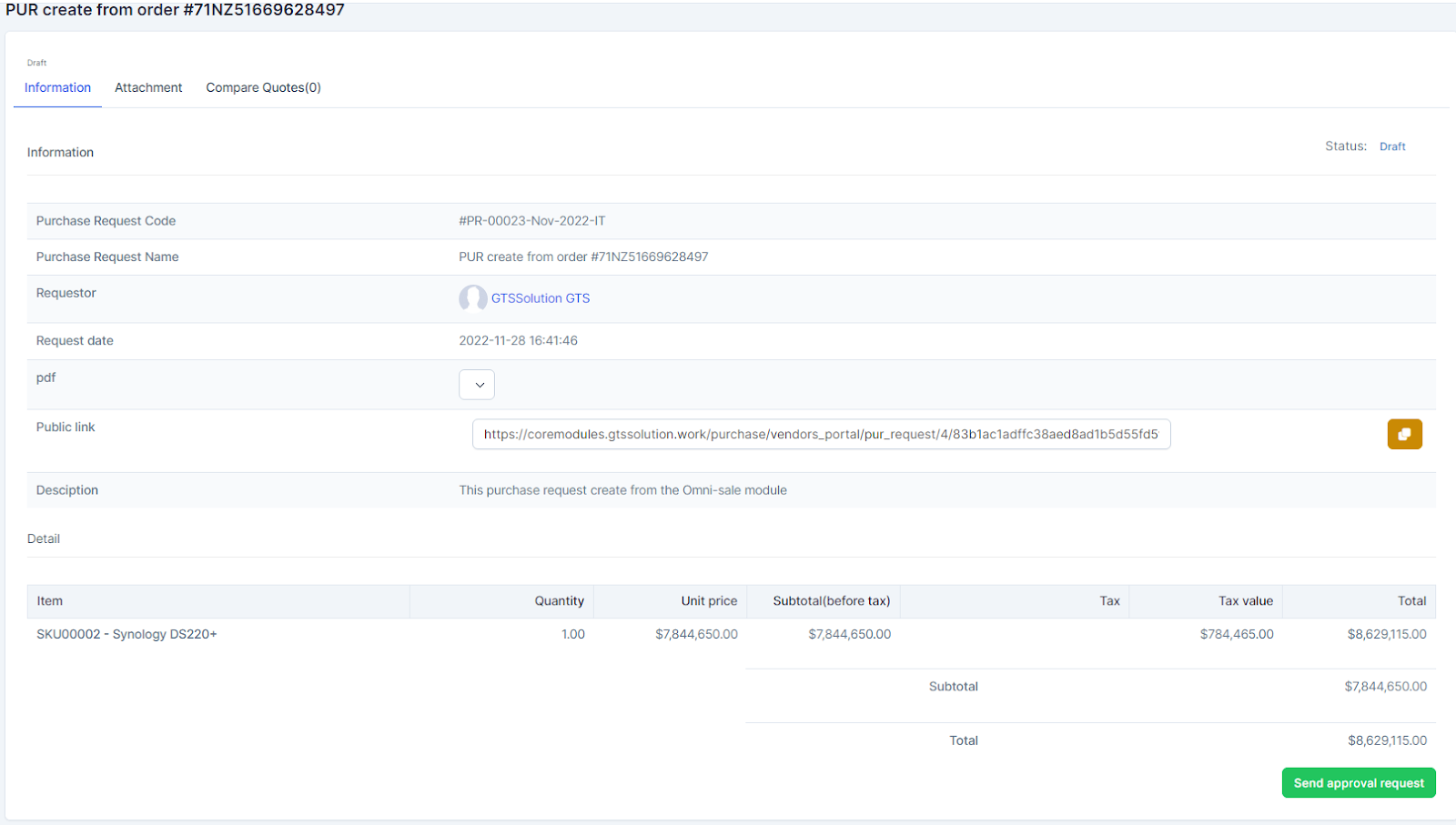
- ნაბიჯი 5. დამტკიცება purchase request (if there is an approval process)1. Select შესყიდვები request as Not yet approved -> Click View2. Click Send approval request ⇒ notify you to send approval request successfully. დამტკიცებაrs receive approval request notifications via email and web
 3. Log in to the approver account -> click on the notification requesting approval -> Click the დამტკიცება button -> enter the content in the Reason field (if any) -> select დამტკიცება or Deny. ⇒ successful approval notification ⇒ შესყიდვები Request creators get notified.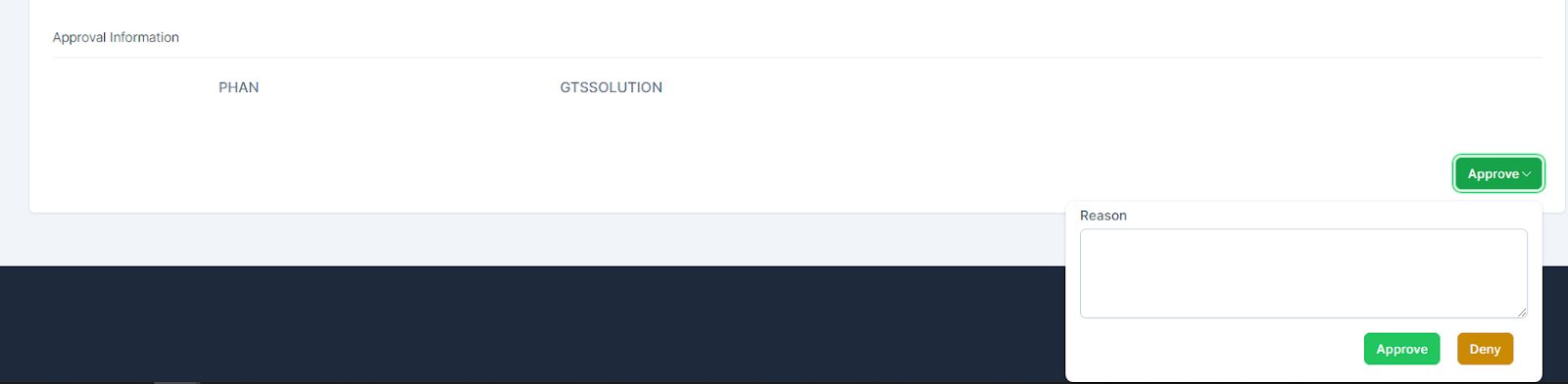
- ნაბიჯი 6. After purchase request status is დამტკიცებაd -> allow View PDF, Send Request Quotation email and Share PR to vendor
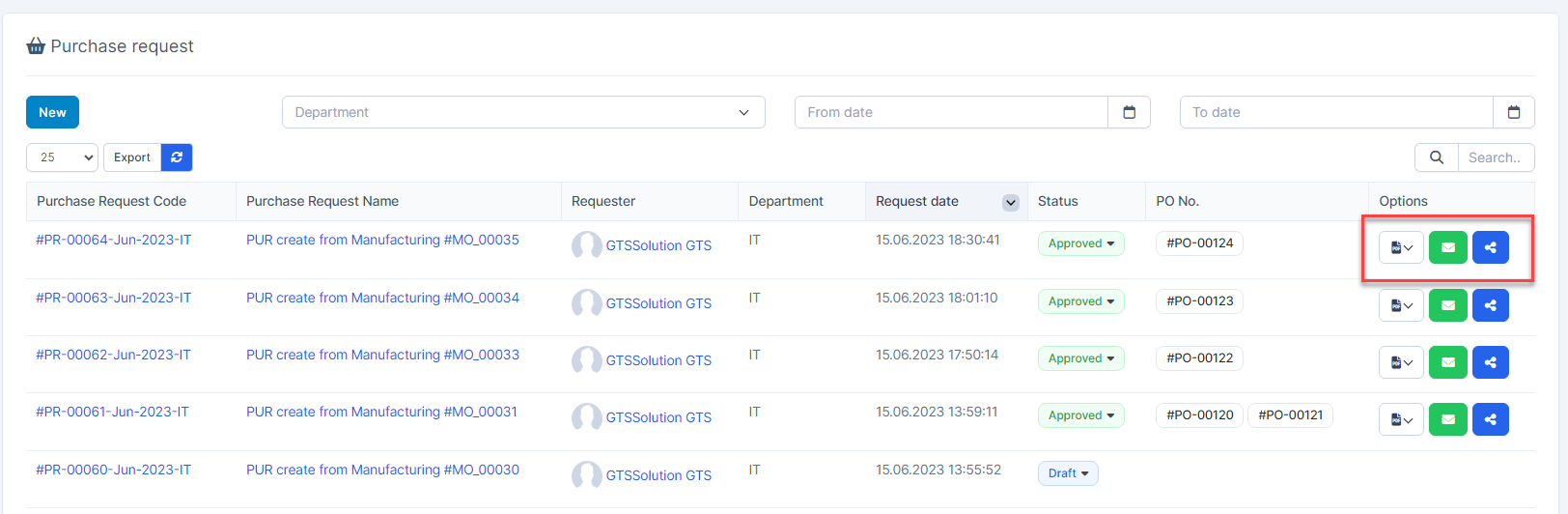
Send Request Quotation email
- ნაბიჯი 1. Select the approved შესყიდვები Request -> Click

- ნაბიჯი 2. In the Send a purchase request popup, fill the following details:
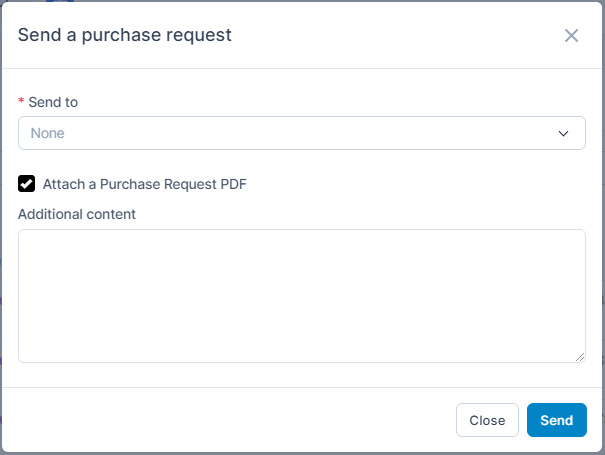 1. Select the contacts to send this purchase request2. Check/uncheck Attach a შესყიდვები Request PDF3. Enter the დამატებაitional content
 - Step 3. Click Send
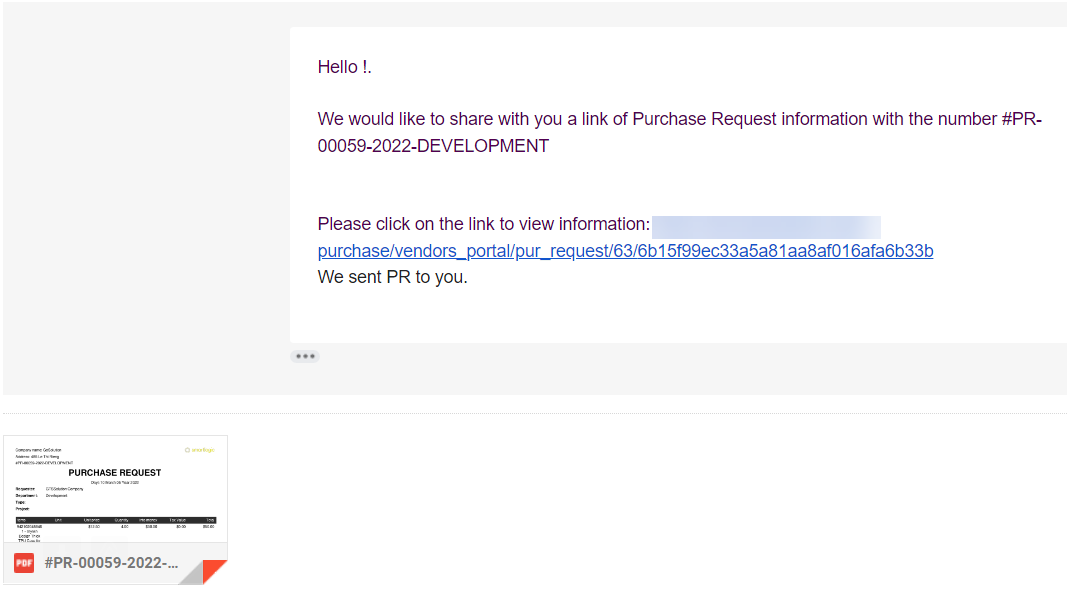
Share შესყიდვები Request to vendor
ნაბიჯი 1. Select the approved შესყიდვები Request -> Click 
ნაბიჯი 2. In the Share purchase requests to vendors, select the vendor and click Share button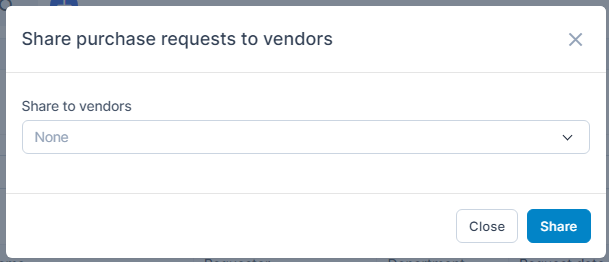
==> these vendor will see this შესყიდვები request in their portal.
შესყიდვები Request Detail
Contains შესყიდვები Request information and related quotations. 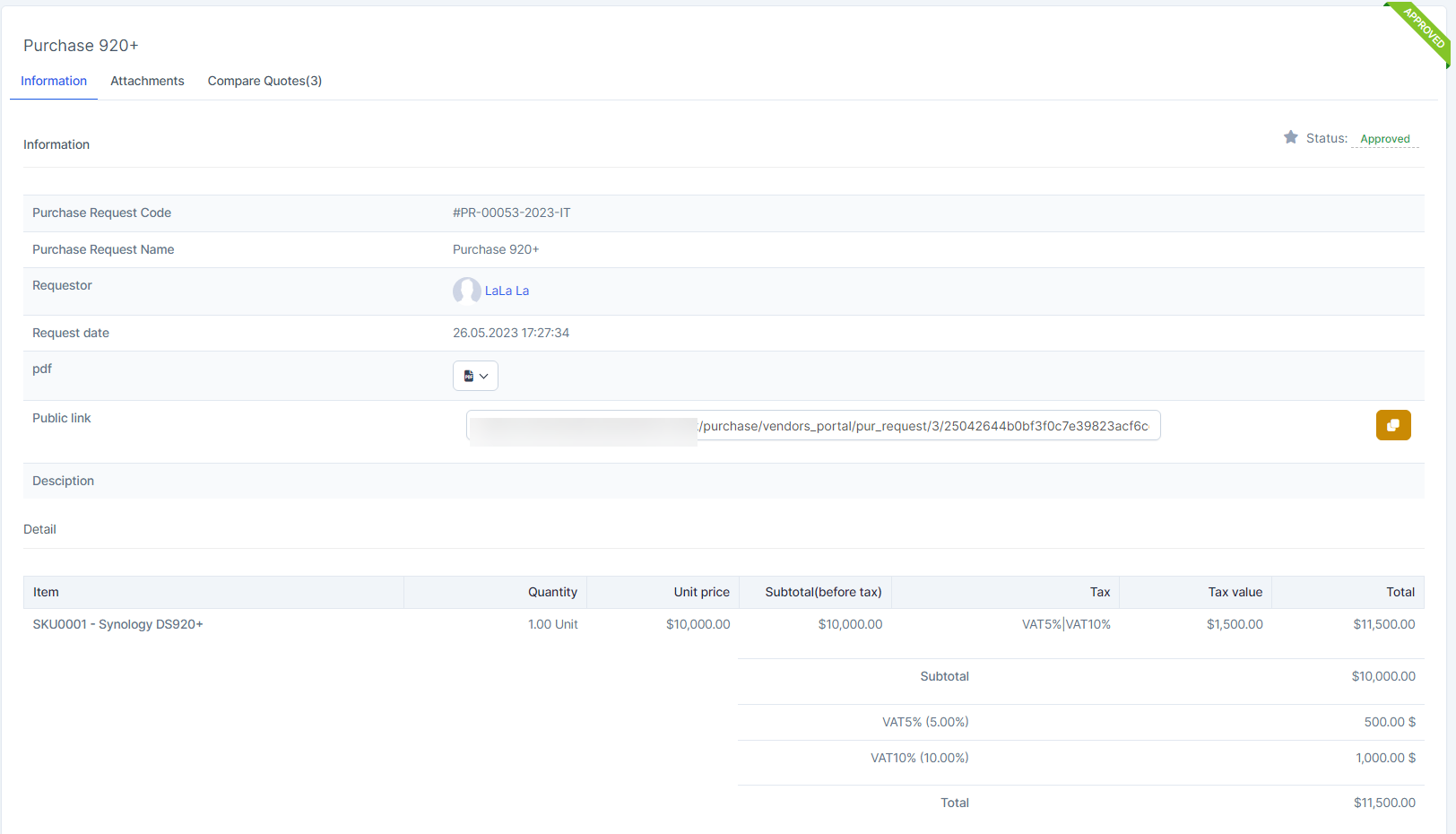
- ნაბიჯი 1. Go to შესყიდვები Request menu under შესყიდვები module from the left sidebar
- ნაბიჯი 2. Select a purchase request and click View
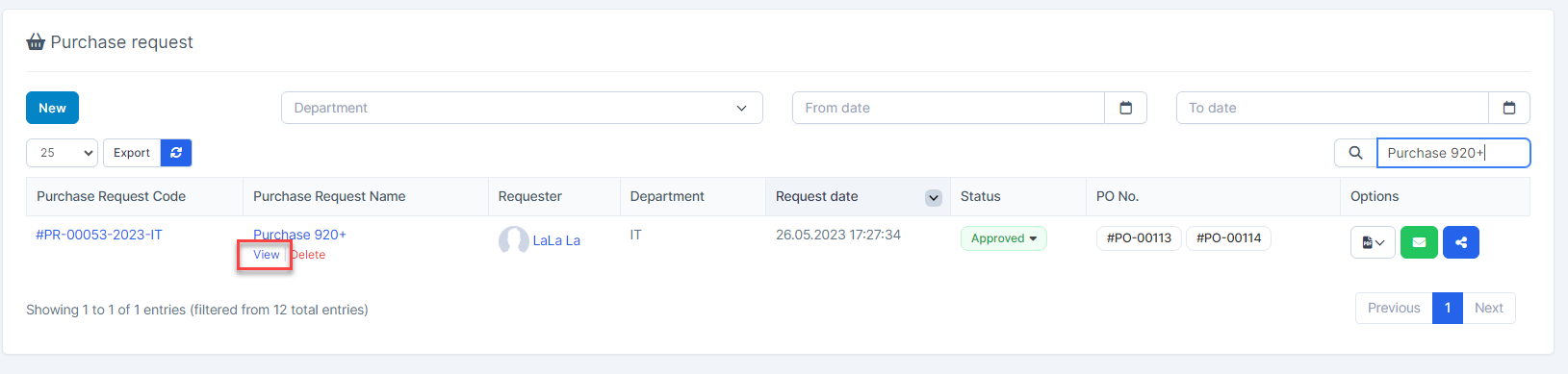 Compare Quotation: show all quotes created from purchase request. Used to compare quotation of vendors.